Purchase Programs
Purchase Programs track repeat qualifying purchases in a product category and issue a reward when a customer reaches the configured threshold. For example, a coffee offer can represent “buy nine, receive one.”
Create a program
Open Rewards → Programs and select Create Program. Configure the following before activating it:
| Setting | Purpose |
|---|---|
| Name, description, and category | Identify the campaign and the qualifying product category. |
| Threshold | Number of qualifying purchases required for a reward. |
| Reward value | Reward granted once the threshold is reached. |
| Minimum / maximum order amount | Optional order-value limits for qualifying purchases. |
| Validity dates and status | Schedule, pause, or retire the campaign. |
| Terms and conditions | Record the customer-facing conditions. |
| Priority | Determines precedence where program logic overlaps. |
Use a separate program for each category or campaign. Avoid changing an active program's threshold or reward mid-campaign, because it makes progress and reporting harder to interpret.
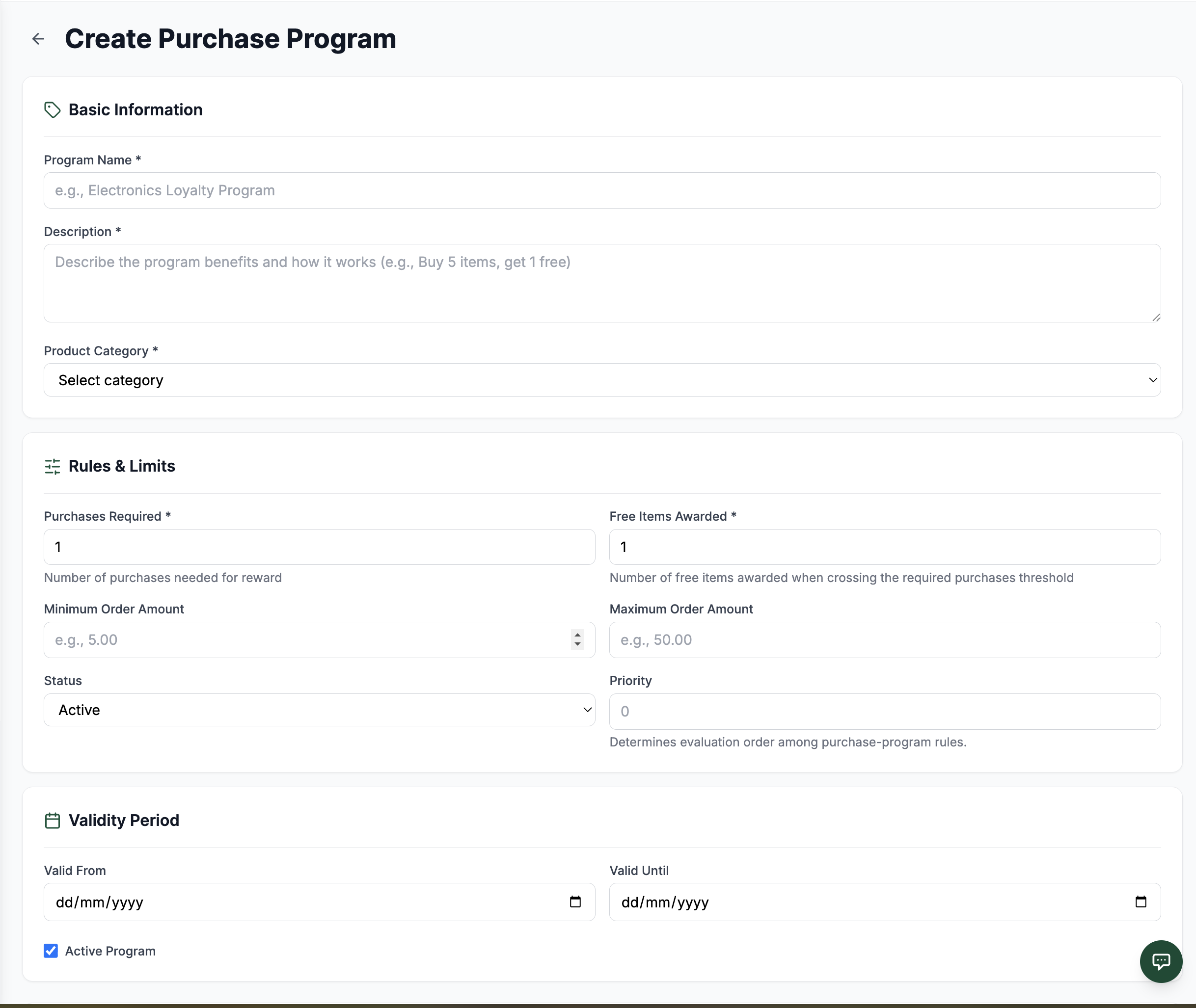 12345
12345Create a program by defining its qualifying category, purchase threshold, reward, limits, and active period.
عناصر الشاشة
Name the campaign and add an internal or customer-facing description.
Choose the category whose purchases qualify for this program.
Set how many qualifying purchases are required and what the customer receives.
Apply order-value limits, control availability, and set precedence for overlapping logic.
Schedule the program and mark it active when it is ready to run.
Customer progress and redemption
Customers are enrolled and their progress is updated when they make qualifying purchases. Program cards show participant and redemption totals; customer profiles can also show enrolled programs and progress.
When a customer has a purchase program running, staff open the membership card in the Bizaldo Tablet App to view the customer's progress across their purchase programs. Once a program reaches its threshold, a Claim free item option appears; claiming it sets that item's price to zero on the order and resets the program's progress. Purchase programs can't be redeemed from the Bizaldo Consumer App yet, but customers can see their progress there.
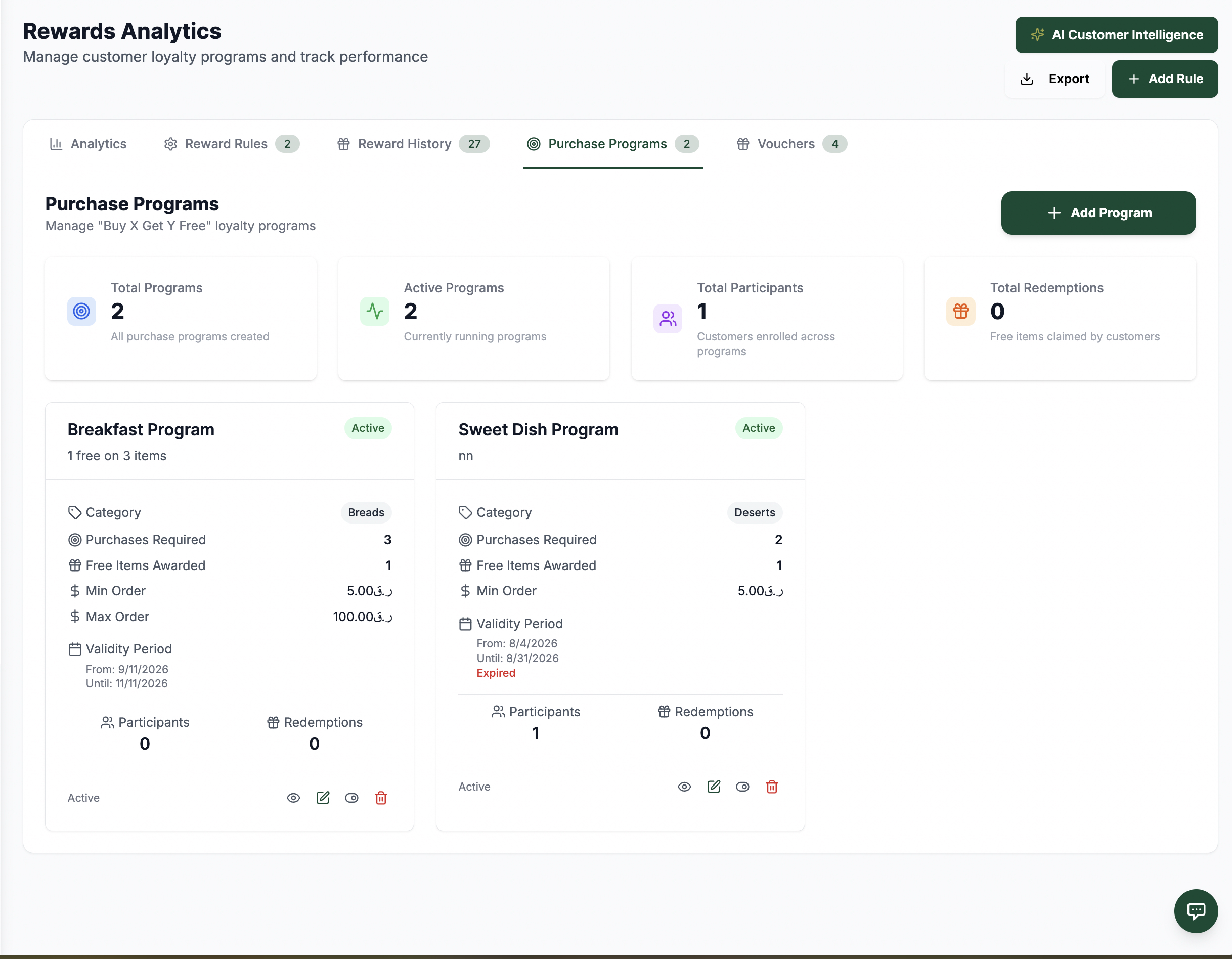 12345
12345Program cards provide an at-a-glance view of campaign configuration, participation, and redemptions.
عناصر الشاشة
Create a new repeat-purchase campaign.
Review total and active programs, participants, and redemptions.
Confirm whether a campaign is active before expecting purchases to qualify.
Check the category, required purchases, reward value, and order limits.
Track progress totals and open the available program actions.
Redeeming a purchase program reward
When a program reaches its threshold, staff open the customer's membership card on the Bizaldo Tablet App and redeem the earned reward against the current order.
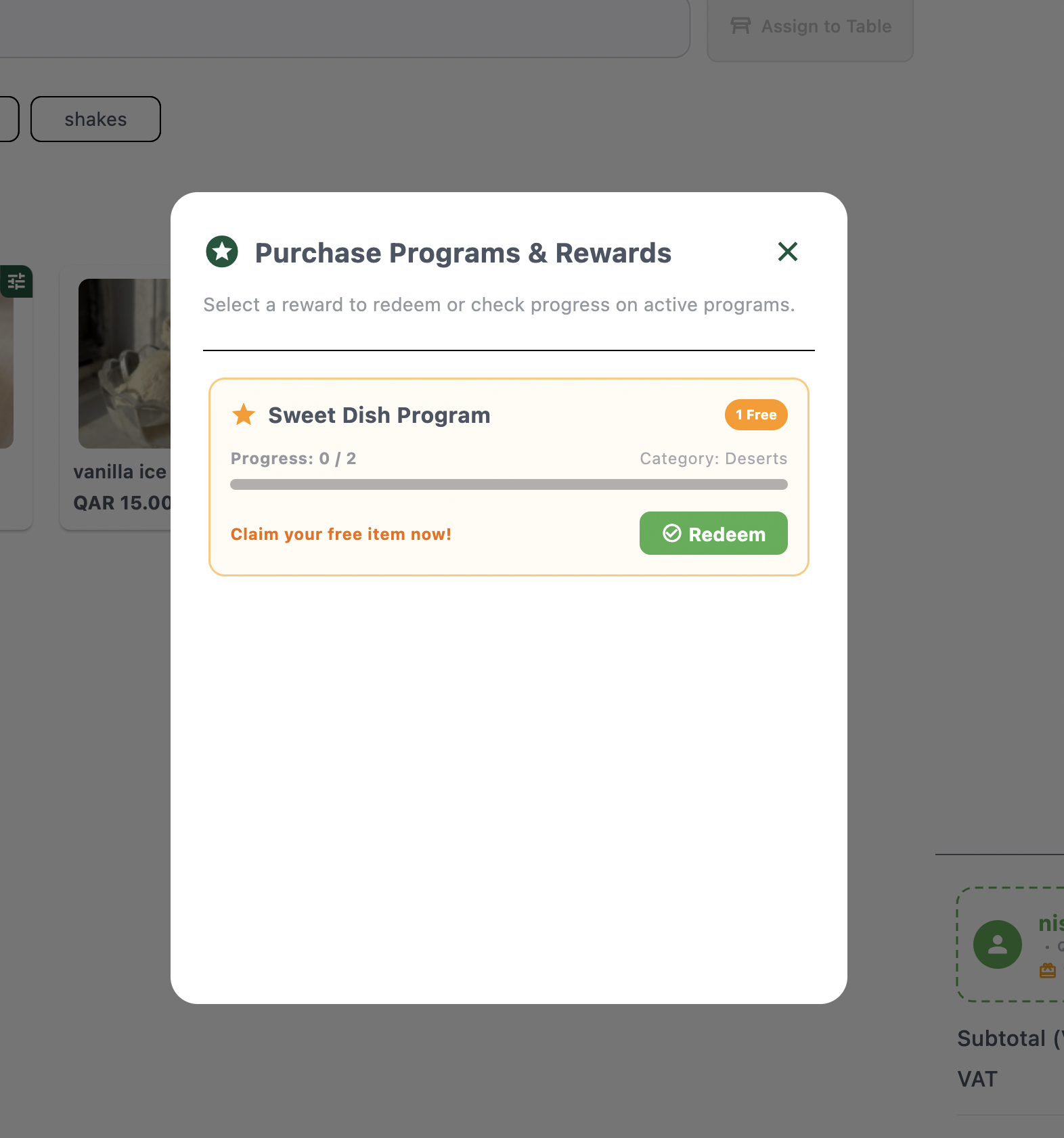 123
123Open from the customer's membership card to redeem an earned reward or check progress on active programs.
عناصر الشاشة
The 1 Free badge marks a reward that has reached its threshold and is ready to claim.
Track qualifying purchases toward the reward and the category they must fall in.
Apply the free item to the current order and reset the program's progress.
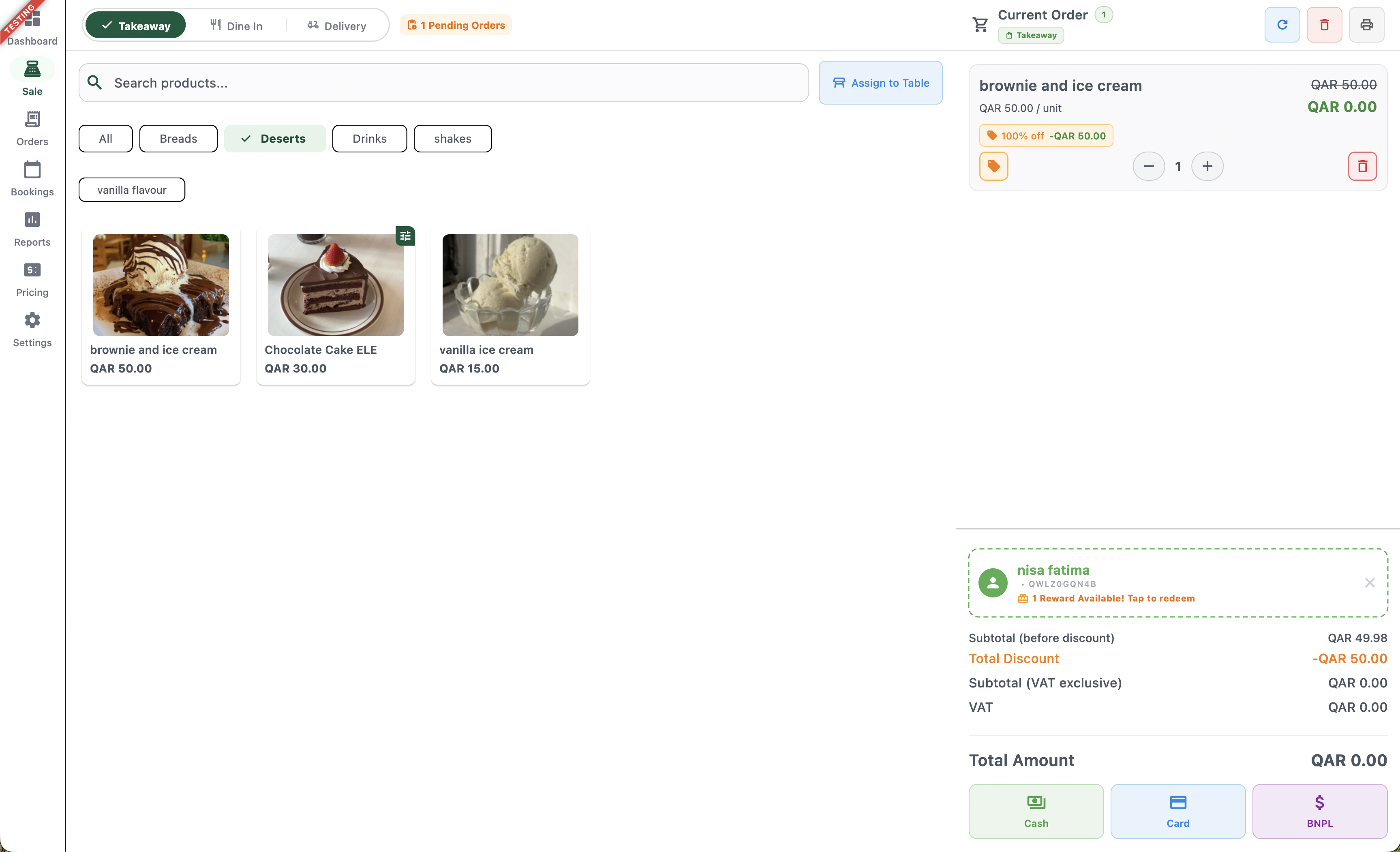 123
123The redeemed item is added to the order at 100% off, bringing its line total to zero.
عناصر الشاشة
Original price is struck through and tagged 100% off, with a unit total of QAR 0.00.
The attached customer card shows the available reward and a tap-to-redeem shortcut.
Total Discount offsets the subtotal so the Total Amount drops to QAR 0.00.
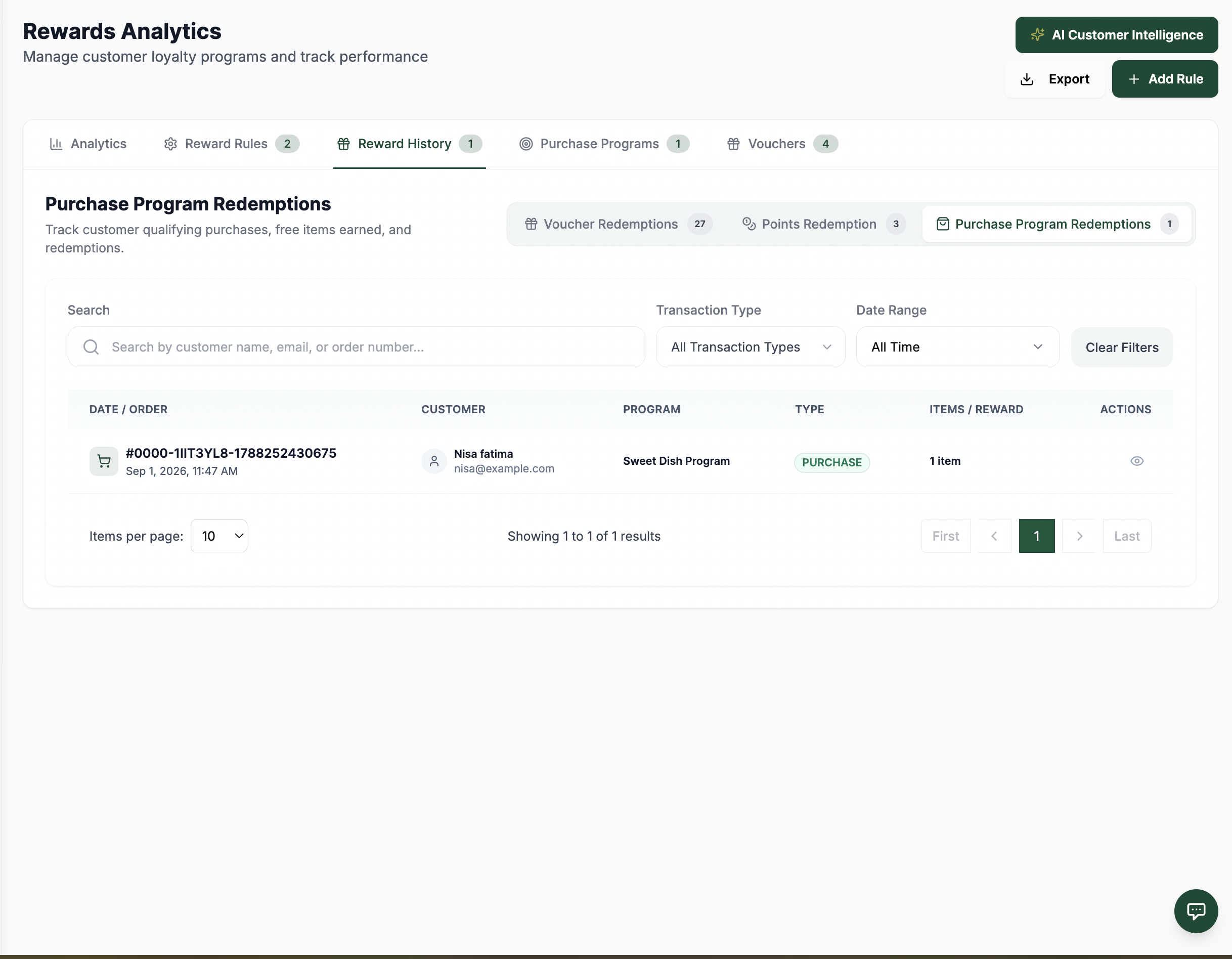
Program activity history
Open Rewards → History → Purchase Programs to audit the program ledger. It records:
- Purchase — a qualifying purchase was recorded.
- Redemption — a program reward was used.
- Reversal — a prior program activity was reversed.
Use customer/program search, activity-type filters, and date ranges to investigate a reward. Open the detail action to follow the associated customer or order. Dates use the selected company's timezone.
 12345
12345Use the purchase-program history to trace qualifying purchases, redemptions, and reversals.
عناصر الشاشة
Select this history view for program-related activity.
Find activity by customer, program, or related order.
Limit results to purchases, redemptions, or reversals.
Investigate the selected reporting period.
Open the action on a history row to trace the associated record.
Recommended operating routine
- Create a program in an inactive state and test it with a qualifying product.
- Confirm the customer's progress advances as expected.
- Test redemption end to end: scan a customer's phone then open the membership card on the Bizaldo Tablet App for a purchase program, purchase threshold number of items and then see if you get rewarded free item.
- Review the program history after the first purchase and redemption.
- Pause a finished campaign instead of deleting it, so its history stays available.
Related features
- Loyalty Points covers point rules and point-redemption audits.
- Rewards Analytics summarizes program performance.
- Customer Management covers customer profiles and loyalty details.