Loyalty Points
Use Rewards → Rules to configure how loyalty points are earned and redeemed for the selected company. Customers manage their rewards in the Bizaldo Consumer App, where they can arm an eligible reward (e.g. Arm 20 points to get 10% off) to apply it to their order; arming updates the order lines and total points balance, and commits the points on apply. They then scan their phone at the Bizaldo Tablet App to redeem it against the order.
Loyalty configuration and points history are company-specific. Select the correct company before creating rules or investigating a balance.
Create a points rule
Open Rewards → Rules, select Add Rule, enter a clear name and description, choose a type, set the value and priority, then save the rule as active when it is ready to use.
| Rule type | Configuration | Use |
|---|---|---|
| Points per dollar | Set the points awarded for qualifying spend. | A standard earn rate for eligible completed orders. |
| Bonus points | Set the bonus amount and a minimum order amount. | A promotion for orders above a spend threshold. |
| Discount percentage | Set the discount percentage and the points required. | A points reward a customer can arm in the Bizaldo Consumer App and redeem during tablet checkout. |
 12345
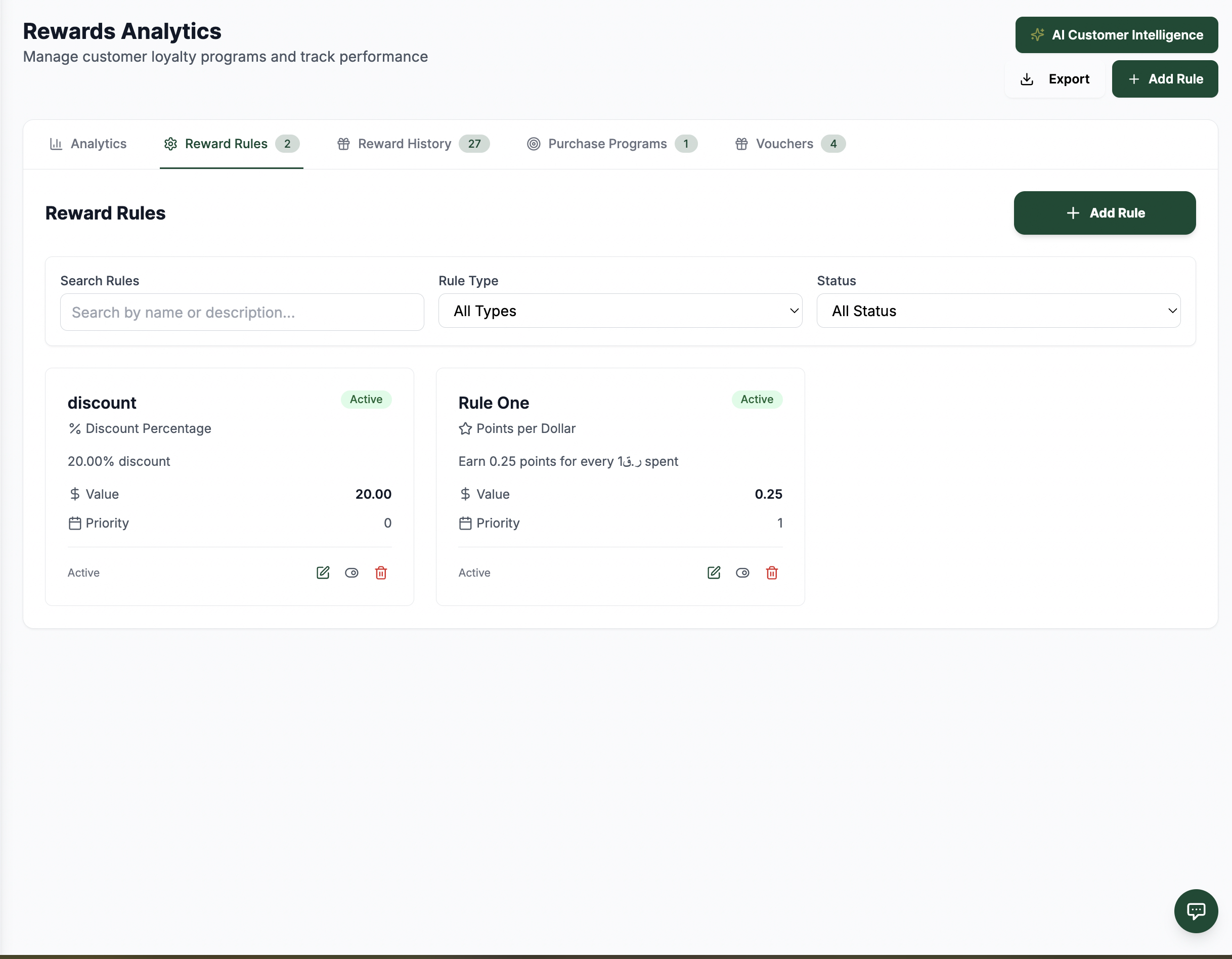
12345Use the Reward Rules view to add, find, filter, and maintain point rules.
عناصر الشاشة
Open this tab to manage the company's points rules.
Create a new point-earning or point-redemption rule.
Narrow the list by rule name, type, or active status.
Review the rule type, value, status, and priority before changing it.
Use these controls to edit, inspect, or remove an individual rule.
Priority and activation
Rules can be enabled or disabled without deleting them. When more than one active rule has the same type, the highest-priority rule of that type is applied. Same priority cannot be assigned to two same type rules.
Test a new rule with a small completed order before making a campaign live. Confirm the expected movement appears in the points audit.
 12345
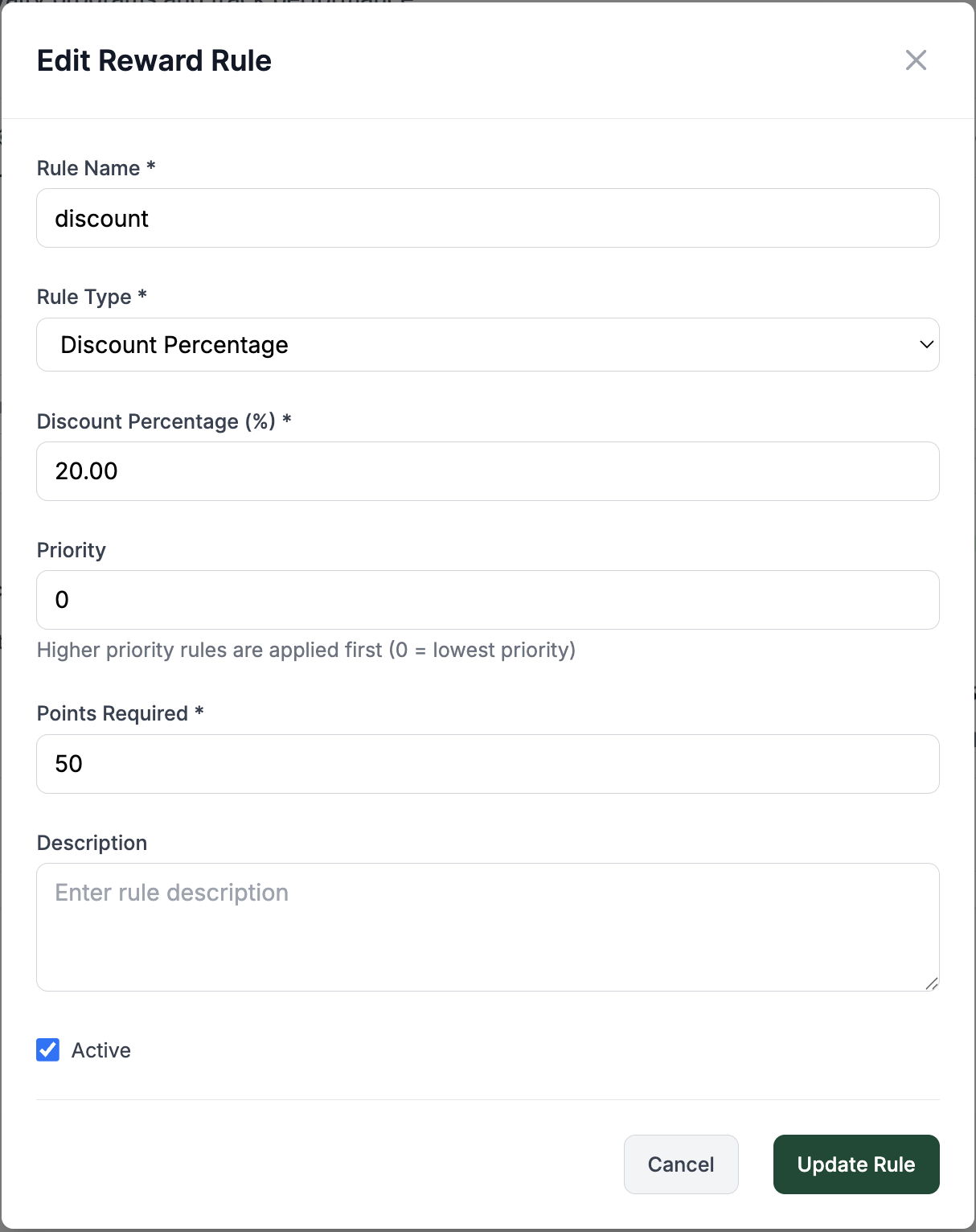
12345A redemption rule combines the reward value, point cost, priority, and active state.
عناصر الشاشة
Select whether this rule earns points, grants bonus points, or redeems points for a discount.
For a percentage discount, set the discount percentage here.
A higher number takes precedence when multiple active rules have the same type.
Set the number of points the customer must have to arm this reward.
Enable the rule when it is ready, then save the changes.
Customer redemption flow
- The customer opens the Bizaldo Consumer App and arms an eligible points reward.
- At payment on the Bizaldo Tablet App, the customer scans their phone.
- Bizaldo identifies the customer and validates the armed reward against their balance and the rule requirements.
- The discount is applied to the order and the redeemed points are recorded.
- The customer can view the result in the Consumer App; staff can review it in Rewards → History → Points.
If the customer has insufficient points or the reward is not eligible for the order, it cannot be redeemed. Staff should resolve balance questions from the points audit rather than manually changing a balance first.
Audit point activity
Open Rewards → History → Points to review the detailed point ledger. It records:
- Earned points from qualifying activity.
- Redeemed points used for a reward.
- Expired points.
- Bonus points from a promotion or reward rule.
Filter by customer or order, transaction type, source, and date range. Sources identify whether the movement came from an order transaction, purchase program, reward rule, manual adjustment, or promotion. Open the detail action on a row to investigate the associated customer or order. Dates use the selected company's timezone.
 12345
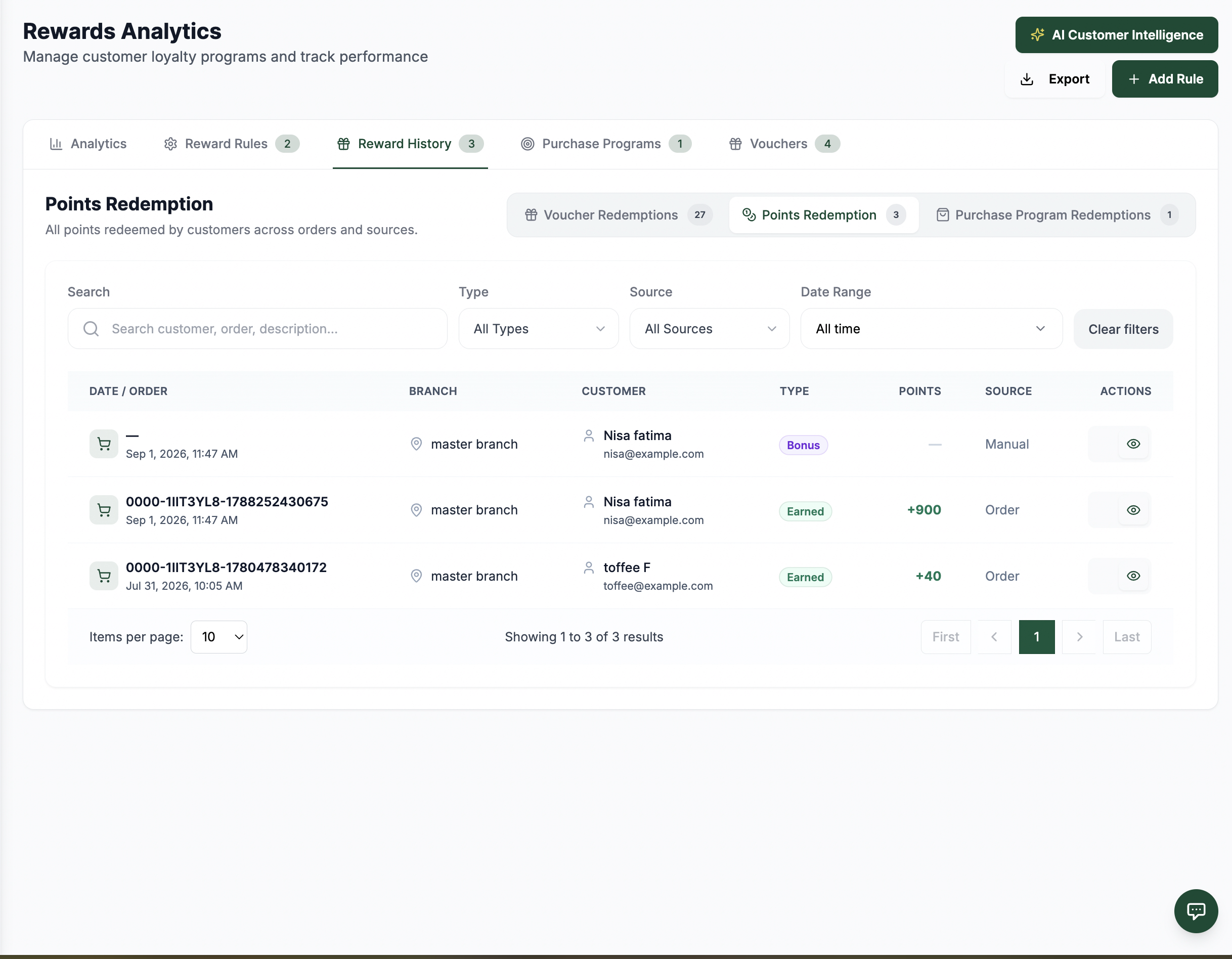
12345Filter the point history, then open a row to investigate the customer and order behind a movement.
عناصر الشاشة
Select this history view to investigate point-redemption activity.
Find activity by customer, order, or reference.
Filter movements by transaction type and where they originated.
Limit the audit to the period you need to review.
Use the row and its view action to inspect the linked order or customer record.
Recommended operating routine
- Create and test point rules while inactive.
- Confirm the customer can arm the intended reward in the Bizaldo Consumer App.
- Test scanning and redemption on the Bizaldo Tablet App with a small order.
- Review the points audit after the first live redemption.
- Pause or deactivate a campaign when it ends, retaining the audit history for reporting.
Related features
- Vouchers explains voucher-specific offers and redemption rules.
- Purchase Programs covers repeat-purchase rewards.
- Rewards Analytics explains the summary metrics and CSV export.