Order Management
Order Management allows you to track and manage the full lifecycle of every order — from creation to completion or cancellation. It connects the POS, kitchen, payments, delivery, and inventory in one system so you always know the status of each order.Where to find it: In the left sidebar, click Orders.
Order Types
Every order is created as one of three types:- Dine-in — Assigned to a table number on the selected branch's floor plan.
- Takeaway — Customer collects the order in person; no table is assigned.
-
Delivery — Order is dispatched to a customer address. Delivery orders capture:
- Customer address — Entered manually or pulled from the customer's saved address if they're an existing member
- Delivery fee — Added to the order total, configurable per branch or per zone
Order Lifecycle
Orders move through the following stages:Created → Pending → Confirmed → Preparing → Completed
↓
CancelledStatus Definitions
| Status | What It Means | Inventory | Kitchen |
|---|---|---|---|
| Created | Order entered but not confirmed | No change | Not sent |
| Pending | Waiting for payment or confirmation | Reserved | Not sent |
| Confirmed | Payment received or approved | Deducted | Sent to kitchen |
| Preparing | Kitchen is working on it | Already deducted | Active on display |
| Completed | Served or delivered | Already deducted | Marked done |
| Cancelled | Order voided | Restored | Removed |
Standard Order Flow
Created → Confirmed → Preparing → CompletedPay Later Flow
Created → Pending → Confirmed → Preparing → CompletedPayment Methods
When an order is confirmed, payment is collected using one of the supported methods:- Cash — Recorded immediately as paid, with change due calculated automatically.
- Card — Processed through the connected card terminal/payment integration.
- BNPL (Buy Now, Pay Later) — The order is marked as paid at checkout through the BNPL provider, while the customer settles the amount later according to the provider's terms. The order proceeds to the kitchen normally, since payment is guaranteed by the BNPL provider at the point of sale.
Customer & Membership Lookup
Every order can be linked to a customer, either an existing one or a new one created on the spot:- Scan to identify — If the customer is a Bizaldo Consumer App loyalty member, scanning their QR code at the Bizaldo tablet automatically pulls their profile (name, phone number, and saved address) into the order.
- Manual lookup by phone number — Staff can type the customer's phone number directly into the order. If a matching customer already exists, their details auto-fill into the order. If no match is found, a new customer profile is created automatically using that number, so every order is tied to a customer record without extra steps.
- Guest orders — Orders can also be completed without attaching a customer profile, for walk-ins who don't want to be identified.
Orders Page Overview
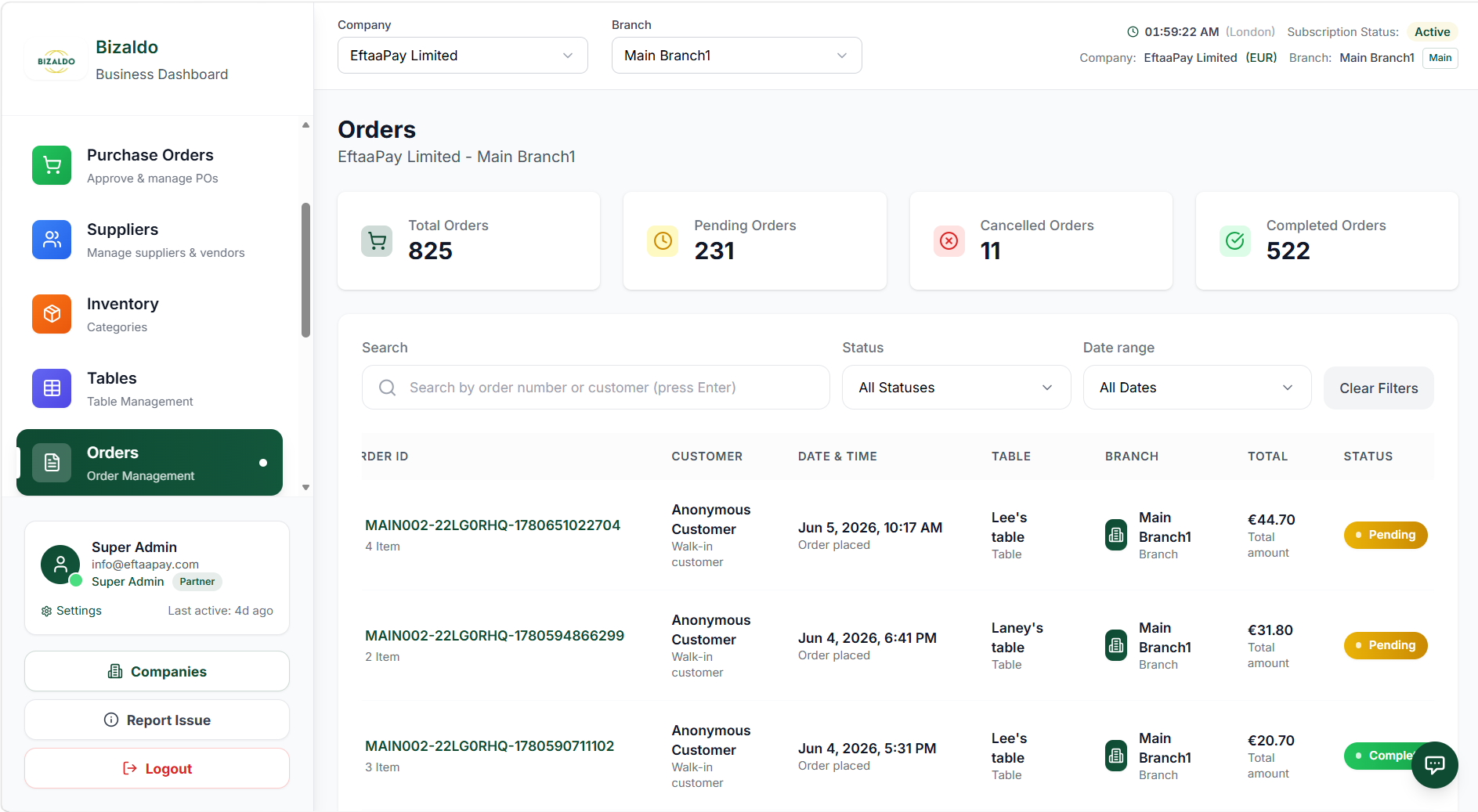
The Orders page shows all customer orders for the selected branch. It allows you to:- Search orders
- Filter by status
- Filter by date
- Open order details
- Monitor totals and performance
Viewing Orders
 12345678
Main orders page showing all customer orders
Screen Elements
Total count of all orders.
Orders waiting for action.
Voided orders.
Successfully finished orders.
Search by order number or customer.
Show only selected status.
Filter by time period.
Reset all filters.
- Total Orders – Total count of all orders
- Pending Orders – Orders waiting for action
- Cancelled Orders – Voided orders
- Completed Orders – Successfully finished orders
Filters:
- Search bar – Search by order number or customer
- Status filter – Show only selected status
- Date range filter – Filter by time period
- Clear Filters – Reset all filters
Order Details Page
The Order Details page shows complete information about a specific order.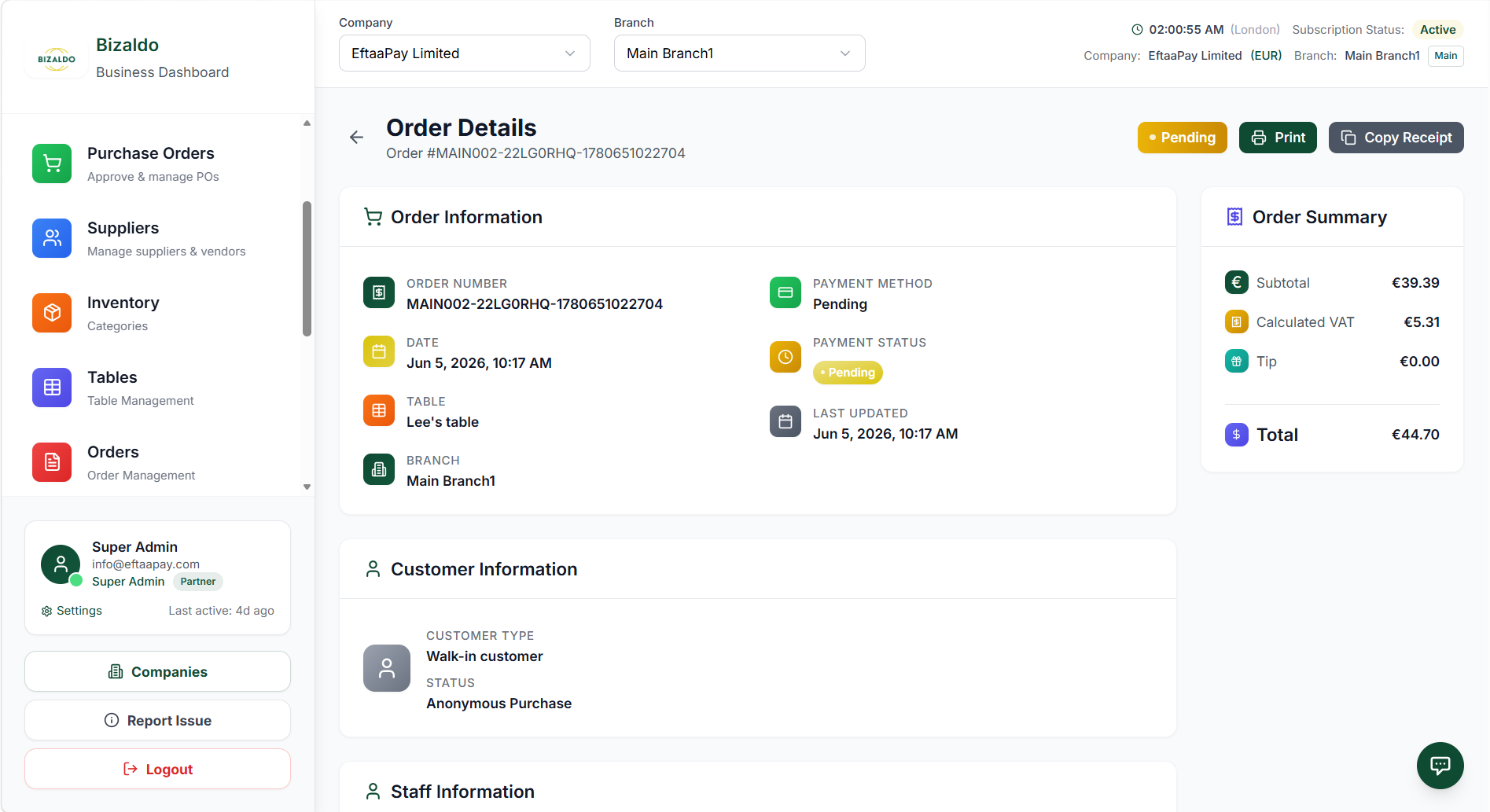 12345678910
Detailed view of a single order
Screen Elements
Unique identifier for this order.
When the order was created.
Table number for dine-in orders, or the delivery address for delivery orders.
Branch location.
Cash, Card, or BNPL — how payment was made.
Shows if payment is complete or pending.
Total before tax and tip.
Tax amount.
Tip amount if applicable.
Final amount including tax and tip.
Order Information:
- Order number
- Date and time
- Order type (Dine-in, Takeaway, or Delivery)
- Table (for dine-in) or delivery address (for delivery)
- Branch
- Customer (if linked, via QR scan or phone lookup)
- Payment method (Cash, Card, or BNPL)
- Payment status
- Last updated time
Order Summary:
- Subtotal
- VAT
- Tip
- Total amount
Actions:
- Print receipt
- Copy receipt
Before marking an order complete, verify:
- Items are correct
- Payment status is confirmed
- Modifiers are accurate
- Special instructions are handled
- For delivery orders, the delivery status is updated to Delivered
Receipt Printing
Every order generates a receipt that can be printed or shared at any point after creation:- Print receipt — Sends the receipt directly to the connected receipt printer at the branch. Available from the Order Details page and right at the POS Terminal once an order is confirmed.
- Copy receipt — Reprints or duplicates a receipt for an order that was already completed (e.g., if the customer asks for another copy, or for internal record-keeping).
- Receipt contents — Order number, date/time, branch, item breakdown (name, quantity, unit price, VAT, discount, total per item), subtotal, VAT, tip, total, and payment method.
- Delivery & takeaway receipts can also include the customer's name/phone number and delivery address where applicable.
Order Items
Each order lists individual items with pricing details.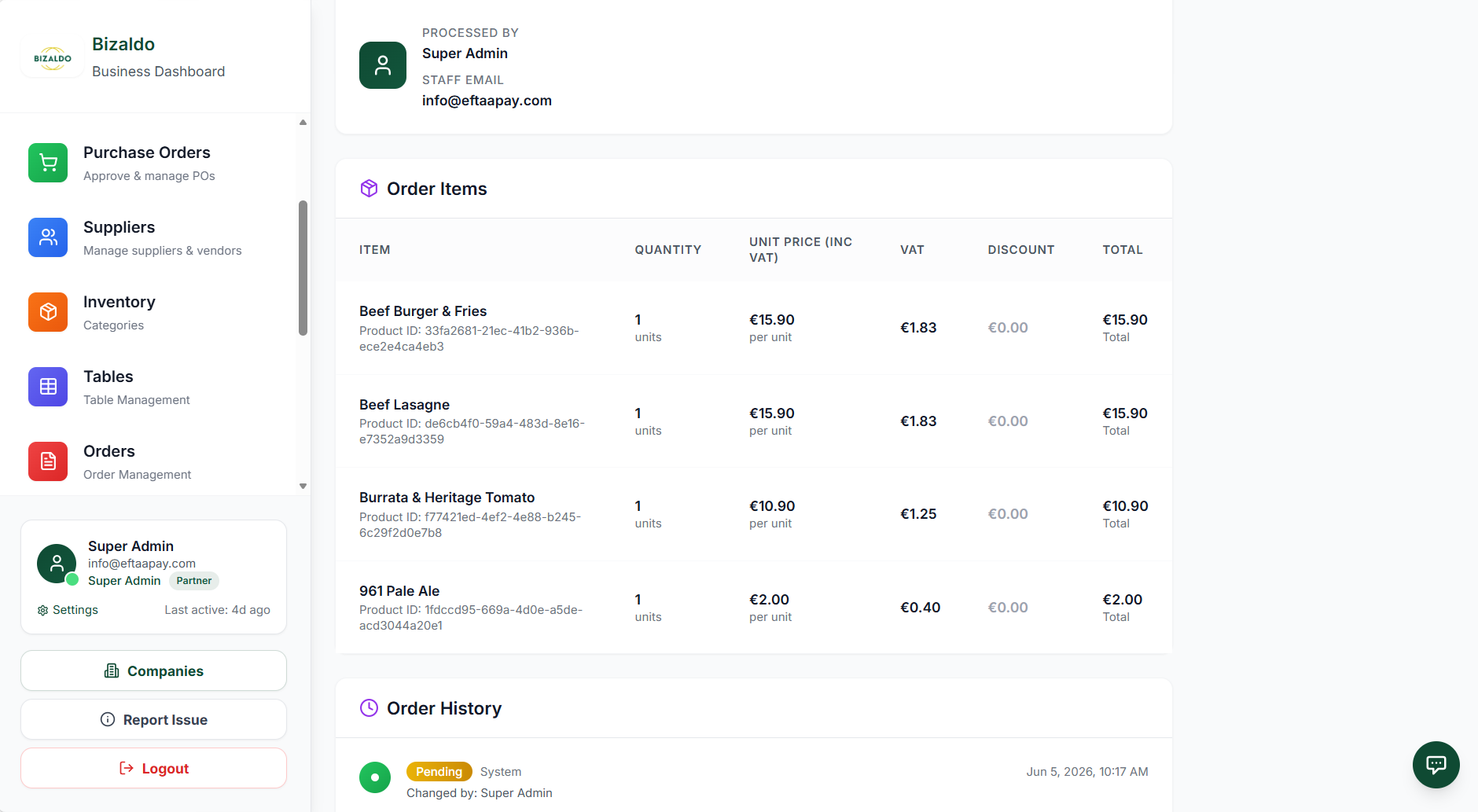 123456
Individual items within the order
Screen Elements
Product name as it appears on the menu.
Number of units ordered.
Price per single unit including VAT.
Tax amount for this item.
Any discount applied to this item.
Final price for this item.
- Item name
- Quantity
- Unit price (including VAT)
- VAT amount
- Discount (if any)
- Total per item
Calculation:
- Item Total = Quantity × Unit Price – Discount
- Order Total = Sum of all item totals + VAT
Order History
The Order History section tracks all changes made to an order.123Timeline of order changes and updates
Screen Elements
Shows when order status changed and to what.
Staff member who made the change.
Date and time when the change occurred.
It shows:
- Status changes
- Who updated the order
- Date and time of changes
This is useful for:
- Resolving disputes
- Auditing staff activity
- Reviewing cancellations or refunds
Key Actions
| Action | How To |
|---|---|
| Create order | POS Terminal → Add items → Select order type (Dine-in/Takeaway/Delivery) |
| Identify customer | Scan customer's QR code, or enter their phone number to auto-fill/create profile |
| Select payment method | Order checkout → Choose Cash, Card, or BNPL |
| Modify order | Open order → Edit items → Save changes |
| Cancel order | Order details → Cancel → Select reason |
| Process refund | Order details → Refund → Select items |
| Print receipt | Order details → Print Receipt |
| Reprint receipt | Order details → Copy Receipt |
| View order history | Reports → Order History → Filter |
| Track kitchen status | Kitchen Display → View columns |
| Reassign table | Order → Transfer → Select new table |
| Update delivery status | Order details → Delivery status → Update |
Outputs
Order Management produces:- Order records — Complete transaction history
- Kitchen tickets — Preparation instructions
- Customer receipts — Payment confirmation, printable and reprintable
- Customer profiles — Created or matched automatically via QR scan or phone number
- Inventory transactions — Stock movement log
- Analytics data — Performance metrics
- Financial records — Revenue and payment tracking by method (Cash/Card/BNPL)
- Delivery records — Address, fee, rider, and delivery status tracking
- Audit trail — Modification and cancellation history
Related Documentation
- POS Terminal — Order entry interface
- Products — Product catalog management
- Inventory — Stock tracking
- Customers — Customer and membership management
- Reports — Analytics and exports
- Kitchen Display (KDS) — Kitchen app setup and order preparation