Sale
The Sale screen is the in-branch point-of-sale interface staff use to take orders, apply deals and discounts, link customers, and collect payment — part of the Bizaldo Tablet App.Where to find it: In the left sidebar, click Sale.It's where every order actually gets built before it enters the Order Management lifecycle described elsewhere — this doc covers the screen itself.
 123456789101112
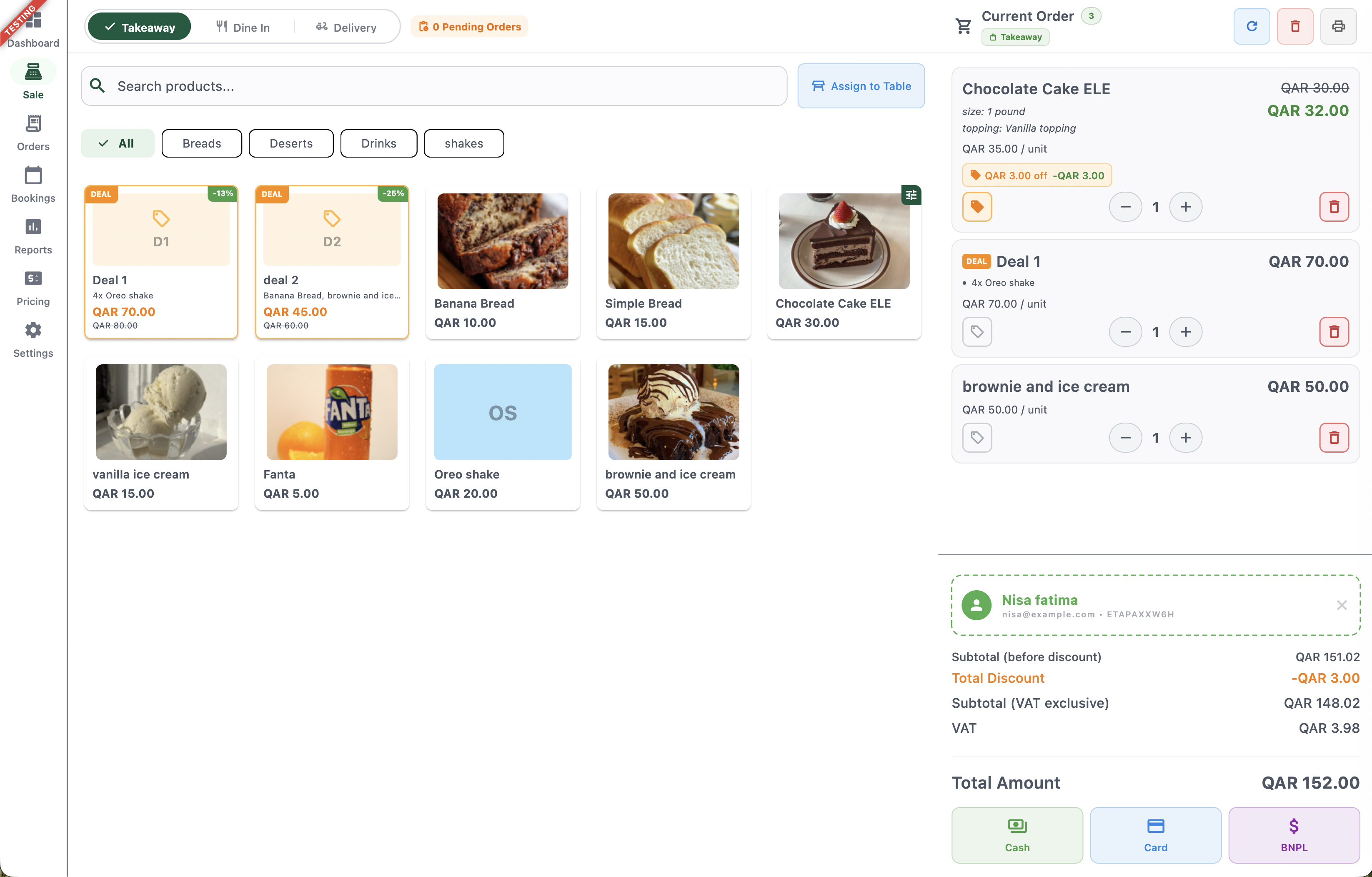
Figure 1 — The Sale screen with product catalog, current order, and checkout
Screen Elements
Switch between Takeaway, Dine In, and Delivery for the order being built.
Shows the count of orders waiting for action across the branch.
Search products by name, or filter the catalog by category (Breads, Deserts, Drinks, shakes, etc.).
Link the current order to a table — used for Dine In orders.
Bundled products sold at a discounted price, shown with a DEAL badge and the percentage saved.
Individual menu items with image, name, and price. Tap to add to the current order or select addons, variants too.
Item count, order type, and quick actions: refresh, clear order, and print.
Each item shows its name, selected modifiers/variants, unit price, quantity stepper, and a delete button.
Apply a discount to this specific line item; applied discounts show inline (e.g., 'QAR 3.00 off').
Shows the customer attached to this order — via QR scan or phone lookup — with an option to remove them.
Subtotal before discount, total discount, VAT-exclusive subtotal, VAT, and final total amount.
Collect payment via Cash, Card, or BNPL to confirm and send the order to the kitchen.
Order Type Selector
Every order starts by choosing its type at the top left:- Takeaway — Customer collects the order in person; no table assignment needed.
- Dine In — Requires the order to be assigned to a table using the Assign to Table button next to the search bar.
- Delivery — Only shown if delivery is enabled for the branch. Captures the delivery address and fee, which can be edited per order.
Product Catalog
The main panel lists everything available for sale:- Search bar — Find a product by name instantly.
- Category filters — Narrow the catalog to a category like Breads, Deserts, Drinks, or shakes; All shows everything.
- Product cards — Each shows the item's image, name, and price. Tap a card to add one unit to the current order.
Deals
Deals are bundled offers shown with a DEAL badge and a percentage-off tag (e.g., `-13%`, `-25%`):- They bundle multiple products into one purchasable item (e.g., "4x Oreo shake" for a flat price, or "Banana Bread, brownie and ice cream" together).
- The original combined price is shown struck through, with the deal price highlighted below it.
- Tapping a deal card adds the whole bundle to the current order as a single line item.
Current Order Panel
The right-hand panel builds up as items are added:- Header actions — Refresh the order, clear it entirely, or reprint the receipt of the last completed order (useful if a receipt was missed or the customer needs another copy).
-
Line items — Each item shows:
- Name and any selected modifiers/variants (e.g., size: 1 pound, topping: Vanilla topping)
- Per-unit price
- A quantity stepper (− / +) to adjust how many units are in the order
- A delete icon to remove the item entirely
- Item-level discounts — The small tag icon under each line item lets staff apply a discount to that specific item. Once applied, it shows inline next to the item (e.g., "QAR 3.00 off −QAR 3.00"). This is separate from a voucher applied at checkout — see Vouchers for customer-redeemed discounts.
Linking a Customer
Below the order items, a dashed panel shows the customer attached to the order, if any:- Scan the customer's QR code with the Bizaldo Consumer App, or look them up by phone number, to auto-fill their profile (name, email, member code) here — see Order Management → Customer & Membership Lookup for the full flow.
- Once linked, any vouchers or loyalty benefits tied to that customer become available on the order.
- Tap the X to unlink the customer and continue as a guest order.
Order Totals
As items and discounts are applied, the totals update live:| Line | Description |
|---|---|
| Subtotal (before discount) | Sum of all line items at full price |
| Total Discount | Item-level discounts applied on this order |
| Subtotal (VAT exclusive) | Subtotal after discount, before tax |
| VAT | Tax calculated on the discounted subtotal |
| Total Amount | Final amount due from the customer |
Note: Voucher discounts appear as a separate line item on the final order receipt, not combined with item-level discounts here.
Taking Payment
Once the order is ready, tap one of the payment buttons to begin checkout:- Cash — Marks the order as paid in cash.
- Card — Routes payment through the connected card terminal/payment integration.
- BNPL — Marks the order as paid via the Buy Now, Pay Later provider, with the customer settling later.
Complete Order Modal
The Complete Order modal is the final checkout step — it confirms customer and delivery details, captures the payment, and prints the receipt.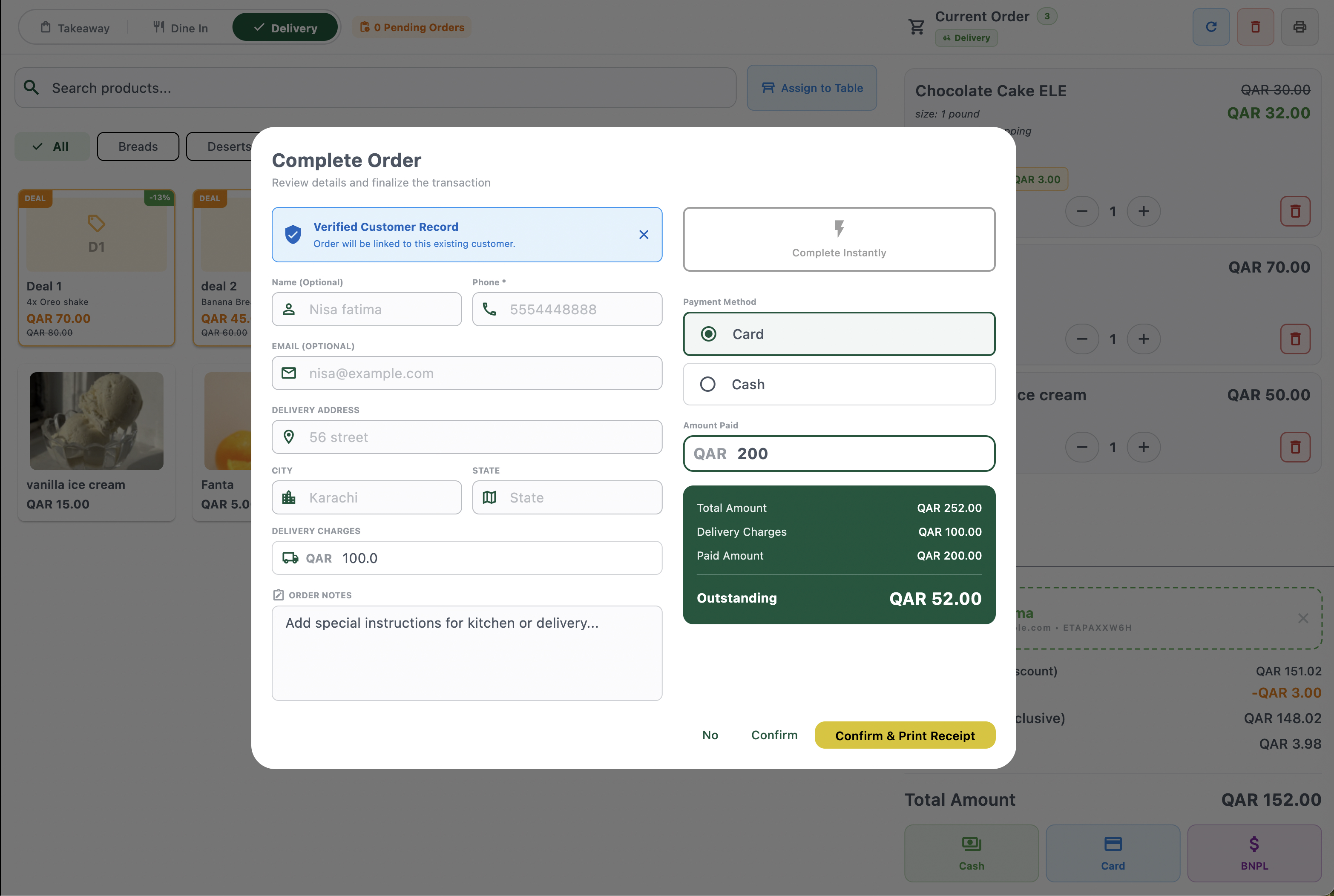 12345678910
Figure 2 — Reviewing and finalizing an order at checkout
Screen Elements
Confirms the order will be linked to an existing customer matched by phone number or QR scan.
Name, phone, and email — auto-filled if the customer was matched, or editable for a new/guest customer.
Street address, city, and state for delivery orders — auto-filled from the customer's saved address if available, or entered manually.
The delivery fee for this order, pre-filled from the branch default and editable per order.
Special instructions for the kitchen or delivery rider.
Skip manual payment entry and mark the order fully paid in one tap.
Choose Card or Cash for this transaction.
Enter the amount the customer is paying now — can be less than the total to record a partial payment.
Total Amount, Delivery Charges, Paid Amount, and any Outstanding balance still owed.
No cancels the checkout; Confirm finalizes the order; Confirm & Print Receipt finalizes and prints in one step.
Key behaviors:
- Verified Customer Record — If the phone number or QR scan matched an existing customer, a banner confirms the order will link to that profile. Dismiss it with the X to proceed as a new/guest customer instead.
- Partial payments — The Amount Paid field doesn't have to equal the total. If less is entered, the Outstanding amount in the totals summary shows what's still owed on the order (e.g., paying QAR 200 of a QAR 252 total leaves QAR 52 outstanding).
- Per-order delivery charge — The Delivery Charges field here is exactly where staff can override the branch's default delivery fee for this specific order (see Order Management → Editing Delivery Charges on an Order).
- Complete Instantly — A shortcut to mark the order as fully paid without manually filling in payment method or amount, useful for fast cash sales.
- Confirm vs. Confirm & Print Receipt — Confirm finalizes the order silently; Confirm & Print Receipt finalizes it and immediately sends the receipt to the printer.
In One Sentence
The Bizaldo Tablet App's Sale screen is where staff select an order type, build the order from the product catalog and deals, apply item discounts, link a customer, and take payment to send the order into the kitchen workflow.Key Actions
| Action | How To |
|---|---|
| Start a new order | Sale → Choose Takeaway, Dine In, or Delivery |
| Assign a table | Sale → Assign to Table (Dine In only) |
| Add a product | Tap a product card |
| Add a deal | Tap a deal card (DEAL badge) |
| Adjust quantity | Current Order → use the +/− stepper on the item |
| Apply an item discount | Current Order → tap the tag icon under the item |
| Link a customer | Scan their QR code, or enter their phone number |
| Remove a customer | Tap the X on the customer panel |
| Clear the order | Current Order header → clear icon |
| Reprint last order's receipt | Current Order header → print icon |
| Take payment | Order Totals → Cash, Card, or BNPL → complete the Complete Order modal |
| Record a partial payment | Complete Order modal → enter a lower Amount Paid → remaining shows as Outstanding |
| Override delivery charge for an order | Complete Order modal → edit Delivery Charges field |
Related Documentation
- Orders — Search, filter, and review past orders from this device
- Pricing — Update base product prices from the tablet
- Order Management — What happens to an order after checkout: status, kitchen, delivery, receipts
- Vouchers — Customer-redeemed discounts via the Bizaldo Consumer App
- Customers — Customer profiles and loyalty membership