Stock Management
Stock Management in Bizaldo allows you to track real-time stock levels, record incoming and outgoing inventory, make adjustments, and manage bulk stock updates via CSV — all within the Inventory module.Where to find it: In the left sidebar, click Inventory. Then select the Stock Management tab at the top of the page.
Stock Management View
KPI Cards
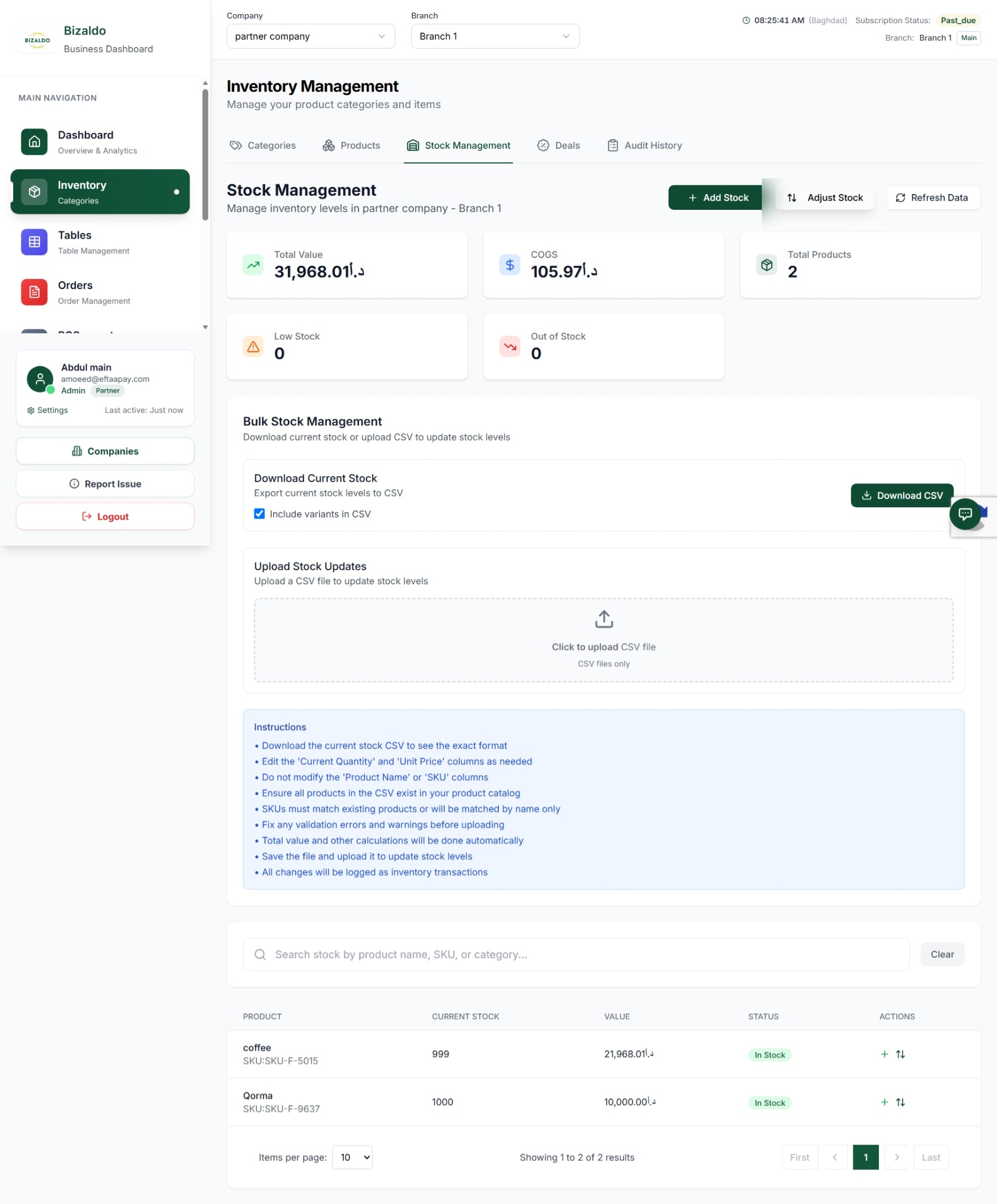
At the top of the Stock Management screen, five KPI cards provide immediate insights into your inventory health for the selected company and branch:- Total Value: The total monetary value of all current stock on hand (unit cost × quantity), displayed in local currency (e.g., د.أ).
- COGS (Cost of Goods Sold): The cumulative cost of all inventory that has been consumed or sold. Reflects actual expenditure on goods.
- Total Products: The total count of distinct product SKUs tracked in the inventory for this branch.
- Low Stock: The number of products whose current quantity has fallen below 5 units — items that need attention soon.
- Out of Stock: The count of products with zero or negative stock levels — items requiring immediate restocking.
 12345678910
Stock Management screen showing KPI cards, Bulk Stock Management, and product list
Screen Elements
Total monetary value of all stock on hand across all tracked products.
Cumulative cost of goods sold — total value of inventory consumed.
Count of distinct product SKUs tracked in inventory for this branch.
Number of products with a current quantity below 5 units — order soon to avoid stockouts.
Count of products with zero or negative stock — need immediate restocking.
Click to open the Add Stock form and record incoming inventory.
Click to open the Adjust Stock form to correct inventory discrepancies.
Section to download current stock as CSV or upload a CSV file to update stock levels in bulk.
Table showing each product with its current stock, value, status (In Stock / Low / Out), and action buttons.
Click to refresh and reload the latest stock data for the selected company and branch.
Stock Status Indicators
Each product in the list is assigned a status based on its current quantity:| Status | Condition | Action Required |
|---|---|---|
| In Stock | Quantity above reorder point | None — healthy level |
| Low Stock | At or below reorder point | Order soon |
| Out of Stock | Zero or negative quantity | Order immediately |
Adding Stock
Record incoming inventory to keep stock levels accurate.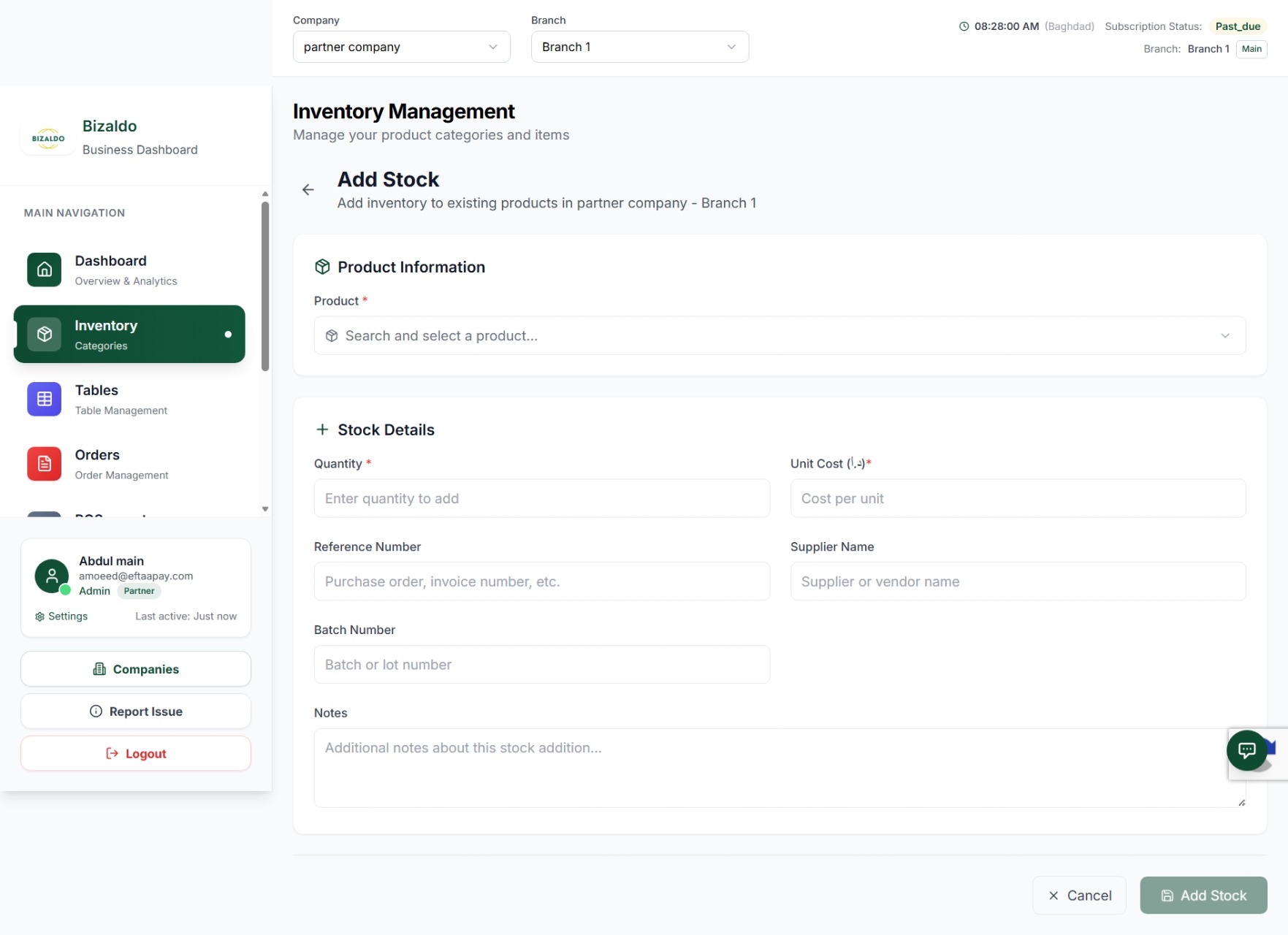 12345678
Add Stock form for recording incoming inventory for a product
Screen Elements
Search and select the product you are adding stock for. Required field.
Number of units received. Required field — enter the exact count from the delivery.
Price paid per unit from the supplier. Required for accurate COGS and valuation.
Purchase order, invoice, or delivery note number for audit and traceability.
The supplier or vendor who delivered the goods.
Optional batch or lot number for traceability, especially important for perishables.
Optional additional notes about this stock addition for internal reference.
Click to confirm and save the stock addition. Updates current quantity and logs the transaction.
Select Product
Navigate to Inventory → Stock Management and click + Add Stock. Search for and select the product.Enter Stock Details
Fill in the required and optional fields:- Quantity — Number of units received
- Unit Cost — Price paid per unit
- Reference Number — Invoice or PO number for traceability
- Supplier Name — Who provided the goods
- Batch Number — For traceability (optional)
- Notes — Additional context (optional)
Confirm
Click Add Stock. The system will:- Add to current stock quantity
- Record a Stock In transaction in audit history
- Update the weighted average unit cost
- Recalculate Total Value and COGS KPIs
Adjusting Stock
Correct inventory discrepancies discovered during physical counts or audits.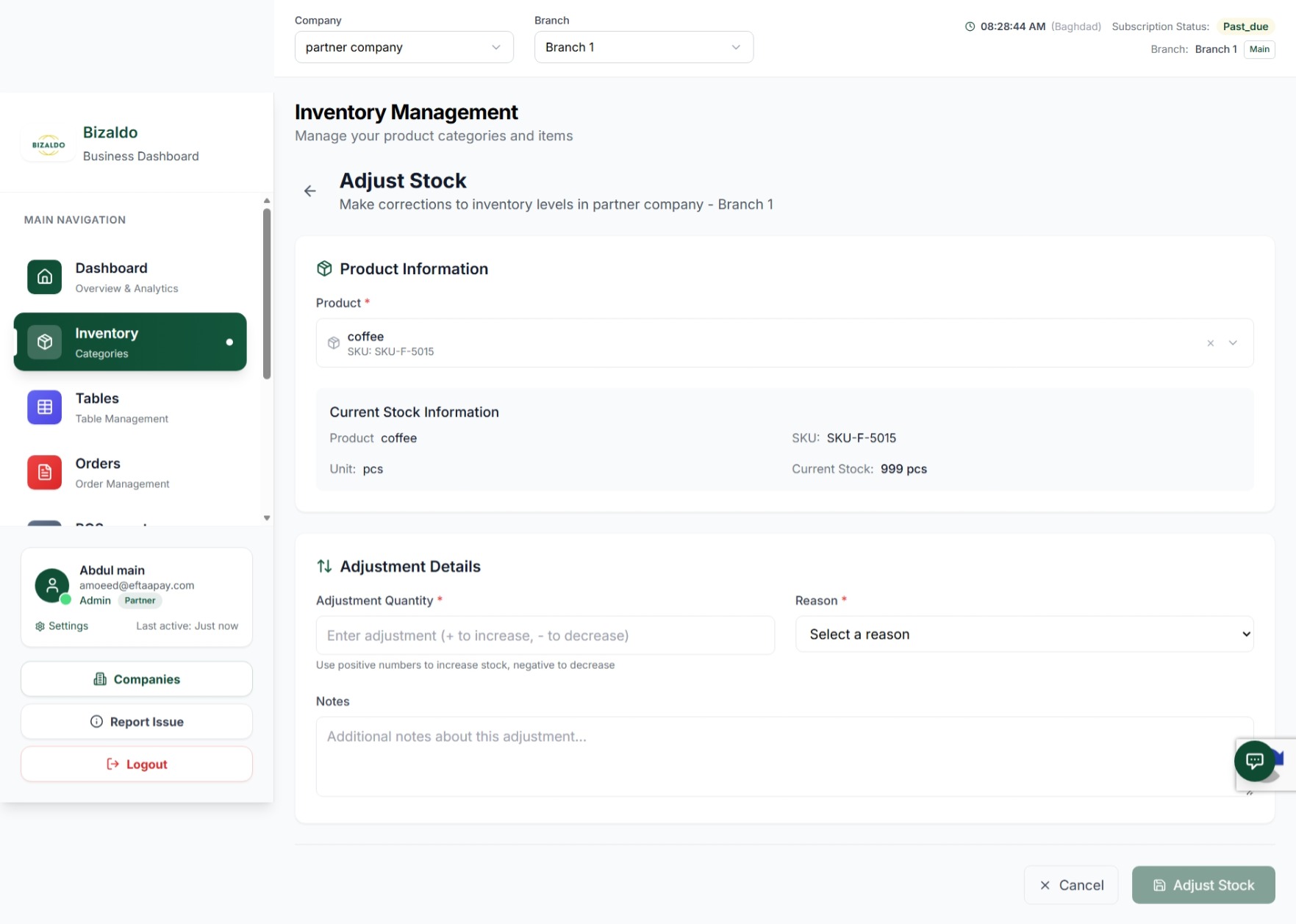 123456
Adjust Stock form showing current stock information and adjustment details
Screen Elements
Select the product to adjust. Once selected, current stock information is displayed automatically.
Auto-populated panel showing the product name, SKU, unit of measure, and current stock quantity.
Enter a positive number (+) to increase stock or a negative number (-) to decrease it.
Select the reason for adjustment (e.g., physical count, damage, theft). Required for audit trail.
Optional notes to provide additional context for the adjustment.
Click to confirm the adjustment. The change is logged in Audit History.
Reasons for Adjustment:
| Reason | When to Use |
|---|---|
| Physical Count Correction | Actual physical count differs from the system quantity. |
| Damaged Goods | Items are damaged and cannot be sold or used. |
| Expired Items | Perishable goods have passed their expiry date. |
| Theft/Loss | Stock is missing due to theft or unexplained loss. |
| System Error Correction | A previous entry was made in error and needs correction. |
| Quality Control Rejection | Items failed quality inspection and must be removed from stock. |
| Other | Any other reason not covered by the above categories. |
Adjustment Types:
- Positive (+) — Found extra stock not previously recorded
- Negative (-) — Stock is missing compared to system records
Bulk Stock Management
You can download your current stock levels as a CSV or batch-update stock quantities by uploading a formatted CSV file.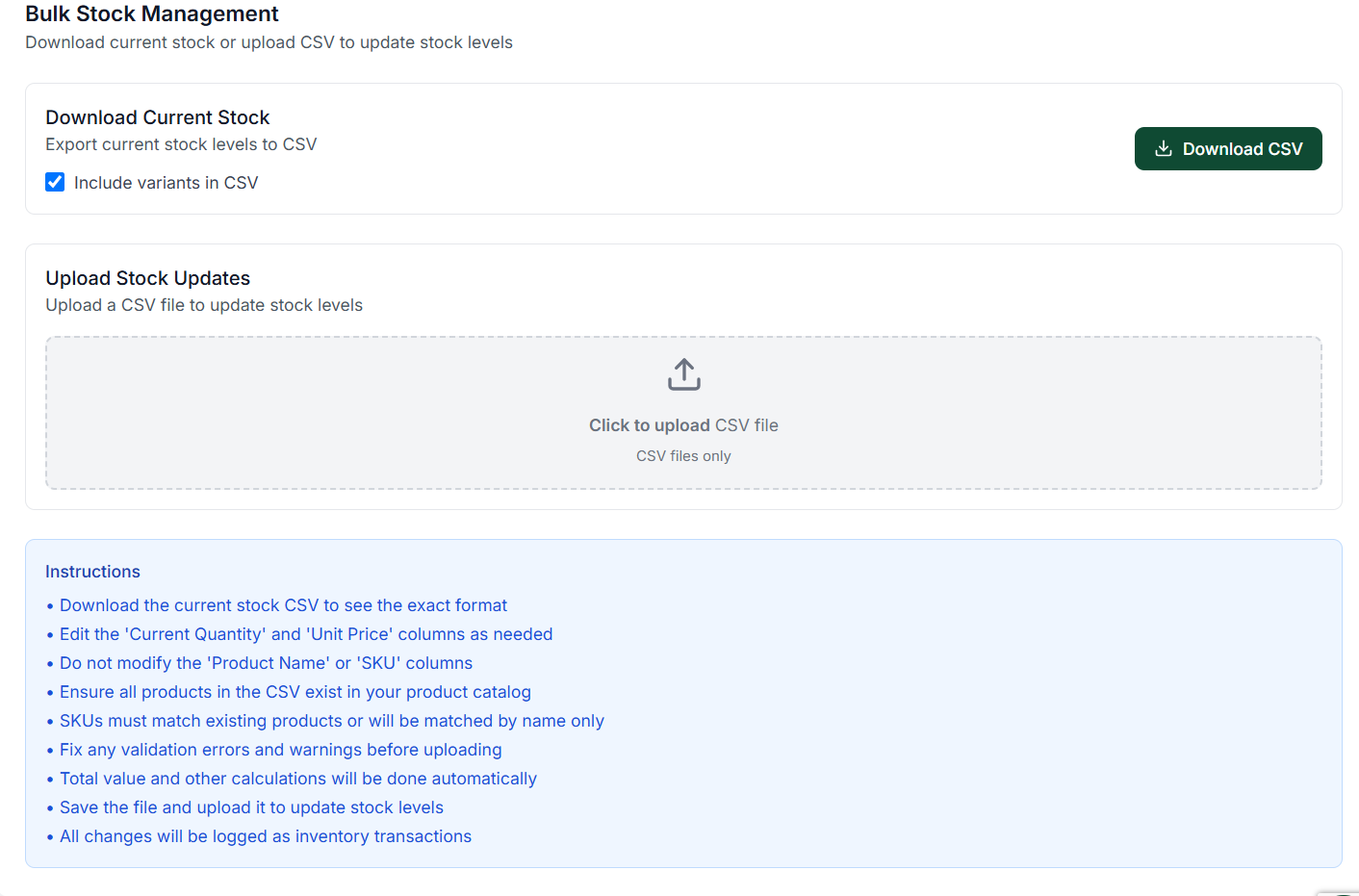 12345
12345Bulk Stock Management panel showing Download CSV and Upload CSV options
Screen Elements
Export all current stock levels for the selected company and branch to a CSV file. Use this to get the exact column format before editing.
Check this box to include product variants in the downloaded CSV export.
Click to download the current stock as a CSV file.
Drag and drop or click the upload zone to upload a formatted CSV file and update stock levels in bulk.
Guidelines listing which columns to edit, which to leave unchanged, and validation rules.
How to Update Stock in Bulk
Download Current Stock
Click Download CSV in the "Download Current Stock" card.- Open the file in Excel, Google Sheets, or a text editor.
- Review the current quantities and column structure before making changes.
Edit the CSV File
Modify only the permitted columns:-
Editable Columns:
- `Current Quantity` — The new stock quantity for the product.
- `Unit Price` — The updated unit cost per item.
-
Do NOT Modify:
- `Product Name` — Must remain exactly as exported.
- `SKU` — Used to match rows to existing products; changing it will cause import failures.
Upload the Updated File
- Drag and drop your `.csv` file into the dotted upload zone, or click the zone to browse your local files.
- Only valid `.csv` formatted files are accepted.
Review Results
Once uploaded, the system performs a row-by-row validation:- SKU Matching: Products are matched by SKU first; if no SKU match is found, the system attempts to match by Product Name.
- Partial Success: Invalid rows are skipped individually without stopping valid rows from being processed.
- Audit Trail: All successful stock updates are recorded as inventory transactions in Audit History.
- Validation Errors: Rows with issues (e.g., missing SKU, invalid quantity) are logged and reported after upload.
Inventory Integration
Automatic Deduction
When orders are confirmed, inventory reduces automatically:<T k="docs.operations.inventory.integration.diagram" />
Statuses Triggering Deduction:
- confirmed
- preparing
- completed
Restoration on Cancellation:
Cancelled orders restore inventory automatically, regardless of the order status at time of cancellation.Key Operations
| Action | Navigation Route |
|---|---|
| View current stock | Click Stock Management under Inventory. |
| Add incoming stock | Click + Add Stock on the Stock Management screen. |
| Adjust stock levels | Click Adjust Stock on the Stock Management screen. |
| Download stock CSV | Under Bulk Stock Management, click Download CSV. |
| Bulk upload stock | Under Bulk Stock Management, drop or select a CSV file in the upload zone. |
| Refresh stock data | Click Refresh Data on the Stock Management screen. |
| Search products | Use the search bar at the bottom of the Stock Management screen. |
Related Documentation
- Products — Product catalog and SKU setup
- Orders — How orders affect inventory levels
- Inventory Optimization — Advanced analytics and forecasting
- Getting Started — Initial inventory setup guide