Audit History
Audit History is your restaurant's immutable activity ledger. It tracks every creation, modification, and deletion across your system — capturing exactly who performed the action, what fields were changed, when it occurred, and the exact before-and-after values.Where to find it:
- Inventory Audit History: In the left sidebar, click Inventory and select the Audit History tab.
- Company Audit History: In the left sidebar, click Companies, select your company, and click the Audit History tab.
Audit History Overview
The main Audit History page displays a searchable, filterable table of all audit logs.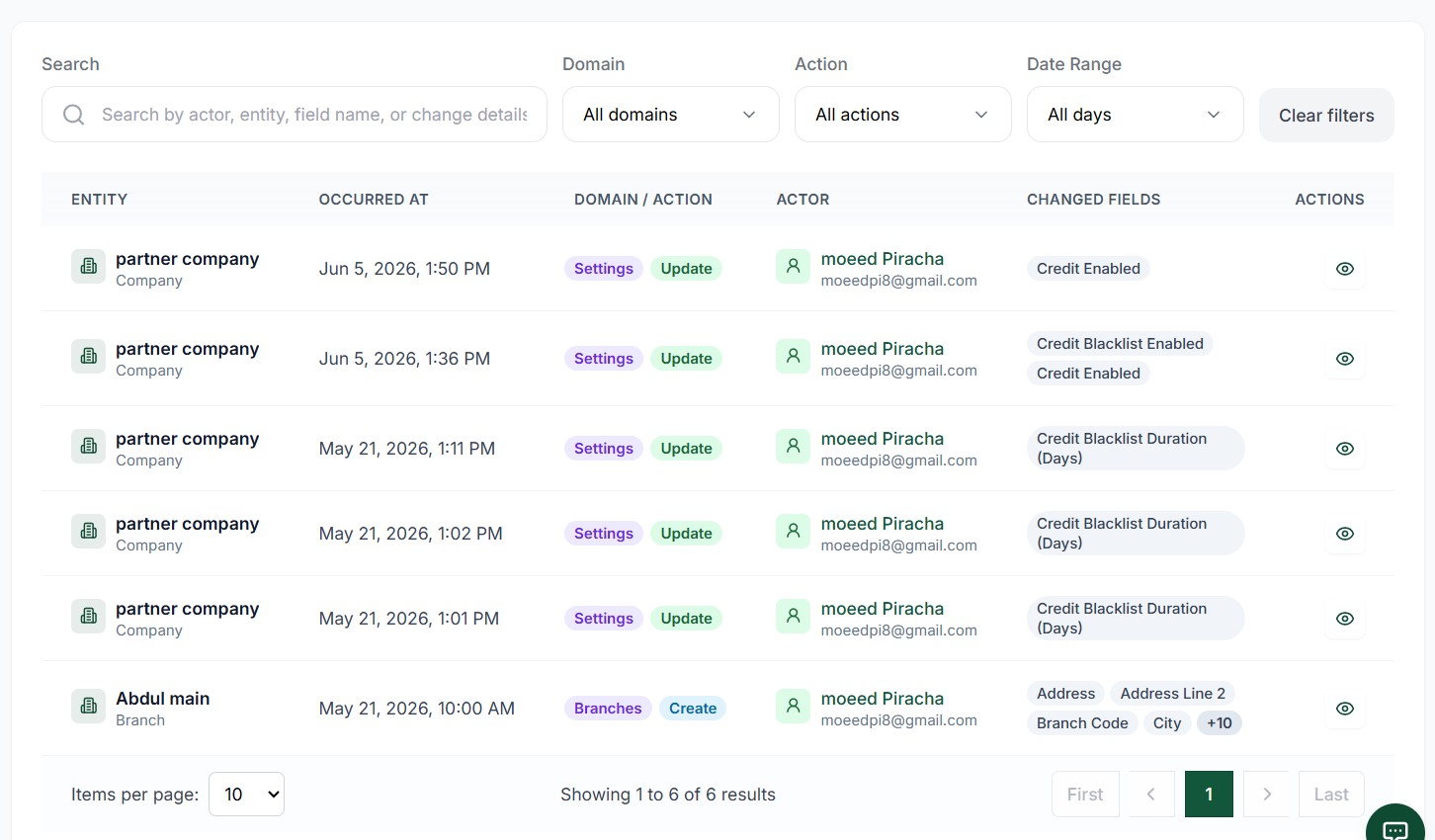 1234567891011
Audit History search table showing entries with tags, actions, and actors
Screen Elements
Search logs by actor name, email, entity name, or field name.
Filter logs by system domain (e.g. Details, Branches) or inventory tags (e.g. Product, Category, Stock).
Filter logs by operation action (Create, Update, Delete).
Filter logs by specific timeframe (All days, Today, Yesterday, This week, This month, Last month).
Reset all search inputs and filters to show all logs.
Displays the name of the modified entity and its category (e.g., Qorma / Product).
Shows the exact timestamp of the recorded change.
Dual-badge indicators showing the target entity tag and the operation action.
Identifies the user (name and email) who performed the action.
Lists the names of all fields that were updated during the operation.
Click the eye icon to view comprehensive field-level changes.
Understanding Log Tags & Actions
Every audit log entry contains a Tag / Action cell with two distinct badges: a Tag/Domain Badge and an Operation Action Badge. Depending on the context, Audit History tracking operates in two scopes:- Company Audit History: Filters by Domain (`All domains`, `Details`, `Branches`, `Users`, `Licenses`, `Integrations`, `Settings`).
- Inventory Audit History: Filters by Tag (`All tags`, `Product`, `Category`, `Stock`, `Deal`).
1. Domain Tags (Company Scope)
For general company settings, the first badge indicates the system domain area that was modified:| Domain Tag | Description | Typical Changes Tracked |
|---|---|---|
Details | Branch Details | Modifying branch contact details, address, opening hours, or general metadata |
Branches | Branch Management | Creating new branches, updating status, or disabling a branch |
Users | User Roles & Access | Adding staff members, resetting passwords, updating roles, and modifying permissions |
Licenses | Subscriptions | Activating subscriptions, renewing plans, or adding new terminal licenses |
Integrations | Third-party Integrations | Connecting or configuring payment terminal APIs, delivery channels, or accounting systems |
Settings | System Preferences | Toggling global toggles, tax settings, printer routing, and system preferences |
2. Inventory Tags (Inventory Scope)
For product and stock settings, the first badge indicates the catalog item type that was modified:| Inventory Tag | Description | Typical Changes Tracked |
|---|---|---|
Product | Menu & Products | Creating new menu items, updating descriptions, renaming, or changing prices |
Stock | Inventory Stock | Adjusting stock levels, recording stock intakes, or correcting quantities |
Deal | Deals & Promotions | Configuring active discounts, BOGO rules, coupon codes, and bundle deals |
Category | Menu Categories | Creating, renaming, sorting, or deleting product categories |
3. Operation Actions (Second Badge)
The second badge indicates the type of action performed on the target entity:| Operation Action | Badge Color | Description |
|---|---|---|
Create | Blue | A brand new entity or record was created in the system |
Update | Green | An existing entity's properties or values were updated |
Delete | Purple | An entity was permanently deleted from the active registry |
Audit Record Details
Clicking the View Details (eye icon) button next to any audit log entry opens a detailed breakdown showing field-level before-and-after values.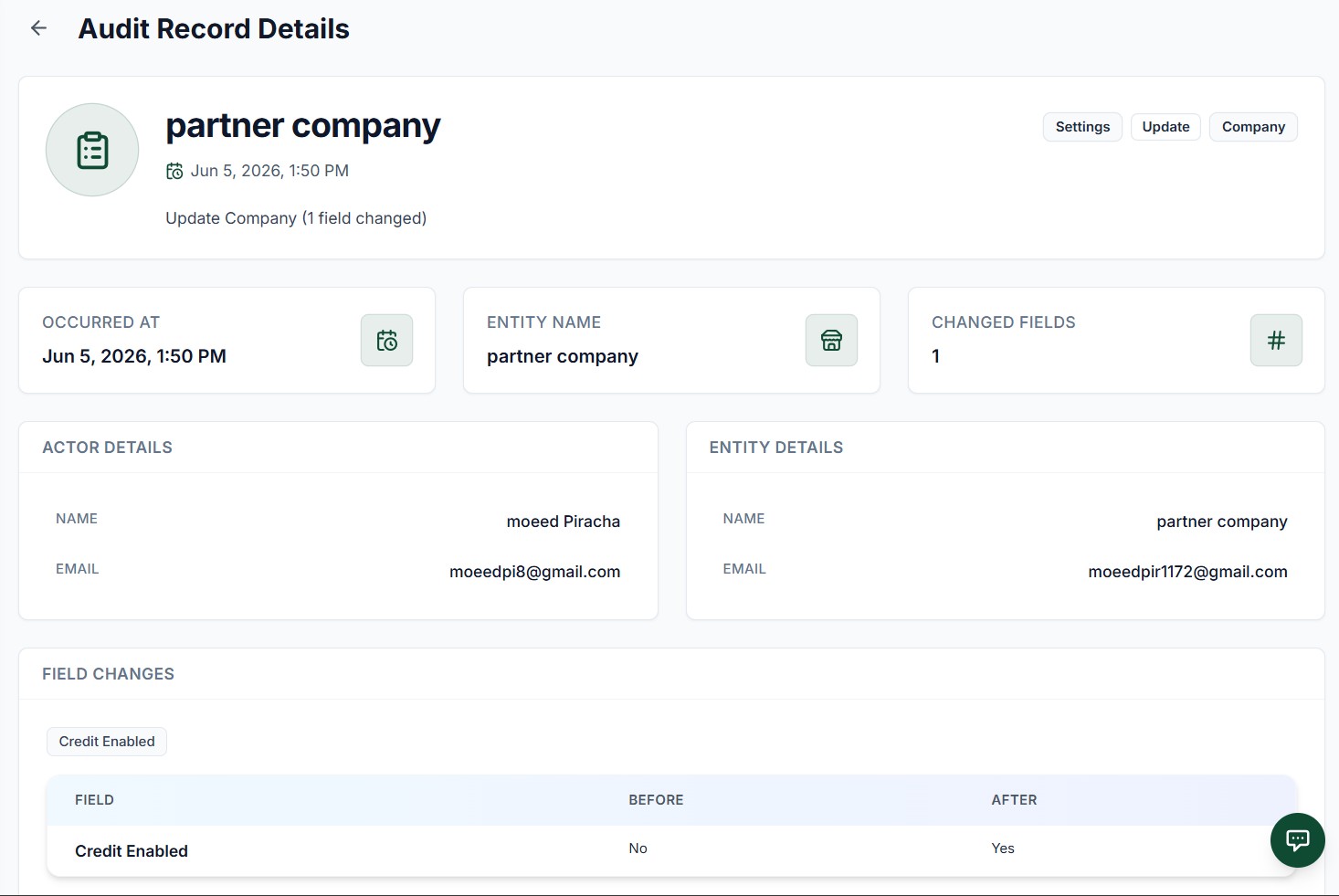 12345678
Audit Details page showing user details, entity type, and before/after values of modified fields
Screen Elements
Click to return to the main Audit History log list.
Displays entity name, timestamp, total fields changed description, and quick tags (Domain, Action, Entity Type).
Metadata card displaying the exact date and time the change was committed.
Metadata card showing the unique name identifier of the target record.
Metadata card displaying the total number of fields modified during this single action.
Name and email of the logged-in staff member who performed the action.
Detailed properties of the entity, such as name and profile contact info.
Interactive tab/badge filter of modified fields and comparison table showing Field name, value Before, and value After.
Detailed Record Breakdown
The Audit Record Details page is divided into specific components to help you track changes thoroughly:1. Header Summary Card
The header card provides a quick summary of the log entry:- Entity Identifier: Displays the name of the modified item (e.g., `partner company`).
- Timestamp: Quick-view date and time of the occurrence.
- Activity Description: A concise sentence detailing the scope of the change (e.g., `Update Company (1 field changed)`).
- Scope Tags: Displays the relevant Domain Tag (e.g., `Settings`), Action Tag (e.g., `Update`), and Entity Tag (e.g., `Company`).
2. Key Metadata Cards
Three independent widgets provide high-level context:- Occurred At: Exact server timestamp of the action.
- Entity Name: The name of the database record that was updated.
- Changed Fields: A numeric count of fields modified in this revision.
3. Actor Details Card
This block displays the accountability trail for the action:- Name: First and last name of the staff member (e.g., `moeed Piracha`).
- Email: Registered email of the user account that logged the change (e.g., `moeedpi8@gmail.com`).
4. Entity Details Card
Displays state properties of the entity:- Name: Name of the company, product, or item (e.g., `partner company`).
- Email: Email or contact info linked to the entity (e.g., `moeedpir1172@gmail.com`).
5. Field Changes Table
The comparison table provides a precise before-and-after change log:- Field Name Badges: Tapping these tabs filters the comparison table for that specific field.
- FIELD Column: The specific configuration variable or database column that was modified (e.g., `Credit Enabled`).
- BEFORE Column: The original value prior to the action (e.g., `No`).
- AFTER Column: The updated value saved to the system (e.g., `Yes`).
Key Actions
| Action | How To |
|---|---|
| Search logs | Type actor name, email, or entity name into the search bar |
| Filter by Domain (Company) | Select an entity from the Domain dropdown filter |
| Filter by Tag (Inventory) | Select an entity from the Tag dropdown filter |
| Filter by action type | Select Create, Update, or Delete from the Action dropdown |
| Filter by date range | Select Today, Yesterday, This week, This month, or Last month |
| View field changes | Click the View Details (eye icon) next to any log row |
| Clear all search filters | Click the Clear filters button next to Date Range |