POS Reports
POS Reports POS Reports is where you reconcile register sessions and review sales for a calendar range. The screen offers two complementary views: Z reports (sessions)—one row per closed POS session—and Period summary (X)—rolled-up totals and KPI cards for the dates you select.
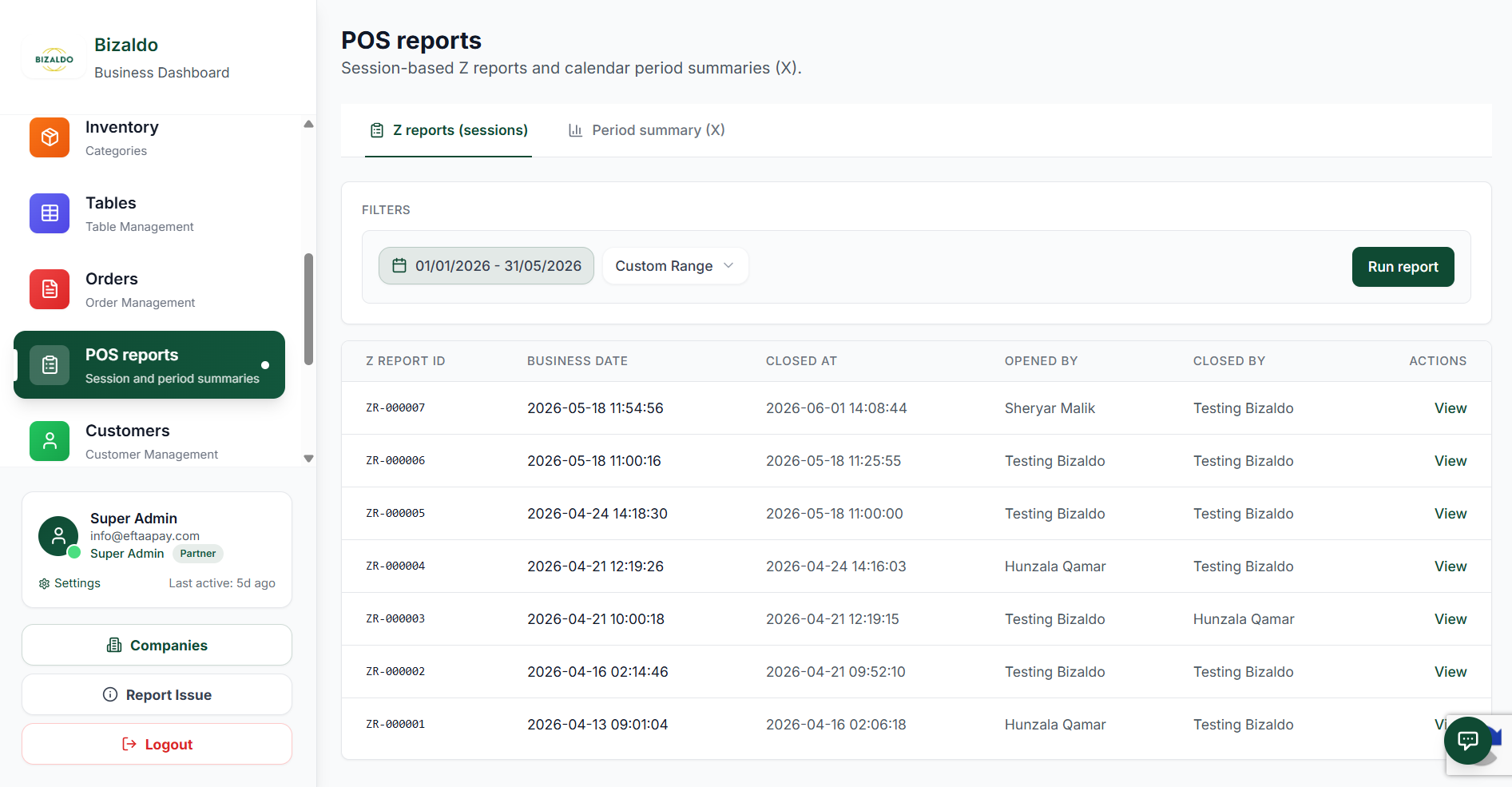
Figure 1 — Z reports (sessions): list of closed sessions with filters
Screen Elements
Open POS reports (highlighted when active). Shows session and period summaries.
POS reports heading with subtitle explaining Z sessions and period summaries.
Switch between Z reports (sessions) and Period summary (X) before running a report.
Pick start and end dates (e.g. 01/01/2026 – 31/05/2026). All results respect this range.
Quick preset such as Custom Range. Works with the date picker.
Click Run report to load or refresh the table using the current tab, dates, and preset.
Columns: Z Report ID, Business Date, Closed At, Opened By, Closed By. Each row is one closed session.
Use View in the Actions column to open details for that Z report session.
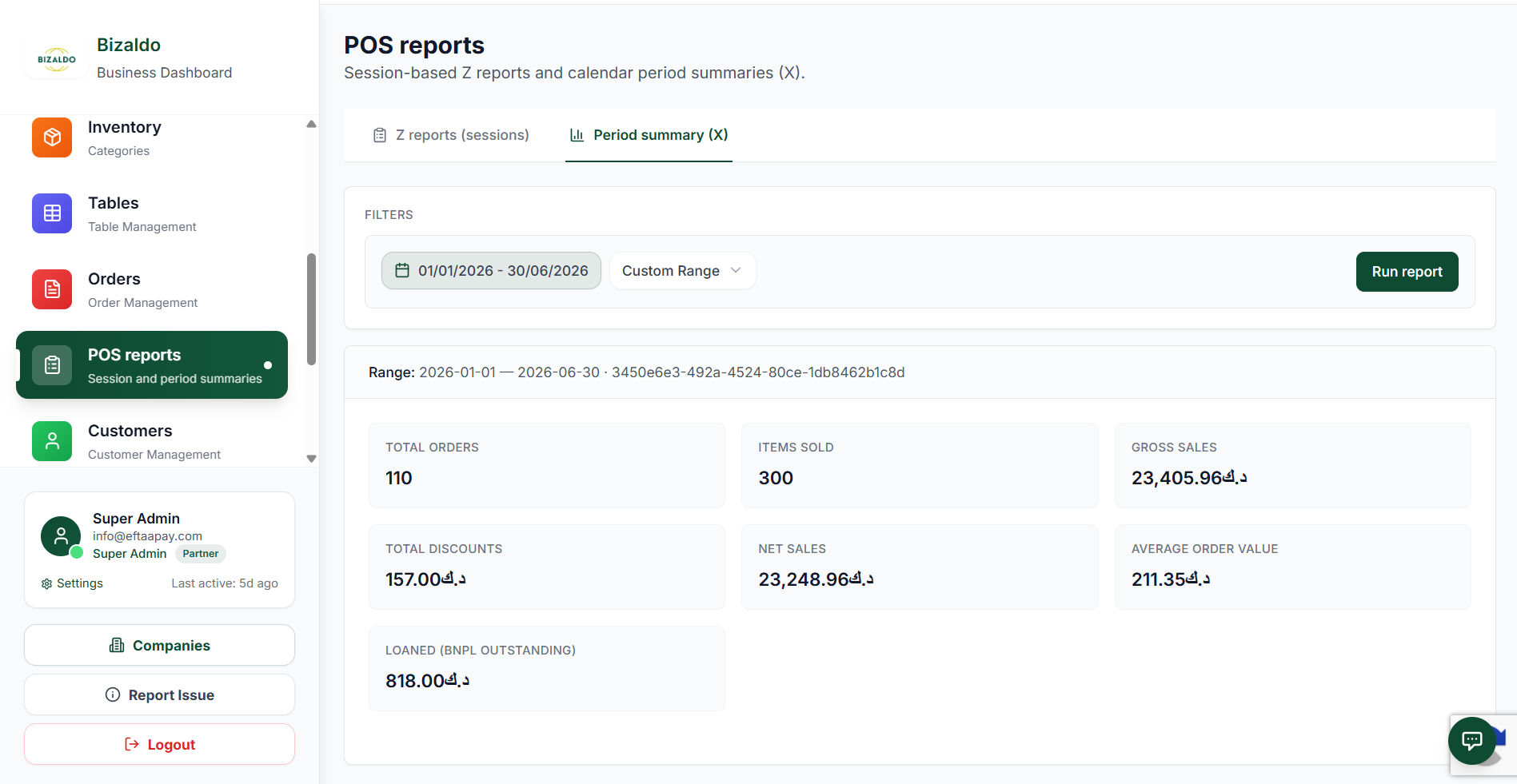
Figure 2 — Period summary (X): aggregated metrics for the selected range
Screen Elements
Select Period summary (X) for calendar-period totals instead of per-session rows.
Same filter pattern: pick a date range and preset (e.g. Custom Range), then Run report.
Click Run report to refresh the summary for the selected range.
Confirms the applied range and context (such as branch) after the report runs.
Count of orders in the period — useful for throughput and comparison to other periods.
Total quantity of line items sold across all orders in the range.
Gross Sales, Total Discounts, Net Sales, and Average Order Value KPI cards. Currency follows your company settings.
Outstanding Buy Now, Pay Later amount for the period — pairs with Company Settings BNPL options.
What each mode is for
Z reports (sessions)
Each row is a closed POS session (a Z-style close). Use this view to:- Audit who opened and closed the session and when it closed
- Tie business date and timestamps back to shifts or tills
- Drill into a session via View for line-level or tender detail (depending on your build)
Period summary (X)
One aggregated snapshot for the whole date range—similar in spirit to an X / period read. Use it to:- See orders, items, gross/net sales, discounts, and AOV at a glance
- Monitor BNPL / loaned exposure for the period
- Compare ranges by changing dates and clicking Run report again
How reporting updates
- Data is loaded when you click Run report (not necessarily live while you edit dates).
- Change the tab, dates, or preset, then Run report again to refresh.
- The period view shows a resolved range line so you can confirm exactly what was queried.
POS Reports on the Tablet App
On the Bizaldo Tablet POS app, reports are tied to day sessions. A session must be started before any orders can be placed, and closed at the end of each shift to generate a Z Report.Starting the Day
Before placing any orders, a day session must be active. If no session is running, the app shows a "Day Not Started" modal that blocks all order activity.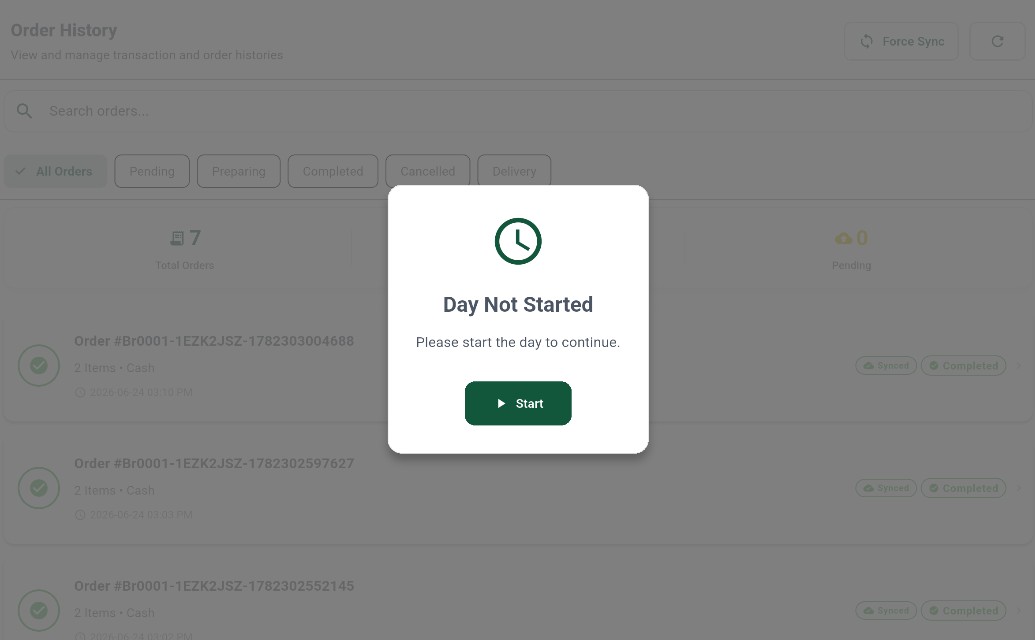 12
12Figure 3 — 'Day Not Started' modal: tap Start to open a session before placing orders
Screen Elements
Appears automatically when you open Sale or Order History with no active session. Orders are fully blocked until a session is started.
Tap Start to launch the Start Day dialog. You will be asked to confirm the opening cash before the session activates.
Profile Screen, Device ID and Day Session Status
You can also start (or close) the day from the Profile screen. The Profile page shows your device's POS ID and the current Day Session status.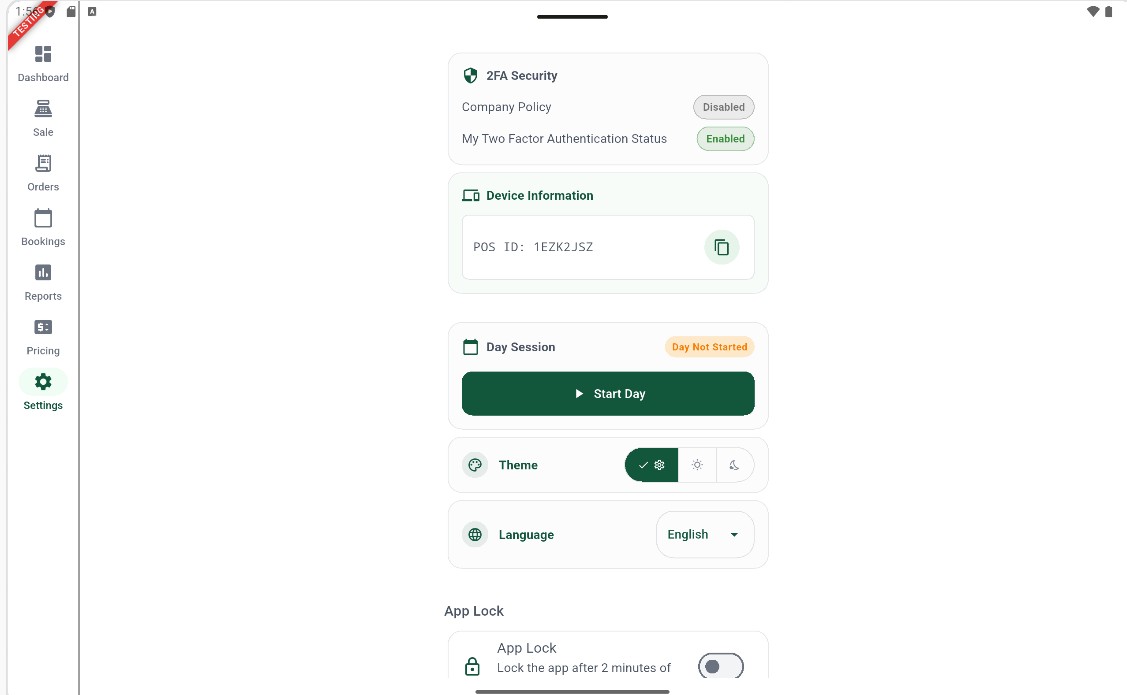 12
12Figure 4 - Profile screen: POS device ID and Day Session controls
Screen Elements
The amber 'Day Not Started' badge means no session is currently running. All order-taking is locked until you tap Start Day.
Tap to open the Start Day dialog. Enter the opening cash amount and tap Start Day to activate the session and unlock the Sale screen.
Entering Opening Cash
Tapping Start Day opens the Start Day dialog. Confirm the device ID and enter (or accept) the pre-filled opening cash before activating the session.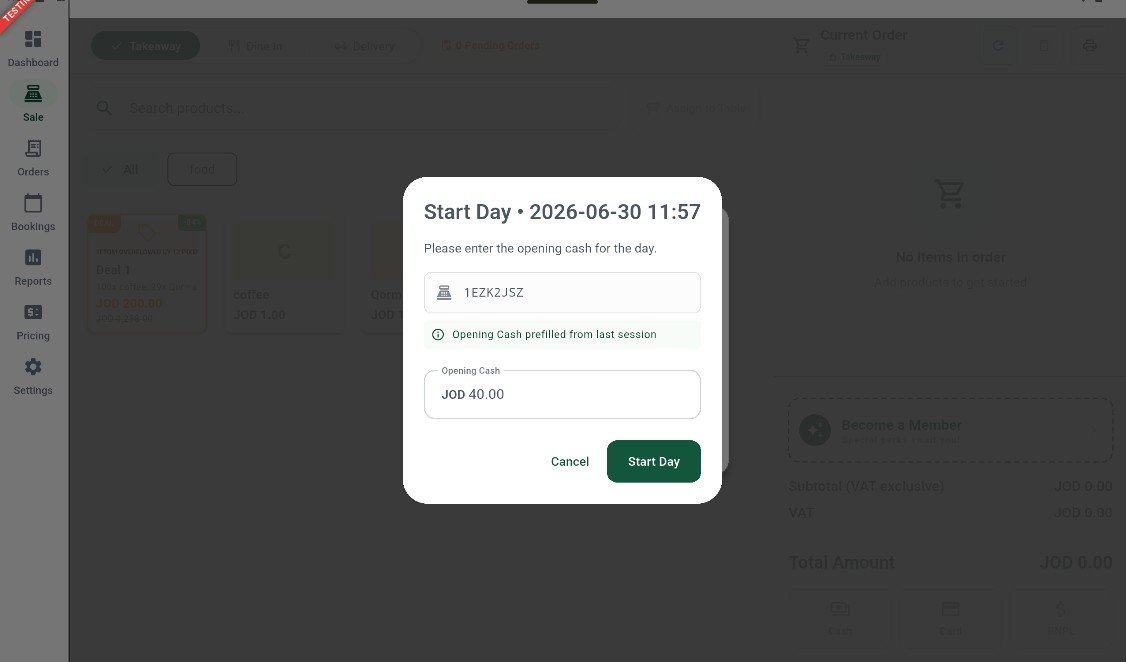 12345
12345Figure 5 - Start Day dialog: review the device ID and confirm the opening cash to begin the session
Screen Elements
Shows the exact timestamp when the session will be opened (e.g. 2026-06-30 11:57). This becomes the session start time recorded on the Z Report.
Confirms which terminal is starting the session (e.g. 1EZK2JSZ). This ID appears on all orders and the generated Z Report for this session.
The info banner confirms the opening cash has been pre-filled from the previous session's closing balance. Edit the amount if the drawer was adjusted.
Enter the physical cash in the register drawer at the start of this shift (e.g. JOD 40.00). This amount is used to calculate the cash variance when the day is closed.
Tap Start Day to activate the session. The Sale screen unlocks immediately and orders can be placed.
Tip!
Closing the Day
When the shift is over, go to the Profile screen and find the Day Session card. Once a session is active the card shows a green Day Started badge and a red Close Day button.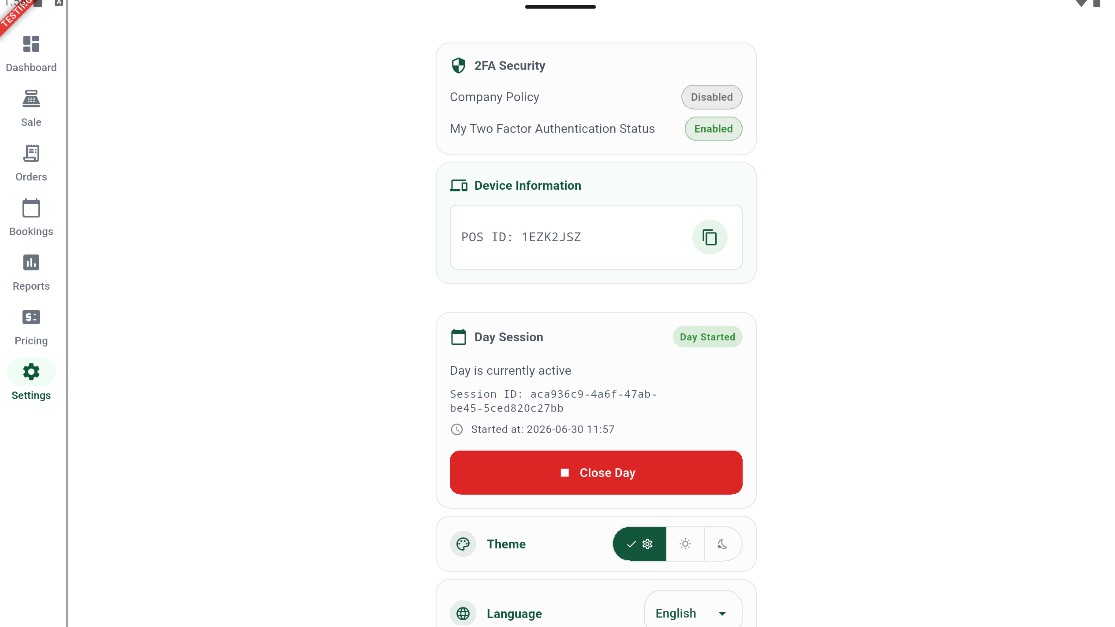 1234
1234Figure 6 - Day Session card: active session details and the Close Day button
Screen Elements
The green 'Day Started' badge confirms a session is currently running. Orders can be placed while this badge is active.
The unique identifier for this session (e.g. aca936c9-…). Referenced on the Z Report and in support logs.
The exact date and time this session was opened. Printed on the generated Z Report.
Tap to begin the day-close wizard. You will be prompted to generate a Provisional Report before the session is finalized.
The Close Day Wizard
Tapping Close Day launches a two-step wizard. Step 1 checks for pending orders automatically. Step 2 asks you to generate a Provisional Report before the session is permanently finalized.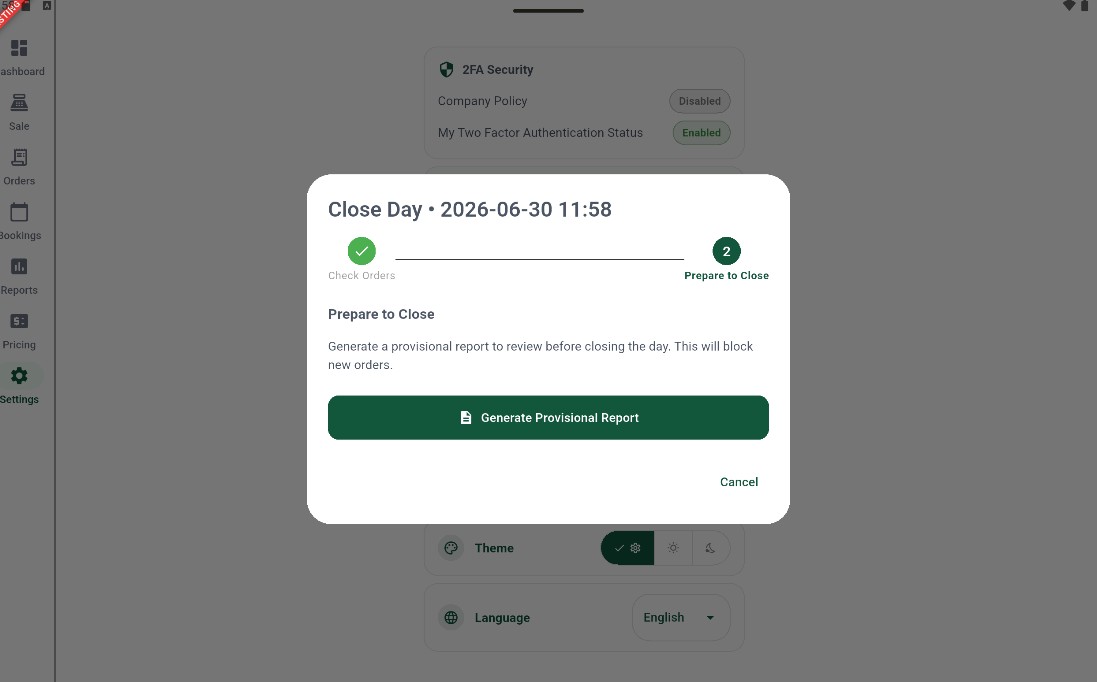 1234
1234Figure 7 - Close Day wizard: Step 1 complete, Step 2 requires generating the Provisional Report
Screen Elements
The green check mark confirms all orders have been resolved. The wizard moves to Step 2 automatically when no pending orders are found.
The current step. New orders are blocked once you proceed. You must generate the Provisional Report before the session can be finalized.
Tap to compile the session summary. This opens the Provisional Report where you can review sales, adjust payment amounts, and count the cash drawer before closing.
Tap Cancel to abort the close process. The session remains active and orders can continue to be placed.
Important!
Reviewing the Provisional Report
The Provisional Report is a pre-close summary of the session. It is not yet finalized — you can still edit payment amounts and the counted cash before committing.Sales Summary & Report Information
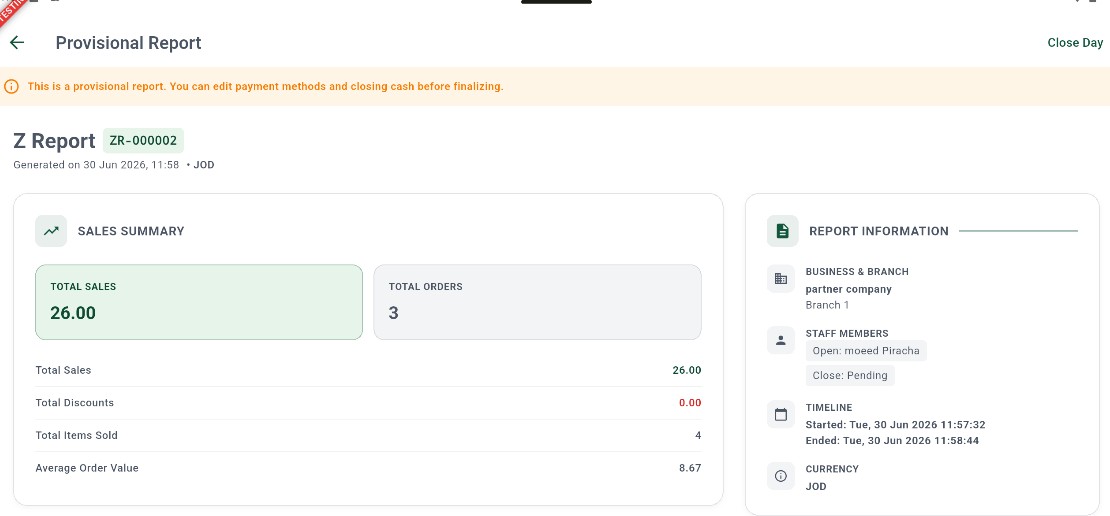 1234567891011121314
Figure 8 - Provisional Report: Sales Summary (left) and Report Information (right)
Screen Elements
Amber warning banner reminding you this is a draft. Payment methods and closing cash can still be edited before tapping Close Day.
The report number assigned to this session (e.g. ZR-000002). This is the ID that appears in the Reports list once the session is finalized.
Shows when the provisional report was compiled (e.g. 30 Jun 2026, 11:58) and the session currency (e.g. JOD).
Located top-right. Tap only after reviewing all report sections. This finalizes the session and locks the Z Report permanently.
Gross sales total for this session (e.g. 26.00 JOD). Sum of all completed order amounts before refunds.
Number of orders processed during the session (e.g. 3). Useful for cross-checking against the register receipts.
Gross revenue figure — matches the TOTAL SALES KPI card above.
Sum of all discount amounts applied across orders in this session. Displayed in red when non-zero.
Count of individual product units sold across all orders (e.g. 4 items).
Total Sales divided by Total Orders (e.g. 26.00 ÷ 3 = 8.67 JOD). Useful for tracking per-order performance.
The company and branch this session belongs to (e.g. partner company / Branch 1).
Records who opened the session and who will close it. 'Close: Pending' means the session has not yet been finalized.
The exact start and end timestamps for this session. Both appear on the finalized Z Report.
The currency used for all amounts in this report (e.g. JOD).
Payment Methods, Cash & Tax
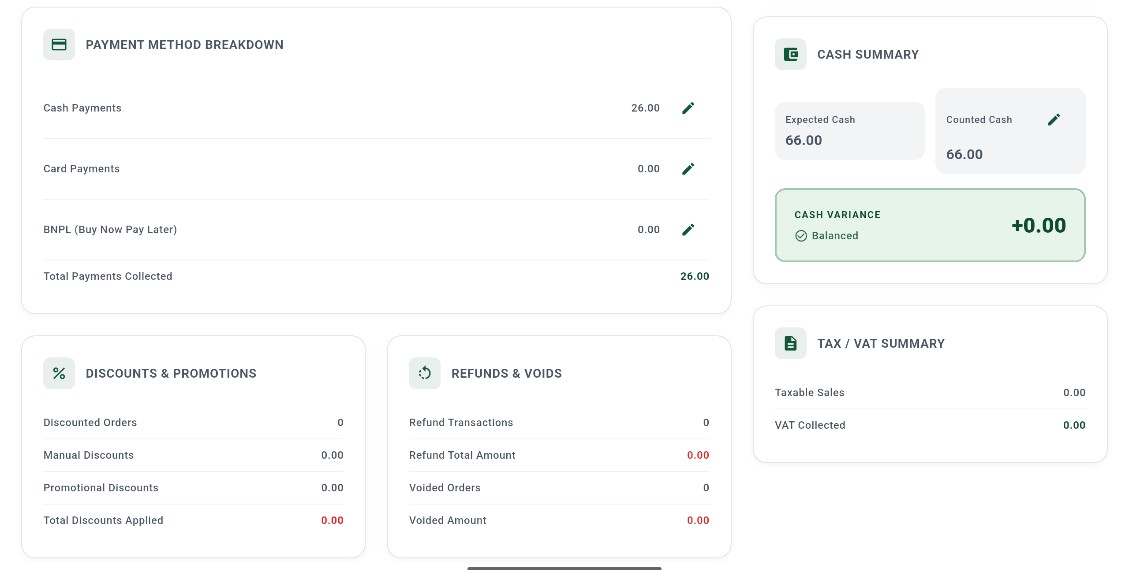 123456789101112
Figure 9 - Provisional Report: payment breakdown, cash reconciliation, discounts, refunds, and VAT
Screen Elements
Card listing each payment type collected during the session.
Total cash received across all orders (e.g. 26.00 JOD). Tap the pencil icon to manually adjust if the recorded amount differs from the actual cash received.
Total card payments processed during the session. Tap the pencil to correct if needed.
Total deferred payments recorded in this session. Tap the pencil to adjust.
Sum of Cash + Card + BNPL. Should equal the Total Sales figure from the Sales Summary.
Right-hand card reconciling the physical cash in the drawer against the expected amount.
Calculated automatically: Opening Cash + Cash Payments. This is what the register drawer should contain (e.g. 66.00 JOD).
The actual cash counted in the physical drawer. Tap the pencil icon to enter your count. Defaults to the expected amount until edited.
Difference between Expected and Counted cash. A green 'Balanced' badge with +0.00 means the drawer matches exactly. Any gap appears in red.
Breakdown of all discount activity in the session: discounted order count, manual discount total, promotional discount total, and the combined total discounts applied.
Shows refund transaction count, total refund amount, voided order count, and total voided amount. All figures display in red when non-zero.
Taxable sales amount and total VAT collected during the session. Zero when no VAT is configured for the products sold.
Item Breakdown
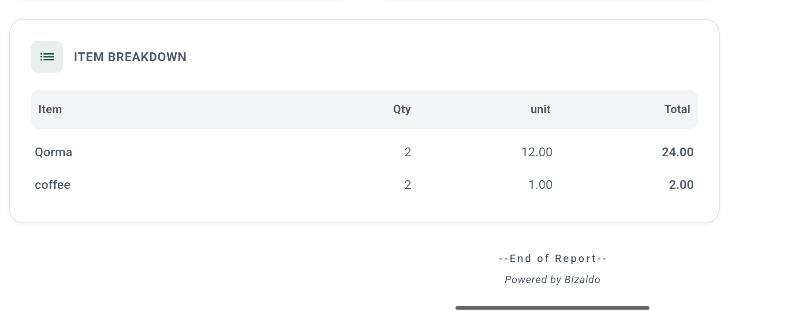 12345
12345Figure 10 - Provisional Report: Item Breakdown — every product sold with quantity, unit price, and line total
Screen Elements
Lists every distinct product sold during the session. Use this to verify which items were sold and cross-check against kitchen or stock records.
Product name as configured in the menu (e.g. Qorma, coffee).
Total quantity of that product sold across all orders in the session (e.g. 2 units).
Unit price of the product at the time of sale (e.g. 12.00 JOD for Qorma, 1.00 JOD for coffee).
Line total: Qty × Unit price (e.g. 2 × 12.00 = 24.00 JOD). All line totals sum to the session's Total Sales.
Tip!
Browsing Z Reports History
After a session is closed, the finalized Z Report is saved and appears in the Reports tab. Use this screen to browse, filter, and review any past session.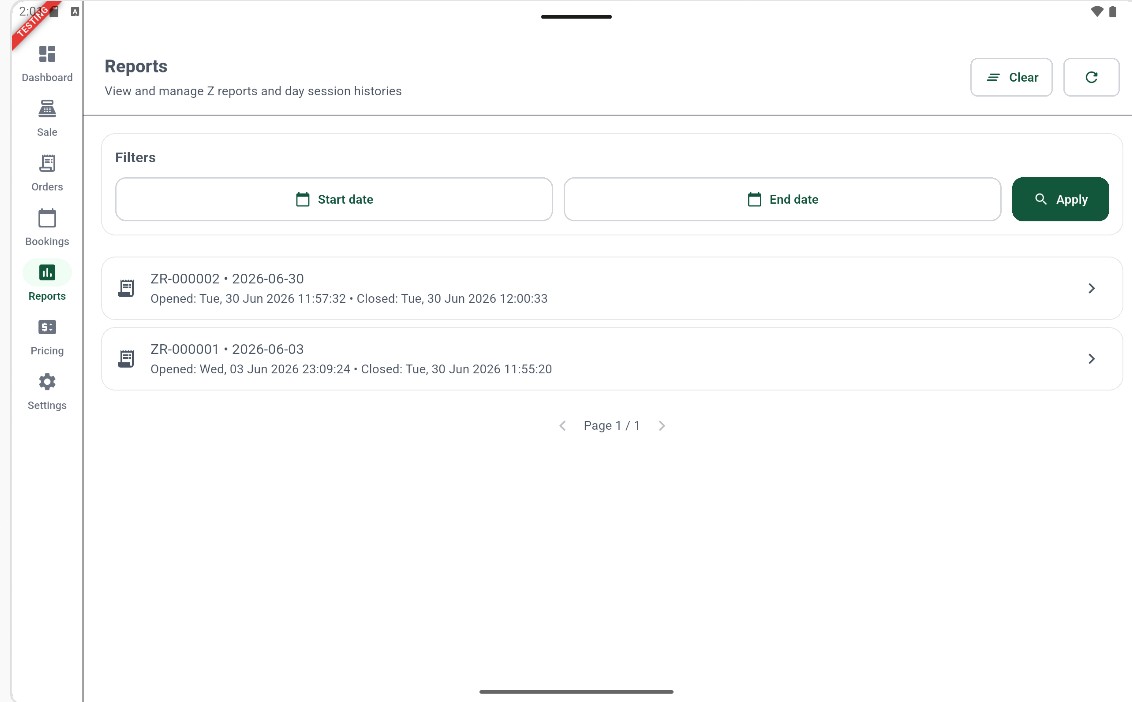 12345678
Figure 11 - Reports tab: Z Report history with date filters and session rows
Screen Elements
Tap the Reports icon (bar chart) in the left sidebar to open the Z Report history screen.
Resets the active date filters and reloads the full unfiltered list of Z Reports.
Reloads the list to pick up any newly closed sessions without clearing the current filters.
Tap to set the beginning of the date range. Only Z Reports whose business date falls on or after this date are shown.
Tap to set the end of the date range. Only Z Reports whose business date falls on or before this date are shown.
Tap Apply after selecting dates to filter the list. The list refreshes immediately to show only matching sessions.
The most recently closed session. Displays the report number, business date (2026-06-30), opened timestamp (Tue 30 Jun 11:57:32), and closed timestamp (Tue 30 Jun 12:00:33). Tap the row to open the full Z Report detail.
An earlier closed session (business date 2026-06-03). Each row shows the same fields: report ID, date, open/close times. Tap to view the full report.
Key actions
| Action | How to |
|---|---|
| Open POS Reports (web) | Sidebar → POS reports |
| List closed sessions (web) | Tab Z reports (sessions) → set dates → Run report |
| Open session details (web) | View in the ACTIONS column |
| See period totals (web) | Tab Period summary (X) → set dates → Run report |
| Change calendar range (web) | Adjust the date picker (and preset if needed) → Run report |
| Start the day (tablet) | Tap Start on the "Day Not Started" modal — or go to the Profile screen → Day Session → Start Day |
| Find your POS device ID (tablet) | Profile screen → Device Information → copy the POS ID |
| Enter opening cash (tablet) | Start Day dialog → edit the Opening Cash field → tap Start Day |
| Close the day (tablet) | Profile screen → Day Session → Close Day |
| Generate a provisional report (tablet) | Close Day wizard → Step 2 → tap Generate Provisional Report |
| Edit payment method amounts (tablet) | Provisional Report → Payment Method Breakdown → tap the pencil icon |
| Enter counted cash (tablet) | Provisional Report → Cash Summary → tap the pencil icon next to Counted Cash |
| Finalize the session (tablet) | Provisional Report → tap Close Day (top-right) |
| Browse closed sessions (tablet) | Sidebar → Reports tab |
| Filter Z Reports by date (tablet) | Reports tab → set Start date and End date → tap Apply |
| Clear date filters (tablet) | Reports tab → tap Clear |
| View a session detail (tablet) | Reports tab → tap any Z Report row |
Outputs
POS Reports gives you:- Session list (Z) — Z report IDs, business dates, close times, and open/close users
- Session detail — Via View on a row (web)
- Period KPIs (X) — Orders, items sold, gross/net sales, discounts, AOV, and BNPL outstanding for the range
- Sales Summary — Total Sales, Total Orders, Total Discounts, Total Items Sold, Average Order Value (tablet Z Report)
- Report Information — Business & Branch, Staff (opener/closer), Timeline, Currency
- Payment Method Breakdown — Cash, Card, and BNPL totals (editable before close)
- Cash Summary — Expected Cash, Counted Cash, Cash Variance
- Discounts & Promotions — Discounted orders, manual and promotional discount totals
- Refunds & Voids — Refund count, refund total, voided order count, voided total
- Tax / VAT Summary — Taxable sales and VAT collected
- Item Breakdown — Every product sold with quantity, unit price, and line total
Related documentation
- Dashboard — Live overview and trends for the same business
- Orders — Source transactions for report figures
- Company Settings — BNPL and company-level options that affect POS behavior