Settings
The Settings screen on the Bizaldo Tablet App is where device and application preferences are configured — account details, security, session management, feature toggles, printer setup, and diagnostics.Where to find it: Tap Settings (gear icon) in the bottom-left navigation sidebar of the Tablet App.
Account and Device Information
The top portion handles user profile details, 2FA security settings, and the terminal hardware identifier.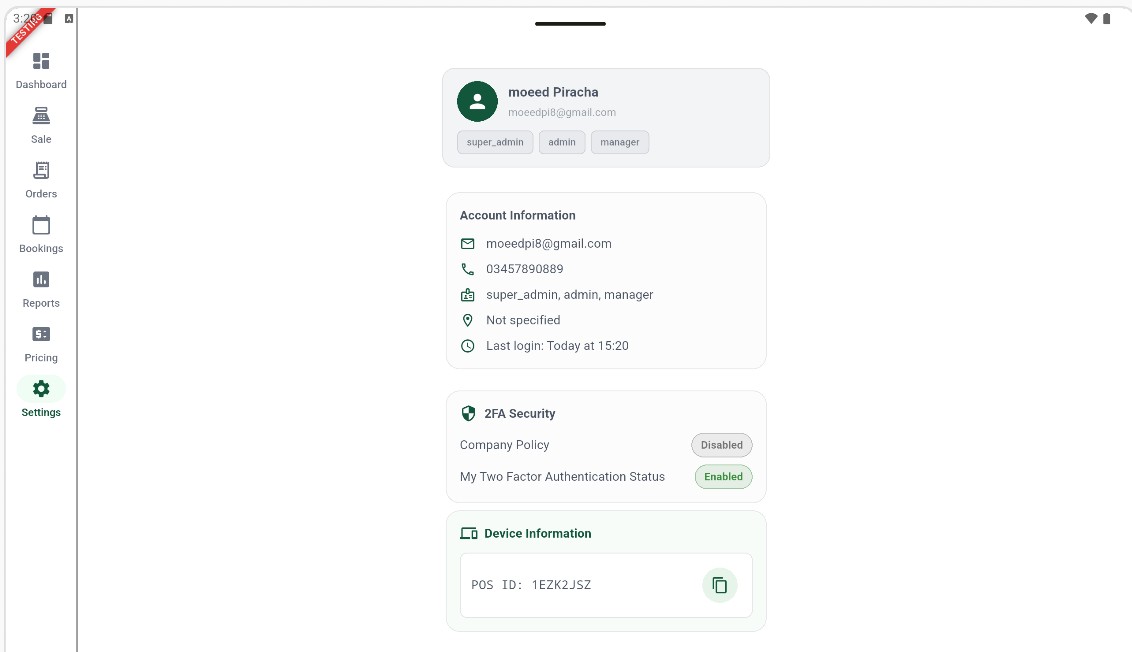 1234
1234Figure 1 — Settings (top): Account Information, 2FA Security, and unique POS ID
Screen Elements
Displays the active user's name, email, and permission level badges (super_admin, admin, manager).
Lists key account details including registered email, contact phone number, roles, assigned branch, and last login time.
Displays status of Company Policy and local Two Factor Authentication (Enabled/Disabled).
Displays this register's unique POS ID (e.g. 1EZK2JSZ) with a copy button. Use this ID to associate registers with sessions and Z Reports.
Day Session and Application Features
The middle portion contains settings for controlling shift sessions, localized preferences, security locks, and optional features.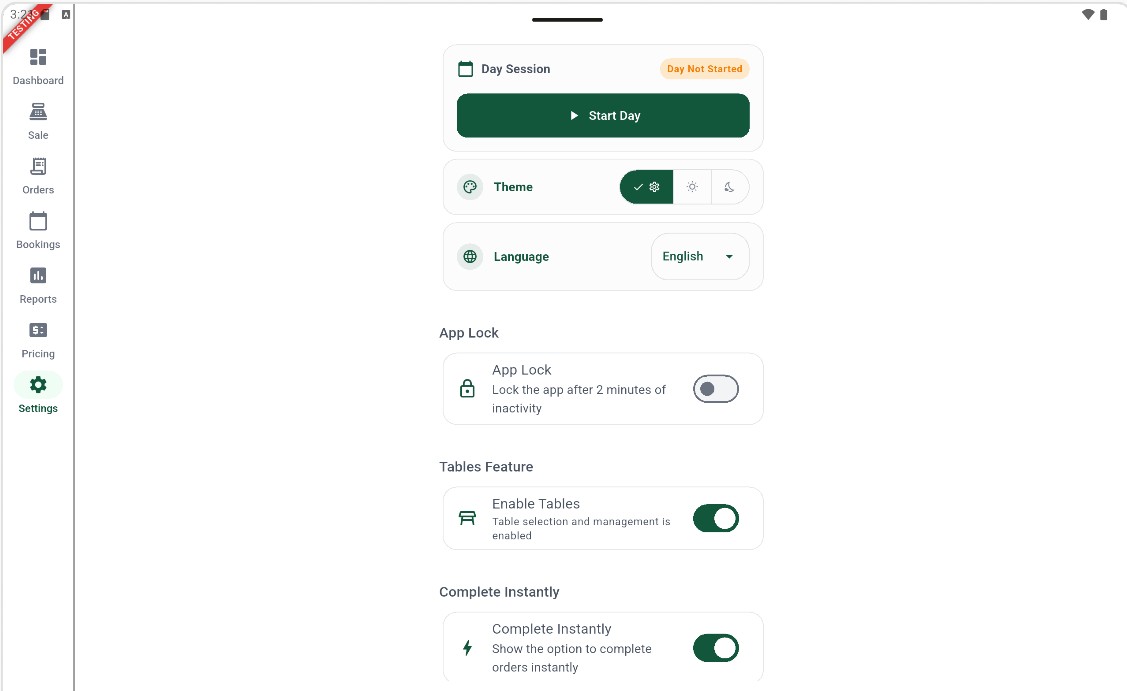 123456
Figure 2 — Settings (middle): session status, theme, language, and feature switches
Screen Elements
Displays the current session state. Shows 'Day Not Started' with a green 'Start Day' button when closed.
Segmented switch to change app coloring. Tap the gear (System Theme), sun (Light Theme), or moon (Dark Theme).
Dropdown menu to select the user interface language: English, Arabic (العربية), French (Français), Portuguese (Português), or Spanish (Español).
Toggle to require a 6-digit PIN passcode. When enabled, if no action is performed for 2 minutes, the app automatically locks.
Toggle to enable or disable restaurant floor-plan table mapping and reservation grids.
Toggle to complete orders instantly without sending them to the kitchen app.
App Lock Setup
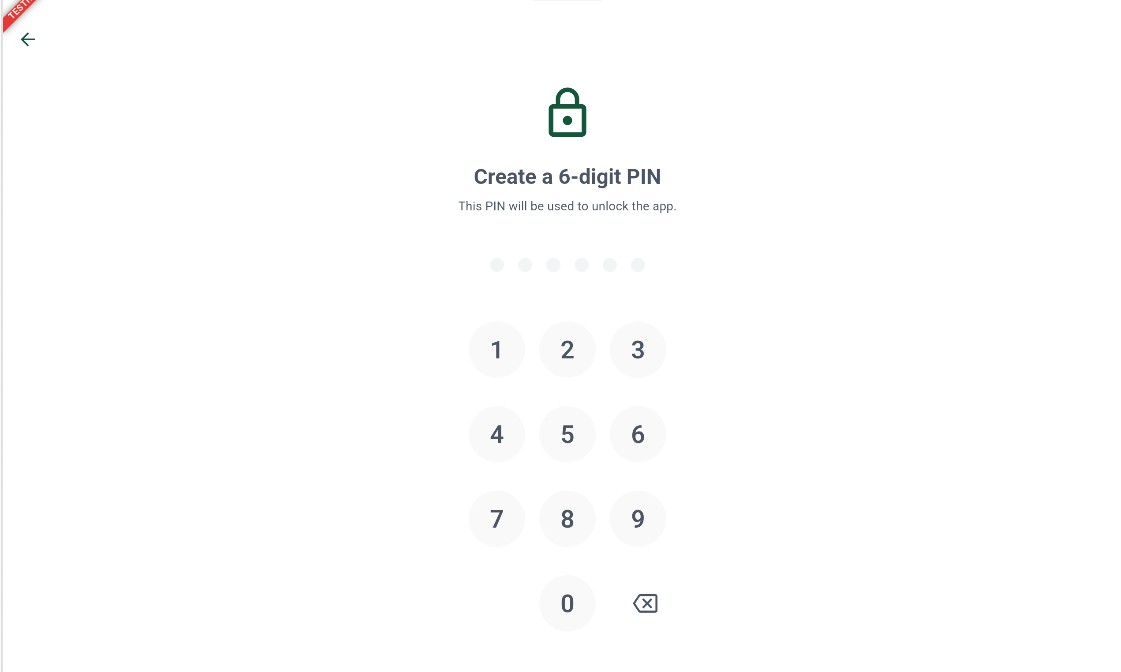
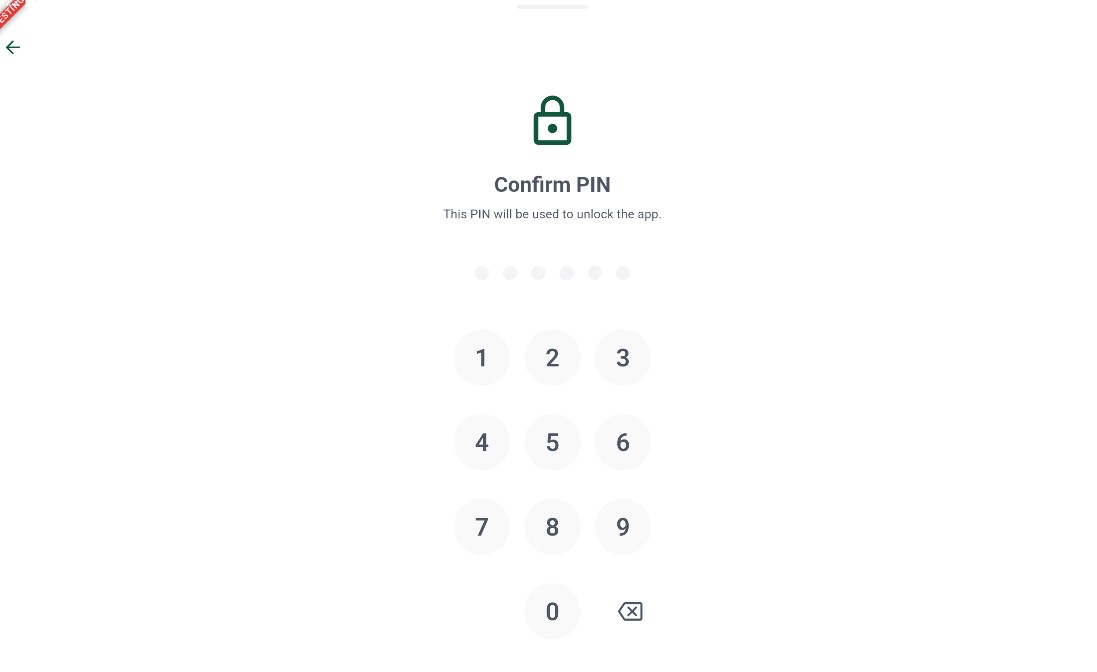
When enabling the App Lock toggle, the system behaves based on whether a passcode has already been configured:- No previous PIN — The app launches the Create a 6-digit PIN screen (Figure 3) followed by the Confirm PIN screen (Figure 4).
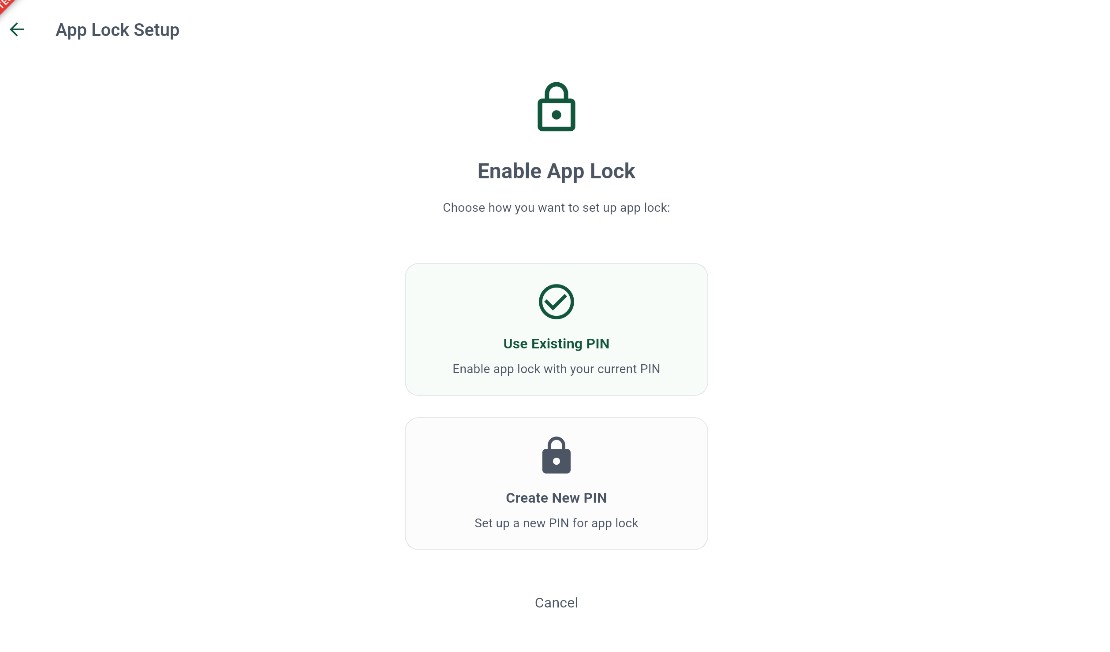
- Existing PIN detected — The App Lock Setup screen (Figure 5) appears, giving the option to either use the existing PIN or create a new one.
Safety Auto-Lock: Once App Lock is enabled, the app monitors inactivity. If no touch action is performed for 2 minutes, the screen automatically locks and requires the 6-digit passcode to unlock.
 123
123Figure 3 — PIN Setup (Create): input a new 6-digit security code
Screen Elements
Header indicating you are setting up a new passcode.
6 dots that fill up as you type digits on the keypad.
On-screen numeric keypad used to input digits.
 123
123Figure 4 — PIN Setup (Confirm): re-enter the code to confirm and save it
Screen Elements
Header prompting you to re-type the exact same code.
6 dots that fill up as you type digits on the keypad.
On-screen numeric keypad used to input digits.
 12
12Figure 5 — App Lock Setup: use existing PIN or create a new passcode
Screen Elements
Tap to activate App Lock using the passcode already saved on the device.
Tap to open the PIN creation flow and set a new 6-digit passcode.
Device Diagnostics and App Actions
The bottom portion handles app updates, hardware integrations, problem reports, and logout.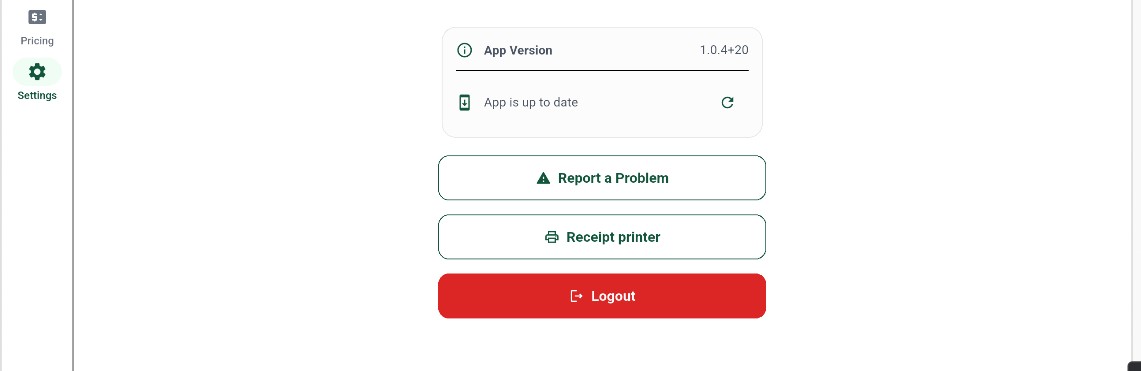 1234
1234Figure 6 — Settings (bottom): app version, printer setup, and logout
Screen Elements
Displays the installed build number (e.g. 1.0.4+20) and shows if the app is up to date.
Tap to submit diagnostic reports or contact customer support directly.
Tap to configure local thermal printer IP connections, paper width, and formatting options.
Safely terminates the active user session on the tablet and returns to the login lockscreen.
 123
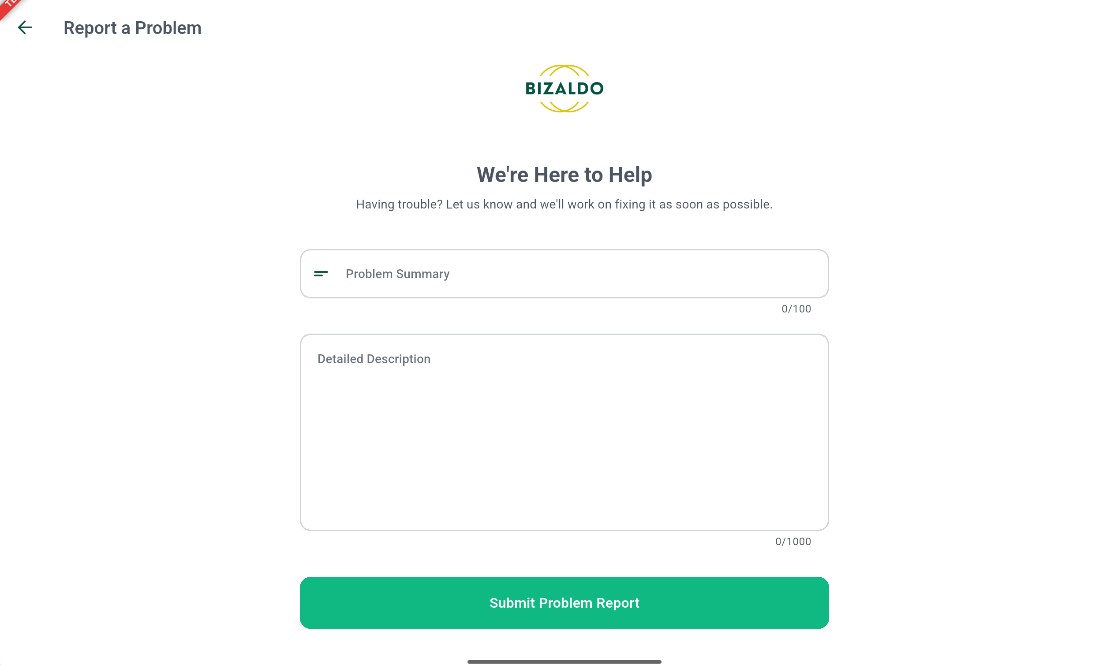
123Figure 7 — Report a Problem: enter details and submit logs to support
Screen Elements
Type a short, high-level summary of the issue (up to 100 characters).
Provide a complete description of the issue or steps to reproduce it (up to 1000 characters).
Tap to package and submit your ticket alongside local device logs.
Key actions
| Action | How to |
|---|---|
| Start / close day session | Settings → Day Session card → tap Start Day / Close Day |
| Change theme | Settings → Theme card → select system, light, or dark |
| Change language | Settings → Language card → select from dropdown |
| Enable App Lock | Settings → App Lock switch → enter & confirm 6-digit PIN |
| Enable / disable Tables | Settings → Tables Feature switch |
| Enable Complete Instantly | Settings → Complete Instantly switch |
| Setup receipt printer | Settings → tap Receipt Printer |
| Report a problem | Settings → tap Report a Problem → fill form → Submit |
| Logout | Settings → tap Logout |
Outputs
The Settings screen drives:- App appearance & locale — Active UI theme and language across the tablet session
- Security state — App Lock protection, automatically locking after 2 minutes of inactivity
- Feature modes — Tables floor plan and instant-checkout bypass configured on this register
- Printer connection — Thermal receipt printer IP, paper width, and formatting
- Diagnostics — Log submission and build version tracking
Related documentation
- POS Terminal — Building and checking out orders
- Orders — Reviewing order history from the tablet
- Pricing — Updating base product prices from the tablet
- Company Settings — Web dashboard BNPL, credit guard, and subscription management