Orders
The Orders tab on the Bizaldo Tablet App is where staff can look up any past order placed at the branch — search it, check its status, see how it was paid, and open a full receipt-style breakdown.Where to find it: In the left sidebar of the tablet app, click Orders.This is the tablet-side counterpart to Order Management on the web dashboard — same order records, viewed and searched from the branch device.
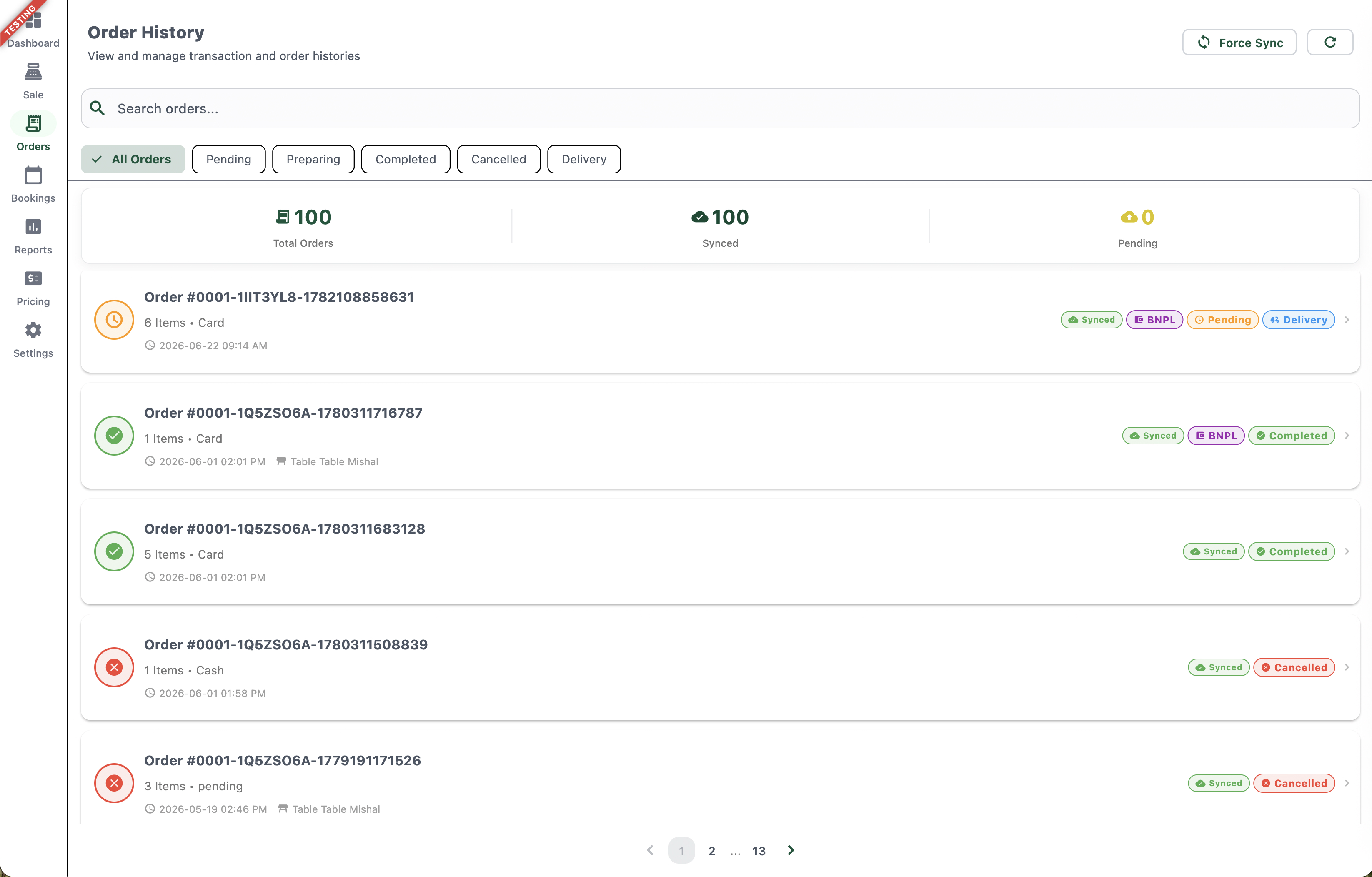 123456789
Figure 1 — The Orders tab showing all orders for the branch
Screen Elements
Manually pushes any locally pending orders to the server and pulls the latest order data.
Find an order by order number.
Filter the list by All Orders, Pending, Preparing, Completed, Cancelled, or Delivery.
Total number of orders recorded at this branch.
How many of those orders have successfully synced to the server.
Orders created on the tablet that haven't synced to the server yet — common when the device was briefly offline.
Each row shows the order number, item count, payment method, date/time, and table (for dine-in).
Quick visual status: orange clock (pending), green check (completed), red X (cancelled).
Badges showing sync status (Synced), payment type (e.g., BNPL), order status (Pending/Completed/Cancelled), and order type (e.g., Delivery).
Order History Overview
The top of the page shows three running counts for the branch:- Total Orders — every order ever placed at this branch, regardless of status.
- Synced — orders that have successfully uploaded from the tablet to the server.
- Pending — orders still waiting to sync, typically because the tablet lost connectivity briefly when the order was placed.
Status Filters
Tap a filter to narrow the list:| Filter | Shows |
|---|---|
| All Orders | Every order regardless of status |
| Pending | Orders awaiting confirmation or payment |
| Preparing | Orders currently being prepared in the kitchen |
| Completed | Orders fully served/delivered and paid |
| Cancelled | Voided orders |
| Delivery | All delivery-type orders, regardless of status |
Force Sync
If the Pending count is above zero, tap Force Sync to push those locally-saved orders to the server immediately, instead of waiting for the tablet's automatic background sync.Order Tags
Each order row carries a set of badges that summarize its state at a glance:- Synced — confirms the order has been uploaded to the server.
- Payment type — e.g., BNPL, shown when the order was paid via Buy Now, Pay Later.
- Order status — Pending, Completed, or Cancelled.
- Order type — e.g., Delivery, shown for delivery orders.
Order Detail / Receipt View
Tapping any order row opens its full detail — formatted like a receipt, with everything needed to review or reprint it.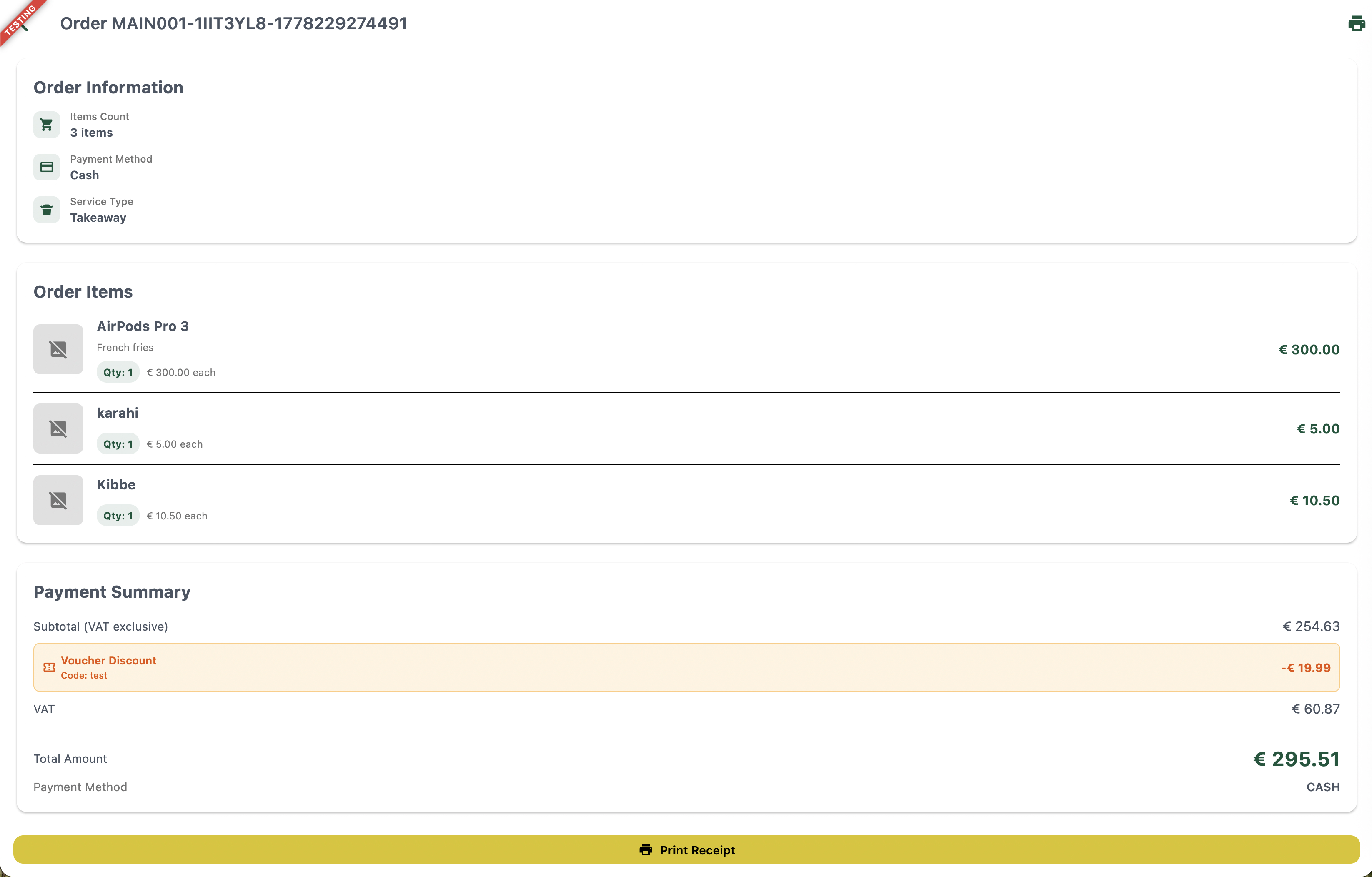 12345678910
Figure 2 — Full order detail with itemized breakdown and payment summary
Screen Elements
The unique order identifier, shown at the top of the receipt.
Print this order's receipt directly from the detail view.
Items count, payment method, and service type (e.g., Takeaway, Dine In, Delivery) for this order.
Each item ordered, with any modifiers, quantity, unit price, and line total.
Order total before discounts and VAT.
Shows the voucher code used and the amount it discounted off the order, if a voucher was applied.
Tax amount applied to the order.
Final amount charged for the order, after discount and VAT.
How the order was paid — Cash, Card, or BNPL.
Reprint the full receipt for this order at any time.
- Items Count
- Payment Method
- Service Type (Takeaway, Dine In, or Delivery)
- Item name and any modifiers (e.g., "French fries")
- Quantity and unit price
- Line total per item
- Subtotal (VAT exclusive)
- Voucher Discount — voucher code and amount discounted, if applied (see Vouchers)
- VAT
- Total Amount
- Payment Method
Why Order Numbers Look the Way They Do
Order numbers follow the pattern `{BRANCH-CODE}-{DEVICE-ID}-{TIMESTAMP}`, for example `MAIN001-1IIT3YL8-1778229274491`. This keeps every order globally unique across branches and devices, even if multiple tablets create orders offline at the same time, and makes it easy to trace which branch and device an order originated from.In One Sentence
The Orders tab on the Bizaldo Tablet App lets staff search, filter, and review every order placed at the branch — including its sync status, payment method, and a full itemized receipt — directly from the device.Key Actions
| Action | How To |
|---|---|
| View all orders | Sidebar → Orders |
| Search for an order | Orders → Search Orders bar → enter order number |
| Filter by status | Orders → tap a status filter (Pending, Preparing, Completed, Cancelled, Delivery) |
| Sync pending orders | Orders → Force Sync |
| Open full order detail | Tap any order row |
| Reprint a receipt | Open order → Print Receipt (or the print icon at the top) |
Related Documentation
- POS Terminal — Building and checking out orders
- Order Management — Full order lifecycle on the web dashboard
- Vouchers — Voucher discounts shown on order receipts