Pricing
The Pricing tab on the Bizaldo Tablet App lets managers update base product prices on the go, directly from the device — no need to go through the web dashboard for quick price changes.Where to find it: In the left sidebar of the tablet app, click Pricing.
Note: This tab covers base product prices only. Addon and variant prices cannot be changed here — those must be updated via the Admin Panel (web dashboard) under Inventory → Products → select the product → Configuration → edit Addons, Variants, or Combos.
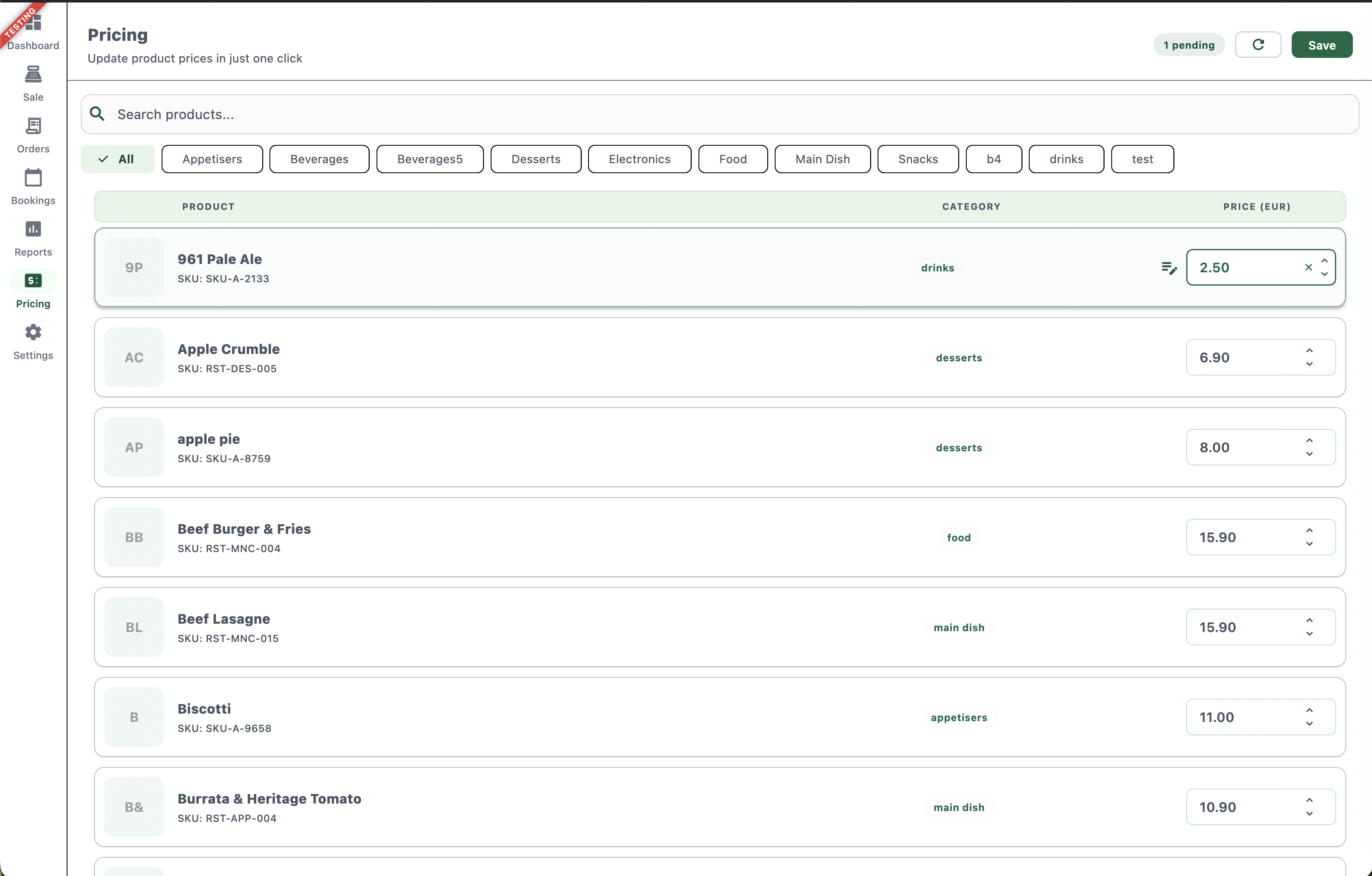 12345678
Figure 1 — The Pricing tab showing the product list with editable prices
Screen Elements
1
Pending Changes
Counts how many price edits have been made but not yet saved.
2
Refresh
Reloads the product list and discards any unsaved local state from a previous session.
3
Save
Pushes all pending price changes live at once.
4
Search Products
Find a product by name to jump straight to its price field.
5
Category Filters
Narrow the product list to a single category, including custom categories like 'b4' or 'test'.
6
Product Row
Shows the product's initials icon, name, and SKU.
7
Category
The category this product belongs to.
8
Price Field
The current price, editable inline with up/down steppers; a highlighted border indicates an unsaved edit.
How It Works
- Use Search Products or the category filters to find the product you want to reprice.
- Adjust the price directly in its Price field — either type a new value or use the up/down steppers.
- Each edited row is tracked as a pending change; the counter at the top right updates as you go.
- Once you're done adjusting prices, tap Save to push all pending changes live at once.
Pending Changes & Refresh
- Pending shows the running count of unsaved price edits (e.g., "1 pending").
- Refresh reloads the product list from the server — use this if you want to discard unsaved edits and start over, or to pull in pricing changes made elsewhere (e.g., from the web dashboard).
- Save commits every pending change in one action; the pending counter resets to zero once saved.
Category Filters
Category filters include both standard categories (Appetisers, Beverages, Desserts, Food, Main Dish, Snacks) and any custom categories created in Products, so the list reflects whatever categories your menu actually uses.Addons, Variants & Modifiers
The Pricing tab only covers base product prices. To change addon prices, variant prices, or modifier charges, use the Admin Panel:Admin Panel → Inventory → Products → open the product → Configuration → edit Addons, Variants, or Combos
In One Sentence
The Pricing tab lets staff search, filter, and bulk-update product prices from the tablet, tracking unsaved changes until they're explicitly saved.Key Actions
| Action | How To |
|---|---|
| Find a product to reprice | Pricing → Search Products or select a category filter |
| Update a price | Tap the price field → type a new value or use the steppers |
| Discard an in-progress edit | Tap the X next to the price field |
| Reload the product list | Tap the refresh icon |
| Save all price changes | Tap Save (top right) |
| Update addon / variant prices | Admin Panel → Inventory → Products → select product → Configuration → edit Addons, Variants, or Combos |
Related Documentation
- POS Terminal — Where these prices are charged at checkout
- Orders — Reviewing past orders and their pricing
- Products — Full product catalog management on the web dashboard