Company Settings
Company Settings applies to one company at a time (the name under the title, for example EftaaPay Limited). From here you control Buy Now, Pay Later (BNPL), the credit blacklist guard, and you can review subscription and billing before returning to your company list.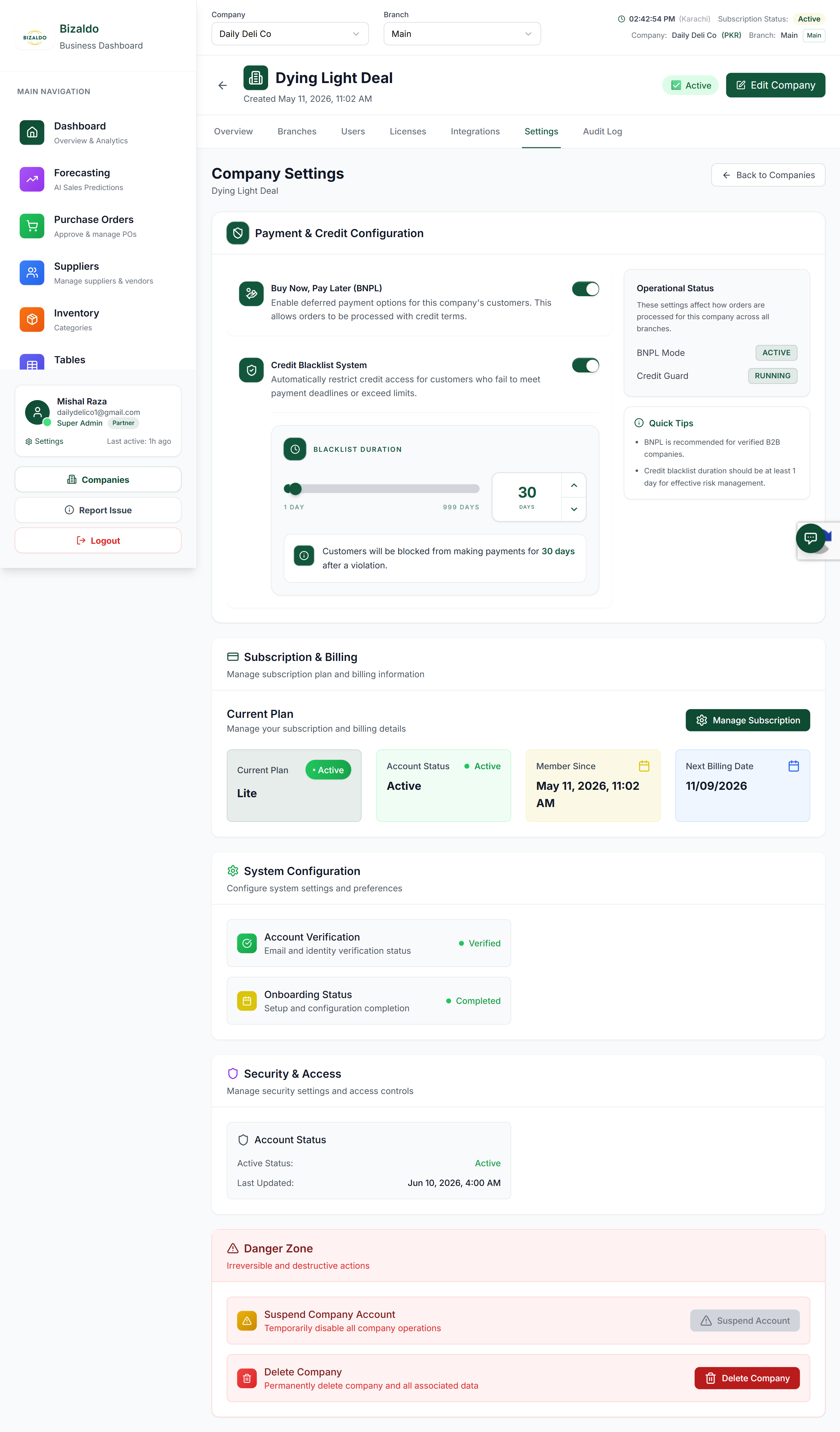
Figure 1 — Company Settings: payment & credit, status, and subscription overview
Screen Elements
Returns to the company picker so you can switch to another entity or branch.
Company Settings title and subtitle showing the active company name being edited.
Section heading for the card grouping BNPL and credit blacklist controls.
Toggle ON/OFF — when enabled, customers can use deferred payment. Affects the Loaned (BNPL) metric in POS Reports.
Toggle ON/OFF — Credit Guard automation to restrict credit for blocked customers. OFF means the guard is stopped.
Badges such as BNPL Mode: ACTIVE and Credit Guard: STOPPED — mirrors the toggles for at-a-glance confirmation.
In-context guidance on BNPL and blacklist behavior, e.g. duration and policy hints.
Current Plan (e.g. Lite Plus), Account Status, Member Since, Next Billing Date, and Manage Subscription button.
Payment & Credit Configuration
Buy Now, Pay Later (BNPL)
- Turning BNPL on enables deferred-payment flows your POS and invoices are configured to honor.
- Turning it off prevents new BNPL placement according to your rules.
- Outstanding BNPL appears in reporting (see Loaned (BNPL OUTSTANDING) on the period summary in POS Reports).
Credit Blacklist System (Credit Guard)
- When on, the system can automatically restrict credit for customers on the blacklist.
- When off, Credit Guard is stopped—review risk and policy before leaving it off in production.
- The Operational Status card reflects these modes with ACTIVE / STOPPED (or equivalent) badges.
Quick Tips
Read the tips card for nuances—such as how long blacklist effects last or how BNPL interacts with orders—so staff align with finance and risk policy.Subscription & Billing
This block is about your Bizaldo plan, not individual POS tenders.- Current Plan — Named tier (e.g. Lite Plus) with an Active badge when the subscription is in good standing.
- Account Status — High-level health (e.g. Active).
- Member Since — Account creation or subscription start timestamp.
- Next Billing Date — Upcoming charge date for budgeting.
- Manage Subscription — Opens subscription / billing management (exact portal depends on your integration).
How you typically use this screen
- Open Companies (or your admin entry point) and select the company you need.
- Open Company Settings for that entity.
- Adjust BNPL and Credit Blacklist toggles; confirm Operational Status.
- Review Subscription & Billing; use Manage Subscription if the plan or payment method must change.
- Use Back to Companies when finished.
Key actions
| Action | How to |
|---|---|
| Leave company settings | Back to Companies (top right) |
| Enable / disable BNPL | Payment & Credit Configuration → BNPL toggle |
| Enable / disable credit guard | Credit Blacklist System toggle |
| Confirm modes at a glance | Operational Status badges |
| Check plan and renewal | Subscription & Billing → dates and Manage Subscription |
Outputs
Company Settings drives:- BNPL availability — Customer-facing payment options and outstanding loaned balances in reports
- Credit Guard behavior — Automatic restriction of credit for blacklisted accounts when enabled
- Subscription visibility — Plan name, status, and next billing for administrators
Related documentation
- Getting Started — Companies, branches, and first-time setup
- POS Reports — Period metrics including BNPL outstanding
- Dashboard — Operational overview for the same business
- Troubleshooting — If toggles or billing do not reflect expected state
- Settings — Tablet app device and application settings