Vouchers
Vouchers are discount codes that customers can apply to their orders to receive special offers and promotions. They help you attract new customers, reward loyal ones, and drive sales during specific periods.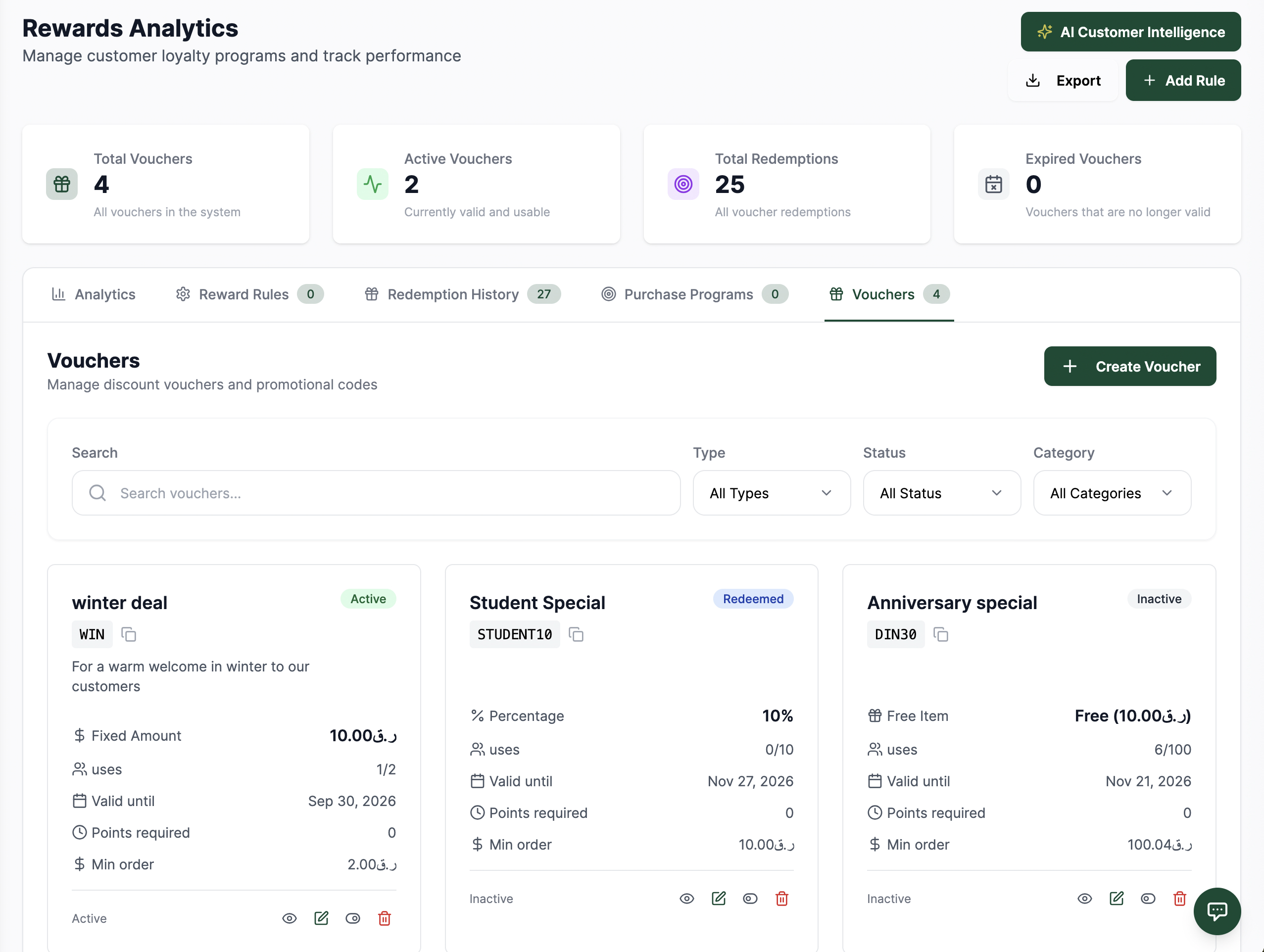 12345678
Figure 1 — The Vouchers page with statistics and voucher cards
Screen Elements
Shows the total number of vouchers created in the system.
Displays the count of currently valid and usable vouchers.
Indicates the total number of times vouchers have been redeemed.
Shows the number of vouchers that are no longer valid.
Button to create new vouchers with custom settings.
Search bar and filters for Type, Status, and Category to find specific vouchers.
Individual voucher cards showing details like status, type, and validity etc.
Quick actions like change status, view or delete voucher are showing
How Customers Get Vouchers — Bizaldo Consumer App
Vouchers in Bizaldo aren't just internal discount codes — they're built around the Bizaldo Consumer App, the customer-facing loyalty app.- A customer scans the QR code displayed on the Bizaldo tablet app at your branch.
- This instantly enrolls them as a loyalty member of your business in the Bizaldo Consumer App.
- Any voucher you create — whether it's a universal voucher (available to all customers) or a customer-specific voucher (assigned to one person) — automatically appears under that customer's profile in the Bizaldo Consumer App.
- At checkout, the customer taps Redeem on the voucher in the Bizaldo Consumer App, then scans their phone again at the Bizaldo tablet while the order is being paid for.
- The discount is applied instantly to the order total, and the redemption is recorded.
Voucher Types
Every voucher is one of three types:1. Free Item
Gives the customer a free item (e.g., a dessert or drink) instead of a cash discount, usually once a loyalty milestone is reached (e.g., after 10 orders).2. Percentage
Reduces the order total by a percentage (e.g., 20% off).3. Fixed Amount
Reduces the order total by a fixed amount (e.g., 10 QAR off).| Voucher Code | Type | Discount | Min Order | Usage/Person |
|---|---|---|---|---|
| Ord10 | 1. Free Item | Free dessert (35.00 QAR value) | 20.00 ر.ق | 1 |
| DIN30 | 1. Free Item | Free item | — | — |
| WIN | 3. Fixed Amount | 10.00 QAR off | — | — |
| SUMMER20 | 2. Percentage | 20% off | €20 | 100 uses |
Creating Vouchers
Step 1: Navigate to Vouchers
Go to Rewards → Vouchers tab in the dashboard.Step 2: Create New Voucher
Click the "Create Voucher" button to open the voucher creation form.Step 3: Configure Voucher Details
A voucher can be configured with full control over when, where, and for whom it's valid:- Name & Description — Internal name and description (e.g., "10 Orders Voucher — Enjoy free dessert after 10 orders")
- Code — A unique code you set yourself (e.g., `Ord10`, `DIN30`, `WIN`) — this is the same code shown to the customer in the Bizaldo Consumer App
- Category — e.g., Loyalty, Seasonal, Welcome
- Type — Free Item, Percentage, or Fixed Amount
- Discount Amount — The value of the discount or the free item
- Validity Period — Valid From / Valid Until dates
- Start Time / End Time — Restrict the voucher to specific hours of the day (e.g., 10:00:00–22:00:00)
- Days — Restrict the voucher to specific days of the week (e.g., Monday, Wednesday, Thursday, Friday, Saturday, Tuesday)
- Specific Customer — Assign the voucher to one named customer, or leave it universal so it's available to all loyalty members
- Branch — Restrict the voucher to a specific branch, or make it valid across all branches
- Usage Per Person — Maximum number of times a single customer can use the voucher
- Minimum Order Amount — The order total required for the voucher to apply
- Points Required — Loyalty points a customer must redeem to unlock the voucher (0 if not points-based)
- Terms and Conditions — Free-text conditions shown with the voucher
Step 4: Save and Activate
Click "Save" to create the voucher. It becomes Active immediately if the current date/time/day falls within its validity rules, and it will appear in the customer's Bizaldo Consumer App profile right away if applicable.Voucher Detail View
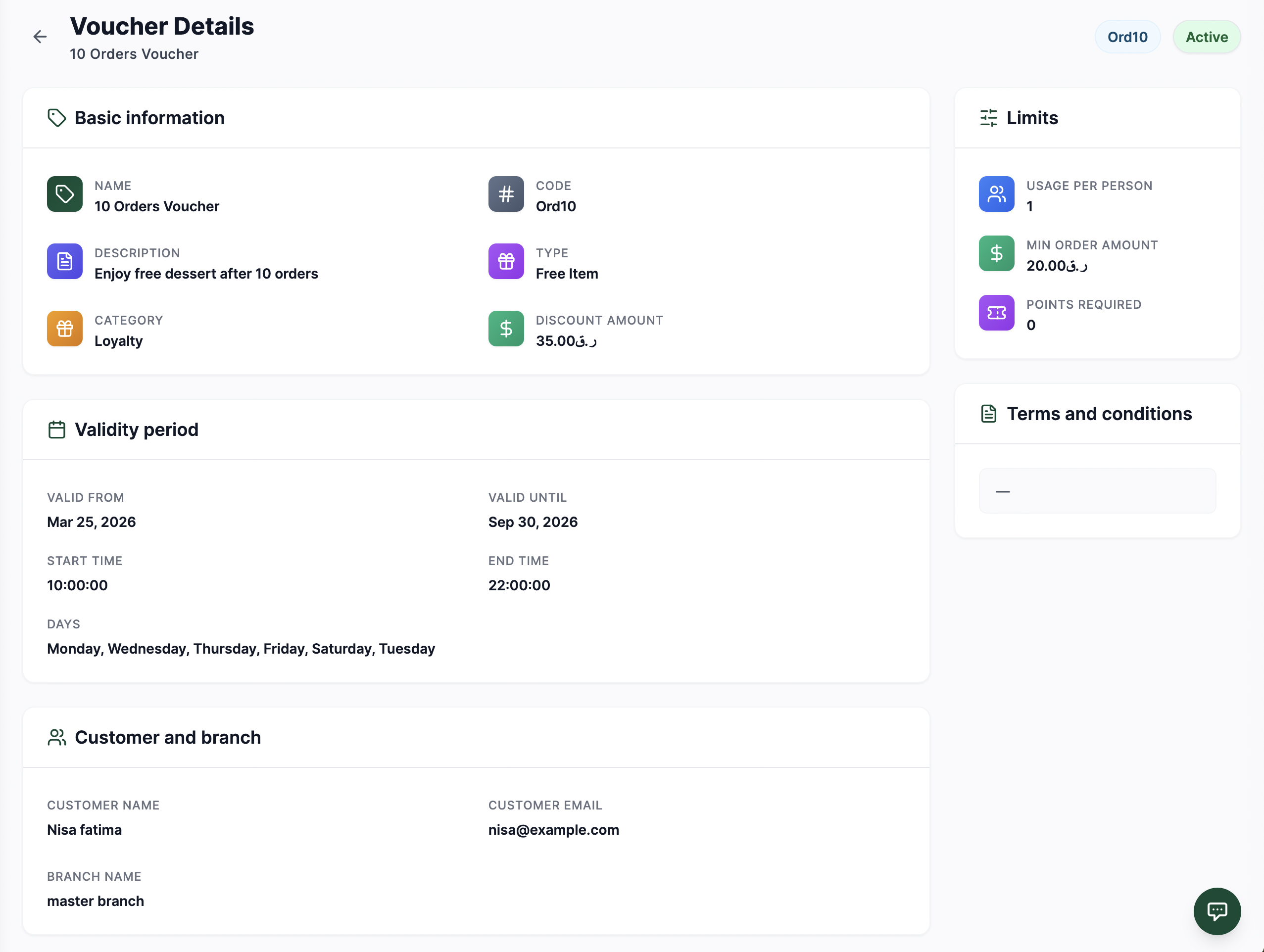 12345678
Figure 2 — Full configuration view of a single voucher
Screen Elements
The voucher's unique code and its current status (e.g., Active, Expired, Scheduled).
The unique, merchant-defined code customers see and redeem in the Bizaldo Consumer App.
Indicates whether this is a Free Item, Percentage, or Fixed Amount voucher.
The value of the discount, or the value of the free item being given.
Valid From/Until dates, plus optional start/end time and specific allowed days of the week.
Allowed Usage per person, minimum order amount required, and points required to unlock the voucher.
Custom conditions attached to the voucher, shown to staff and customers.
Shows which customer the voucher is assigned to (if customer-specific) and which branch it's restricted to.
Voucher Usage
Customer Redemption
- Customer enrolls in the loyalty program by scanning the QR code on the Bizaldo tablet with the Bizaldo Consumer App.
- Any eligible voucher (universal or assigned to them) shows up under their Bizaldo Consumer App profile.
- They tap Redeem on the voucher in the Bizaldo Consumer App.
- While paying for their order, they scan their phone again on the Bizaldo tablet app.
- The discount is automatically calculated and applied to the order total.
Validation Rules
Vouchers are validated against the following rules:- Code must match exactly
- Current date, time, and day must fall within the voucher's validity rules
- Order total must meet the minimum order requirement
- Usage per person limit must not be exceeded
- Voucher must be active
- Branch must match, if the voucher is branch-specific
- Customer must match, if the voucher is assigned to a specific customer
Order Cancellation & Reversal
If an order that a voucher was applied to gets cancelled, the voucher redemption is automatically reversed — the usage count is restored and the discount is undone, so the customer can use the voucher again later.Redemption History
Every redemption — whether Used or Cancelled — is logged with full order and customer context, and is visible to both you (in Bizaldo) and the customer (in the Bizaldo Consumer App).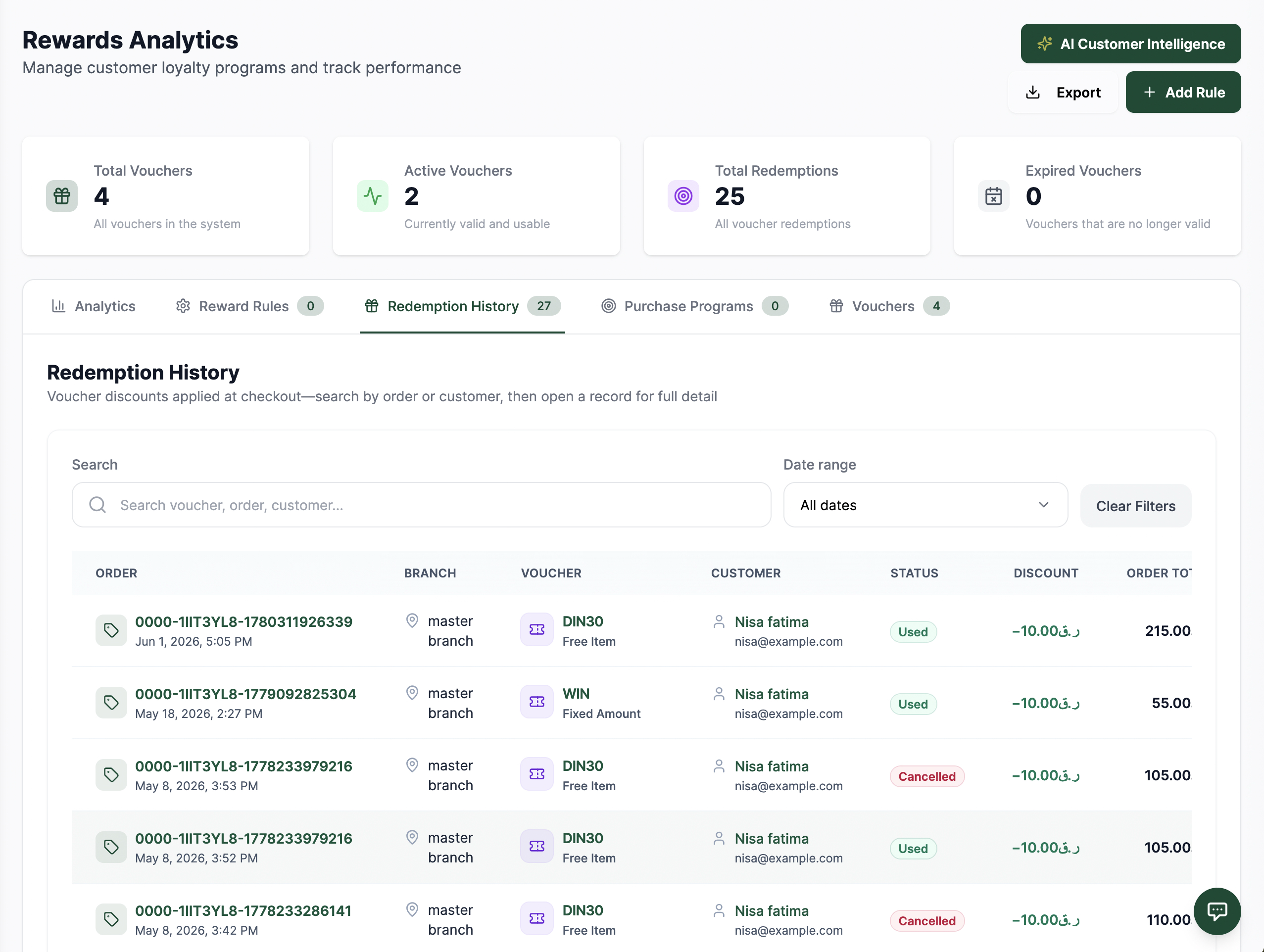 123456789
Figure 3 — Redemption History under Rewards Analytics
Screen Elements
All vouchers that exist in the system.
Vouchers that are currently valid and usable.
All-time count of voucher redemptions, both used and cancelled.
Vouchers that are no longer valid.
Switch between Analytics, Reward Rules, Redemption History, Purchase Programs, and Vouchers.
Search by voucher, order, or customer, and filter by date range.
Each row shows the order, branch, voucher used, and customer who redeemed it. Click to see full details
Shows whether the redemption is Used or Cancelled — cancelled orders automatically reverse the voucher.
The discount amount applied and the resulting order total.
Usage Tracking
Track voucher performance with:- Redemption count — How many times the voucher was used (and how many were cancelled/reversed)
- Total discount given — Sum of all discounts applied
- Revenue impact — Orders completed with the voucher
- Customer segments — Which customers used the voucher
Best Practices
Code Naming
Use clear, memorable codes:- SUMMER20 — Summer promotion, 20% off
- WELCOME10 — New customer welcome, 10% off
- Ord10 — Loyalty milestone reward after 10 orders
- DIN30 — Dine-in promotion, free item
Limited-Time Offers
Create urgency with time-limited vouchers:- Set validity periods to 1–2 weeks
- Restrict to specific days or hours to drive traffic during slow periods
- Display countdown timers on marketing materials
Targeted Promotions
Segment vouchers for different audiences:- New customers — Welcome vouchers to encourage first purchase
- Loyal customers — Customer-specific vouchers as a milestone reward
- Branch-specific — Promotions tied to a single location
- Reactivation — Special offers for customers who haven't ordered recently
Usage Limits
Protect margins with usage limits:- Set realistic "usage per person" limits
- Monitor redemption history to prevent abuse
- Remember cancelled orders automatically restore voucher usage, so watch for repeated cancel/reapply patterns
In One Sentence
Vouchers are customizable Free Item, Percentage, or Fixed Amount discount codes — redeemed by customers through the Bizaldo Consumer App and the Bizaldo tablet — that help you run promotions, reward loyalty, and drive sales with full control over timing, audience, and branch.Key Actions
| Action | How To |
|---|---|
| Create voucher | Rewards → Vouchers → Create Voucher |
| Edit voucher | Rewards → Vouchers → Edit (check voucher card actions) |
| Deactivate voucher | Rewards → Vouchers → Deactivate (check voucher card actions) |
| Delete voucher | Rewards → Vouchers → Delete (check voucher card actions) |
| View redemption history | Rewards → Redemption History |
| View voucher details | Rewards → Vouchers → open a voucher card |
Outputs
The voucher system produces:- Unique discount codes — Customizable voucher identifiers shown in the Bizaldo Consumer App
- Discount calculations — Automatic application of Free Item, Percentage, or Fixed Amount discounts
- Redemption history — Synced across the Bizaldo Consumer App and Bizaldo, with Used/Cancelled status
- Automatic reversal — Voucher usage restored when an order is cancelled
- Validation checks — Real-time verification of timing, day, branch, customer, and usage eligibility