TV Application
The TV Application (also called TV Screen or TV Display) is a customer-facing order board. Guests watch their order move from In Progress to Ready without asking staff for updates. Unlike the Kitchen app, the TV display is not a downloadable application. It runs in a web browser using a secure TV link generated in the dashboard.Where to find it: On the Dashboard, click TV Screen in Quick Actions. You can also manage TV links from Branch Management for a specific branch.
What the TV Display Shows
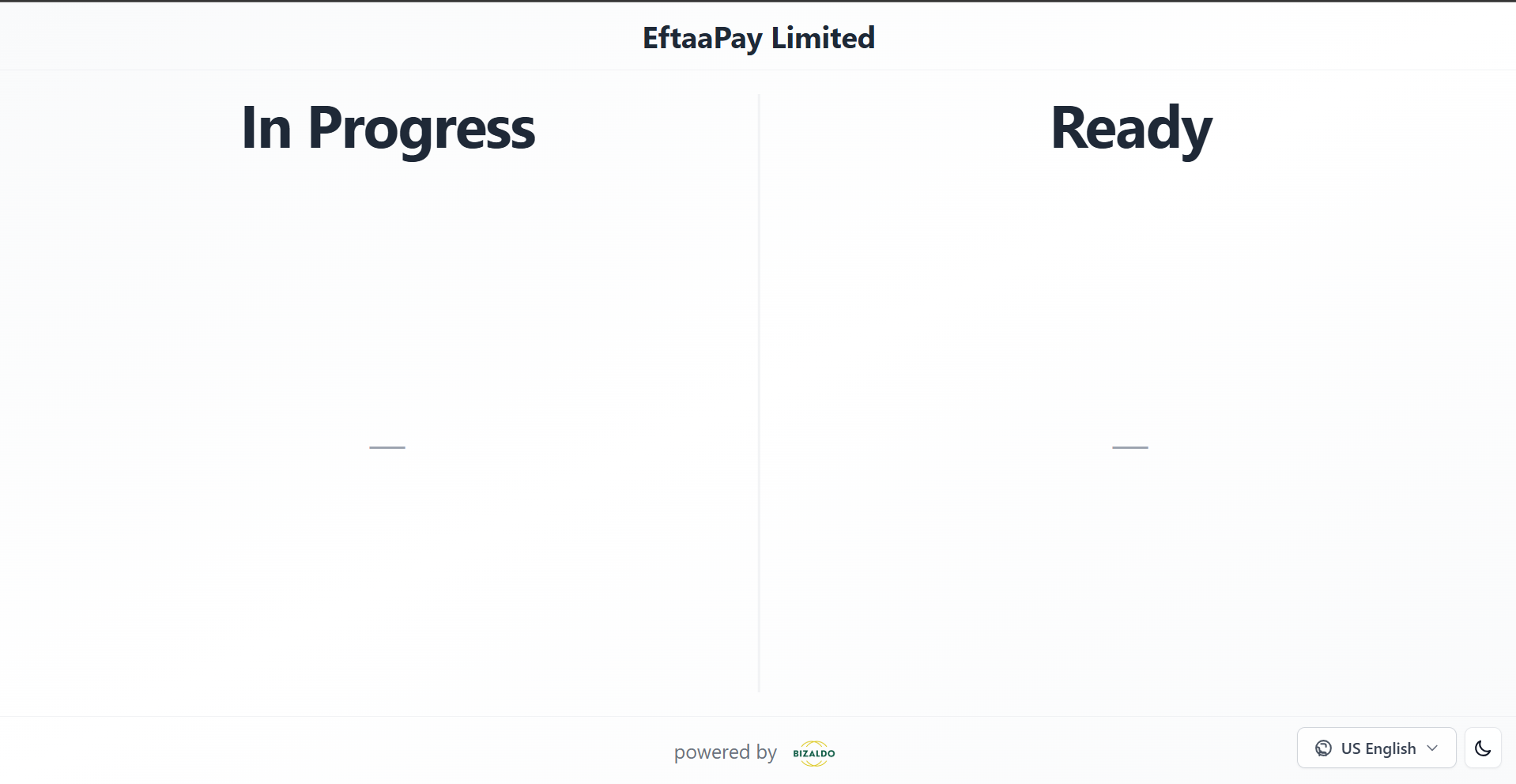
The TV board uses a two-column layout updated in real time:| Column | What Customers See |
|---|---|
| In Progress | Orders currently being prepared in the kitchen |
| Ready | Orders finished and waiting for pickup |
 123
123Figure 1 — TV display board shown to waiting customers
Screen Elements
1
Company name
Shows the branch company name at the top of the display.
2
In Progress
Orders the kitchen is currently preparing.
3
Ready
Orders ready for customer pickup.
Full Setup Guide
- Prepare hardware — TV/monitor + player device with browser
- Generate TV link — Dashboard → TV Screen (or Branch Management)
- Open link on TV device — Paste URL or scan QR code
- Enable full-screen — F11 or kiosk mode
- Test end-to-end — POS order → KDS → TV shows Ready
Step 1 — Hardware setup
What you need
| Component | Options |
|---|---|
| Display | Any TV or large monitor with HDMI |
| Player device | PC, Chromebox, Fire TV Stick (Silk browser), Android TV box, spare tablet, or Raspberry Pi |
| Browser | Chrome recommended; Edge or Firefox also work |
| Network | Stable internet; same branch network as POS and kitchen for best reliability |
Placement tips
- Mount the screen where waiting customers can see it clearly
- Avoid direct window glare
- Use a wall mount or stand at eye level near the pickup counter
- For food courts, one TV per pickup zone
Player device preparation
Before opening the TV link:- Connect the player to the TV via HDMI.
- Connect the player to Wi‑Fi (same network as your POS if possible).
- Disable screen sleep and screen saver on the player.
- Enable kiosk or guided access mode so customers cannot exit the browser (see below).
Kiosk mode
For a permanent install, use your device's kiosk or guided-access mode so guests cannot close the browser. On Windows, consider assigned-access kiosk mode; on Android tablets, use screen pinning or a kiosk launcher app.
Step 2 — Generate a TV link
TV links are branch-specific. Each screen showing a location's orders needs a link for that branch.From the Dashboard
- Sign in to the Bizaldo dashboard.
- Select the correct company and branch in the header.
- On the Dashboard, click TV Screen in Quick Actions.
- The TV Links — [branch name] modal opens.
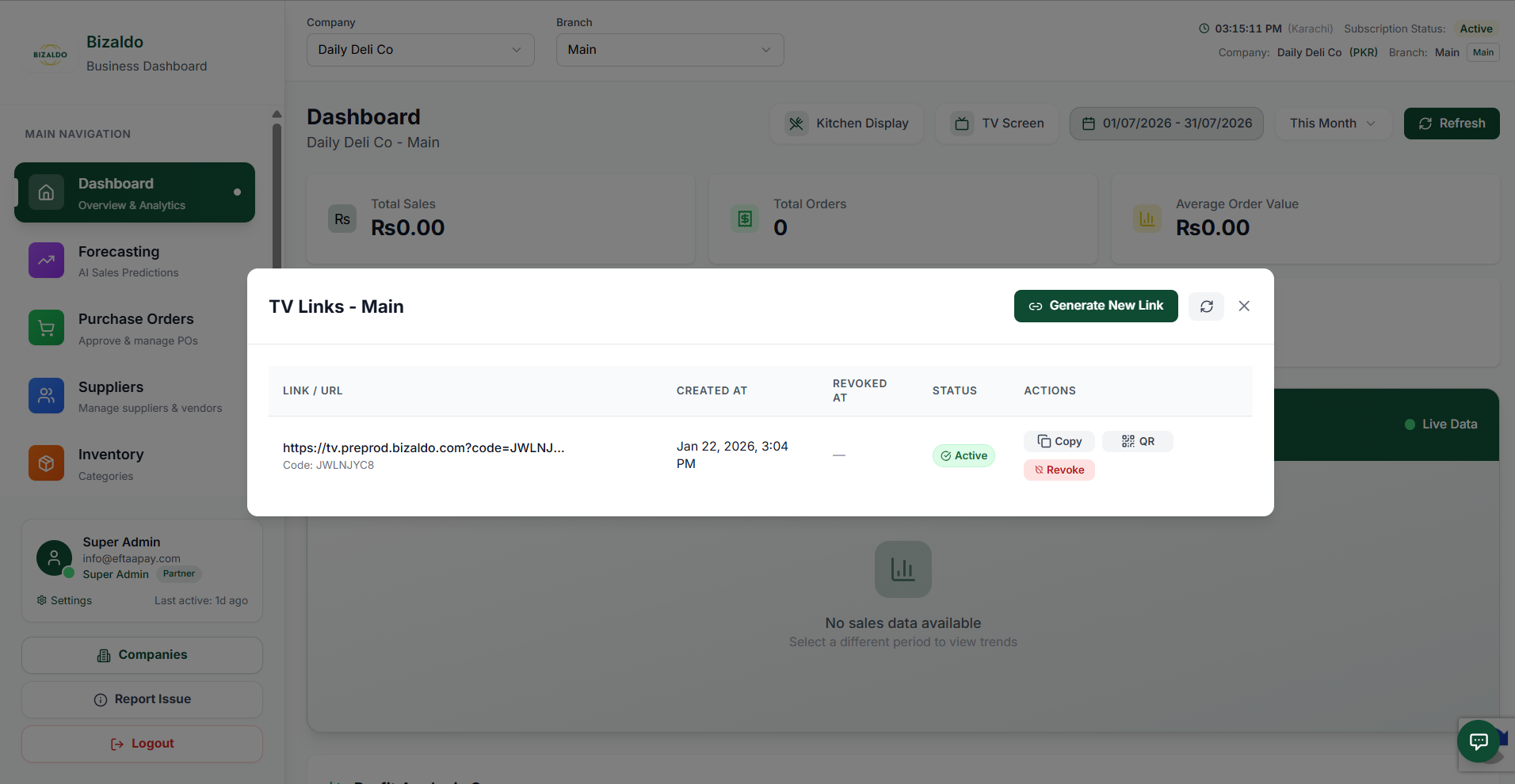
Figure 2 — Generate and manage TV links from the dashboard
Screen Elements
1
TV Screen
Open TV Links from TV Screen in dashboard Quick Actions.
2
Generate New Link
Create a new TV URL for this branch.
3
Link and code
Full URL and short code to open on the TV device.
4
Status
Active links can be opened on displays; revoked links stop working.
5
Actions
Copy the URL, show a QR code, or revoke the link.
From Branch Management
- Go to Branch Management.
- Find the branch and open Manage TV Links.
- The same TV Links modal appears for that branch.
Create a new link
- In the TV Links modal, click Generate New Link.
-
A new row appears with:
- Link / URL — the full URL to open on the TV device
- Code — short identifier for the link
- Created At — timestamp
- Status — Active
- Use Copy to copy the URL to your clipboard.
- Use QR to show a scannable QR code (useful for configuring tablets without a keyboard).
Step 3 — Open the TV link on the display
Option A — Paste the URL
- On the TV player device, open Chrome (or your preferred browser).
- Paste the copied TV link into the address bar and press Enter.
- The order board loads and connects via WebSocket.
Option B — Scan the QR code
- In the dashboard TV Links modal, click QR on the active link.
- On the TV player device (or a phone to configure a tablet), scan the QR code.
- The browser opens the TV display URL.
Option C — Bookmark for reboots
- After the board loads correctly:
- Bookmark the URL or set it as the browser homepage.
- Configure the player to auto-launch the browser on boot (varies by device/OS).
Step 4 — Full-screen and kiosk mode
- Press F11 (Windows/Linux) or use the browser full-screen control to hide toolbars.
- On tablets, enable Guided Access (iOS) or Screen Pinning (Android).
- Confirm the two columns fill the screen and text is readable from the waiting area.
Step 5 — Verify the setup
- Place an order at the Bizaldo Tablet App or counter POS.
- Confirm the order appears under In Progress on the TV once kitchen starts preparation.
- In the Kitchen Display, advance the order to Done.
- Confirm the order moves to Ready on the TV.
Managing TV links
The TV Links table shows all links for the branch:| Link / URL | Code | Created At | Revoked At | Status | Actions |
|---|
Revoking a link
Click Revoke on an active link to invalidate it immediately. The backend rejects the token, and active viewers are disconnected (the dashboard reports how many clients were disconnected). Use revoke when:- A TV link was shared with the wrong person
- You are decommissioning a screen
- You want to force all displays to use a new link
Pairing and branch scope
| Rule | Detail |
|---|---|
| Branch-specific | Each TV link only shows orders for the branch it was created under |
| Multi-location | Create separate links (and screens) per branch |
| Multi-screen | Multiple active links per branch are supported |
| No app install | Any device with a modern browser works — smart TV browser, HDMI stick, tablet, or PC |
Customer experience
Typical takeaway / quick-service flow:- Customer places an order at POS and receives an order number or name on the receipt.
- Customer waits where they can see the TV.
- Order appears under In Progress, then moves to Ready when kitchen marks it done.
- Customer collects the order when their number or name appears under Ready.
Keeping the display in sync
- Updates are push-based (WebSocket) — the board refreshes when kitchen or POS changes order status.
- Brief internet outages may pause updates; orders catch up when connectivity returns.
- If the screen freezes, refresh the browser or reopen the bookmarked URL.
- Ensure the Kitchen Display is advancing orders — the TV mirrors kitchen workflow.
TV vs Kitchen Display
| Kitchen Display (KDS) | TV Application | |
|---|---|---|
| Rule | Kitchen staff | Customers |
| Column | Prepare food, print tickets | Show pickup status |
| Platform | Download from Apps (APK/EXE/DMG) | Browser URL — no install |
| No app install | 8-character pass key | TV link URL or QR code |
| Actions | Move orders between prep stages | Read-only for guests |
| Status — Active | Dashboard → Kitchen Display | Dashboard → TV Screen |
Troubleshooting
| Issue | What to check |
|---|---|
| Blank or error page | Link may be Revoked — generate a new link |
| Orders not appearing | Wrong branch link; order not confirmed at POS |
| Board not updating | Network outage; refresh browser; verify KDS is updating status |
| Wrong branch orders | Regenerate link with correct branch selected in dashboard |
| QR won't scan | Increase screen brightness; regenerate QR from dashboard |
| Link shared publicly | Revoke the link and create a new one |
Go-live checklist
- TV link generated for the correct branch
- URL opens on the player device in full-screen / kiosk mode
- Screen sleep disabled on the player
- Test order flows POS → KDS → TV (In Progress → Ready)
- Screen visible from the main waiting area
- Staff trained to advance orders in KDS so the TV stays accurate
- Bookmark or auto-start configured for daily reboots
Related Documentation
- Kitchen Display (KDS) — Kitchen-side status updates that drive the TV board
- Dashboard Overview — Quick Actions for TV Screen and Kitchen Display
- Getting Started — Initial Bizaldo setup
- Order Management — Order statuses and lifecycle