Troubleshooting Guide
This guide provides step-by-step solutions for common Bizaldo issues. Follow the diagnostic steps in order for best results.Connection & Login Issues
Cannot Log In
Symptoms: Login page won't accept credentials
Diagnostic Steps:
-
Verify credentials
- Check Caps Lock is off
- Ensure email has no typos
- Try typing password slowly to verify
-
Reset password
- Click "Forgot Password" on login page
- Check email (including spam folder)
- Click reset link within 1 hour
- Create new password meeting requirements
-
Check account status
- Contact admin to verify account is active
- Confirm user hasn't been disabled
- Verify email verification completed
-
Browser issues
- Clear browser cache and cookies
- Try incognito/private window
- Disable browser extensions temporarily
- Try different browser
-
Network issues
- Verify internet connection
- Check firewall isn't blocking bizaldo.com
- Try different network (mobile hotspot)
Error Messages:
- "Invalid credentials" → Wrong email/password
- "Account disabled" → Contact admin
- "Email not verified" → Check inbox for verification link
- "Too many attempts" → Wait 30 minutes, then try again
Connection Timeouts
Symptoms: Pages won't load, spinning indicator
Solutions:
- Check internet connection (try loading other websites)
- Refresh page (F5 or Ctrl+R)
- Clear browser cache
- Check Bizaldo status page: status.bizaldo.com
- Try again in 5-10 minutes (may be temporary)
If persistent:
- Restart router/modem
- Switch to mobile hotspot to isolate network issue
- Contact support with error screenshot
Printer Configuration
Tablet App Printer Setup
Follow these steps to configure your receipt printer on the tablet app:Step 1: Open your profile settings to access printer configuration.
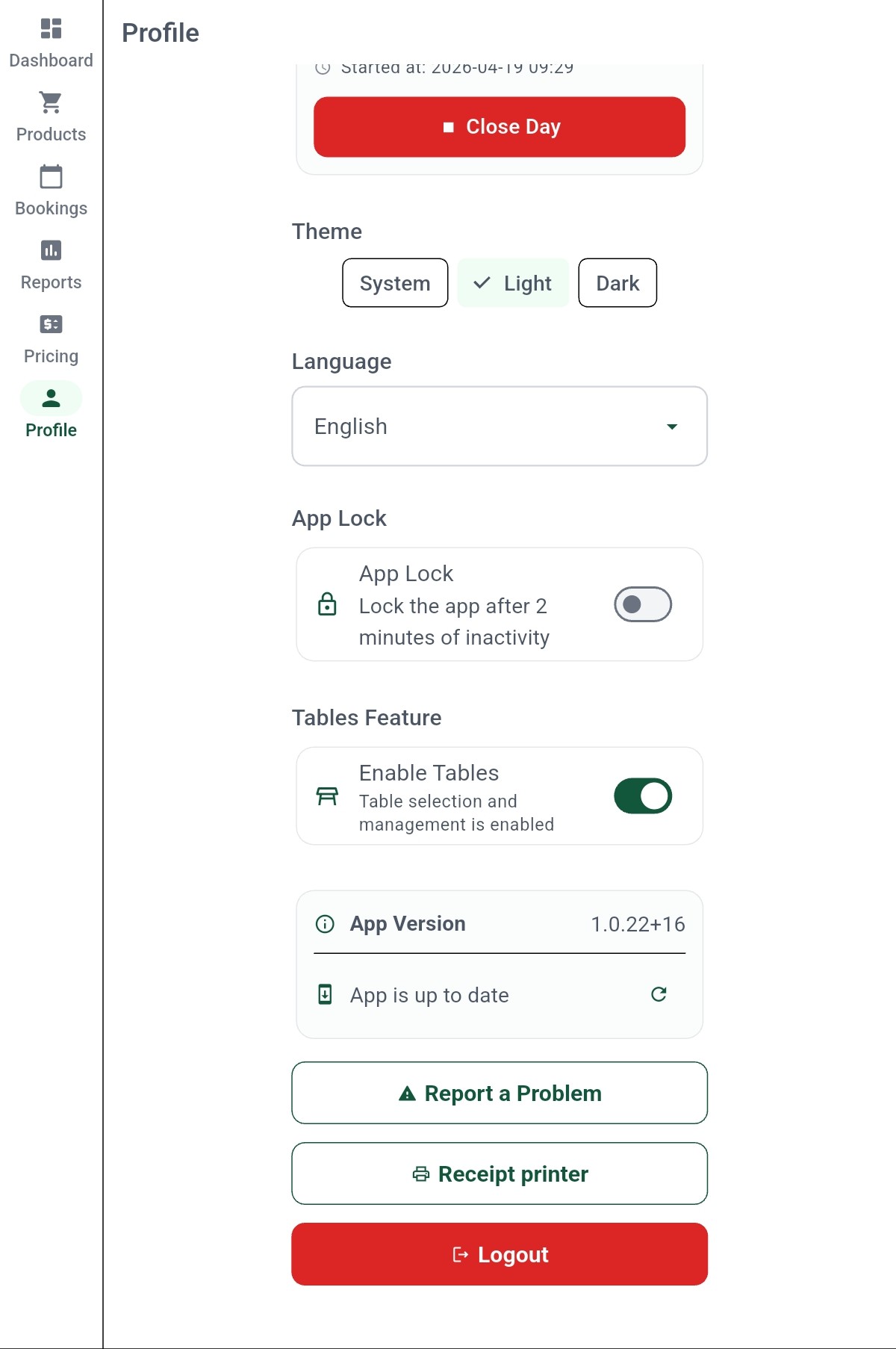 1
1Navigate to the Receipt printer settings from your profile.
Screen Elements
Tap to configure the tablet's receipt printer.
Step 2: Connect and configure the receipt printer.
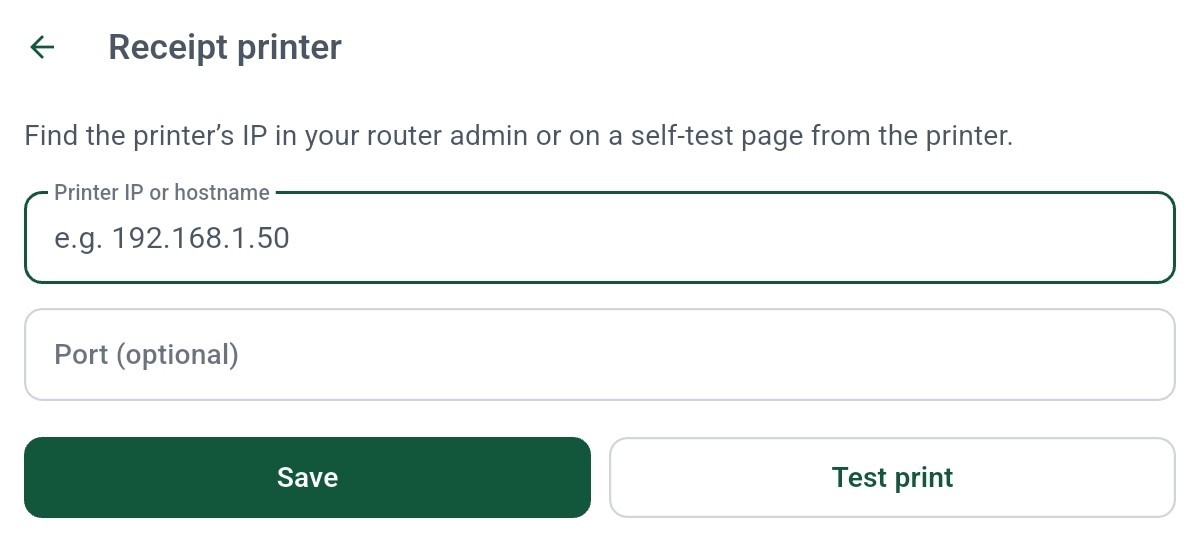 1234
1234Enter your printer's IP address and test the connection.
Screen Elements
Enter the IP address of your receipt printer.
Optional port number.
Save the printer configuration.
Print a test receipt to verify the connection works.
Kitchen App Printer Setup
Follow these steps to configure your kitchen printer. For the full kitchen display guide, see Kitchen Display (KDS).
Step 1: Configure the kitchen application settings.
When generating a pass-key from your admin panel, you can choose a code with or without auto-print enabled:- Without Auto-Print: The kitchen app will not automatically print receipts.
- With Auto-Print: The kitchen app will automatically print a receipt whenever a new order arrives.
Important: If you activate the kitchen app with an auto-print code while there are already pending orders in the app, the system will immediately print receipts for all of those previous orders.
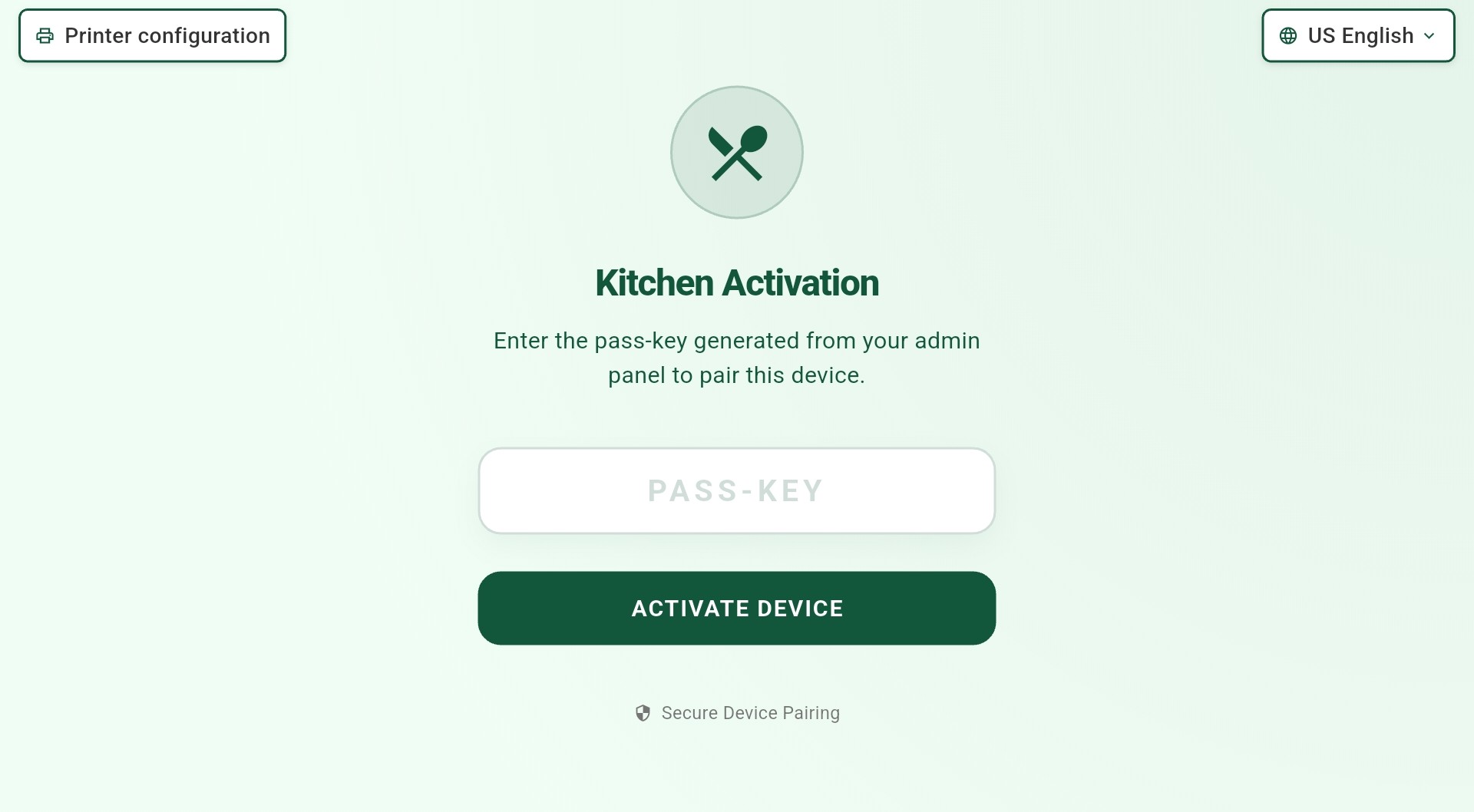 12
12Configure the kitchen application settings.
Screen Elements
Click here to access the kitchen printer settings.
Enabling this will activate the kitchen app..
Step 2: Connect and configure the tablet printer.
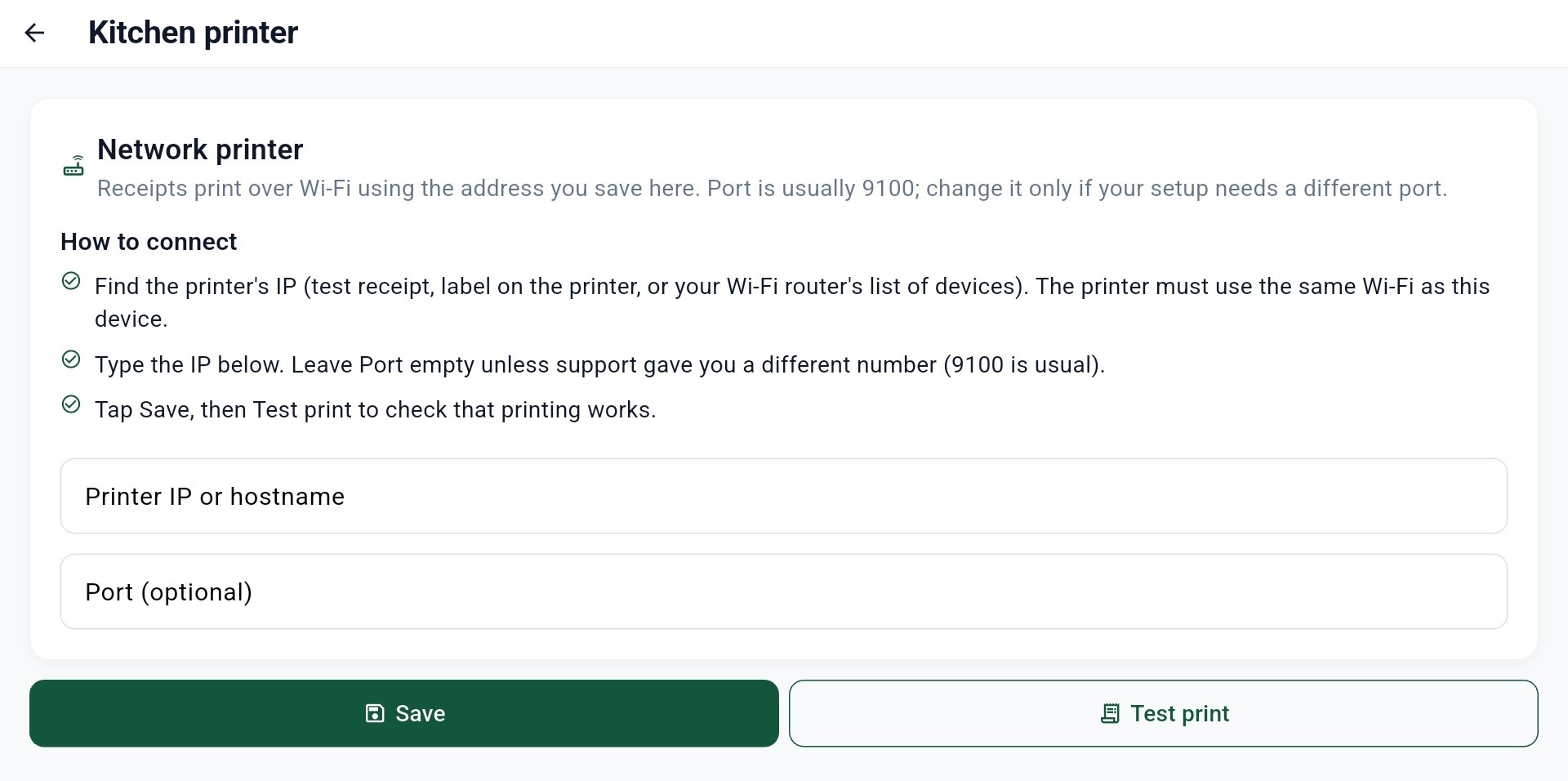 1234
1234Connect and configure the tablet printer.
Screen Elements
Enter the IP address of your kitchen printer on the same network.
Leave empty unless support gave you a different number (9100 is usual).
Save the printer configuration.
Print a test receipt to verify the connection works.
Kitchen Receipt Not Printing
If the kitchen receipt is not printing, please follow these steps: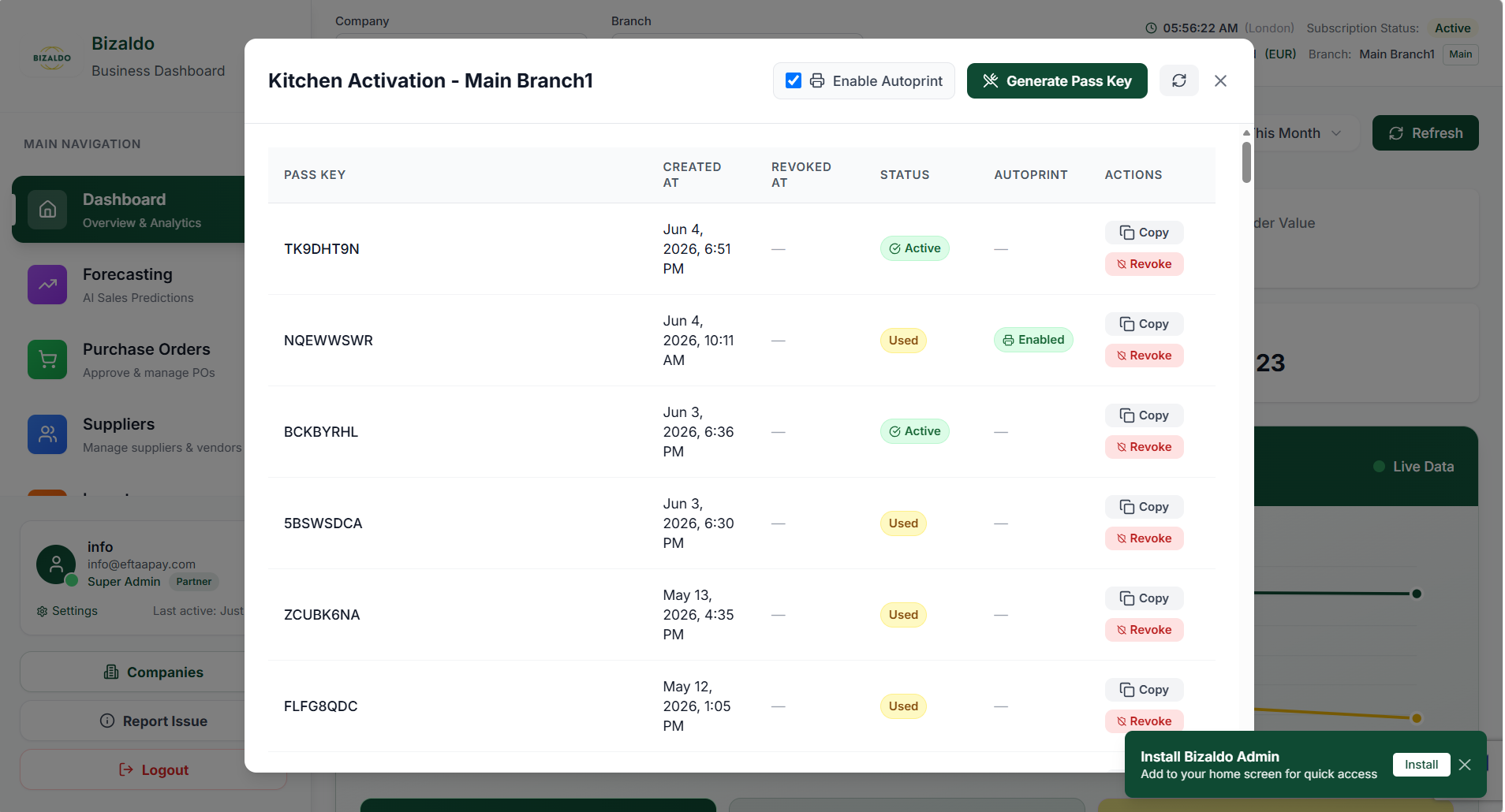 1234
1234Enable autoprint and activate kitchen display
Screen Elements
Click on Kitchen Display Button on Bizaldo dashboard.
Click to enable autoprint (make sure it is checked/enabled).
Click to generate a unique pass key for kitchen activation.
Copy the generated pass key.
Step-by-step instructions:
- Click on Kitchen Display Button on Bizaldo dashboard.
- Click on Enable Autoprint (make sure it is checked/enabled)
- Click on Generate Pass Key
- Copy the generated pass key
- Open the Kitchen Application
- Paste the copied pass key into the Kitchen Application
- Save or confirm the activation
Performance Issues
POS Running Slowly
Symptoms: Lag when adding items, slow screen updates
Solutions:
-
Browser optimization
- Close unnecessary browser tabs
- Clear browser cache
- Update to latest browser version
- Disable unused browser extensions
-
Hardware check
- Ensure device meets minimum specs
- Close other applications
- Check CPU/memory usage
- Restart device
-
Network
- Check internet speed (minimum 5 Mbps recommended)
- Switch to wired connection if possible
- Reduce other network usage (streaming, downloads)
- Consider upgrading internet plan
-
Data volume
- Large product catalogs may slow search
- Optimize product images (compress)
Getting Help
If issues persist after troubleshooting:-
Document the issue
- Screenshot error message
- Note exact steps to reproduce
- Record time issue occurred
- Note which user/branch affected
-
Check status page
- Visit status.bizaldo.com
- Verify no ongoing incidents
-
Contact support
- Email: info@eftaapay.com
Preventive Maintenance
- Browser cache clearing (weekly)
- Device restarts (daily)
- Inventory counts (weekly)
- Software updates (as available)
- Staff training refreshers (monthly)