Finvora Accounting & ERP Integration
The Finvora Accounting & ERP Integration bridges Bizaldo POS directly with Finvora ERP. Designed for modern multi-branch hospitality and retail operations, it automatically synchronizes finalized end-of-day Z-Reports and Customer Credit (Buy Now Pay Later) settlements as balanced, double-entry General Ledger journal entries without requiring complex catalog or menu synchronization.Availability: Finvora Accounting integration is configured per company in the Admin Portal under Companies → Integrations and executes automatically in the background during POS Day Close sessions and Customer Credit payment recordings.
How It Works
Finvora ERP API Key Provisioning
The administrator creates an integration API key in Finvora ERP under Settings → API Keys with audit identification.Bizaldo Admin Credential Configuration
Company credentials (Base URL and API Key) are registered and validated via live heartbeat in Bizaldo Admin under Companies → Integrations.POS Shift & Float Initialization
The cashier opens the register on the POS tablet, verifying the terminal ID and recording physical opening cash float in SAR.Continuous Sales & Multi-Payment Processing
Orders are processed seamlessly using Cash, Card, or Customer Credit (BNPL). Revenue, VAT (15%), and accounts receivables accumulate accurately.Shift Closure & Provisional Review
At the end of trading, the cashier initiates Close Day, locking new sales orders, generating provisional reports, and finalizing physical counts.Automated Z-Report & GL Synchronization
Bizaldo seals the session (e.g. ZR-000044) and synchronously posts 4 balanced double-entry journal vouchers (Cash Out, Sales, Refund, Settlement) into Finvora ERP.BNPL Installment Settlement & Ledger Clearing
When customers repay credit balances in Bizaldo Admin, each payment automatically triggers a settlement journal voucher (e.g. JE-2026-000005) in Finvora, clearing receivables.1. Finvora ERP API Key Generation
Before configuring Bizaldo Admin, generate a secure integration API key inside your Finvora ERP organization settings.Step 1.1: Navigate to API Keys in Finvora ERP
Log in to Finvora ERP, select your company from the top selector, open Settings from the left navigation panel, switch to the API Keys tab, and click + Generate New Key.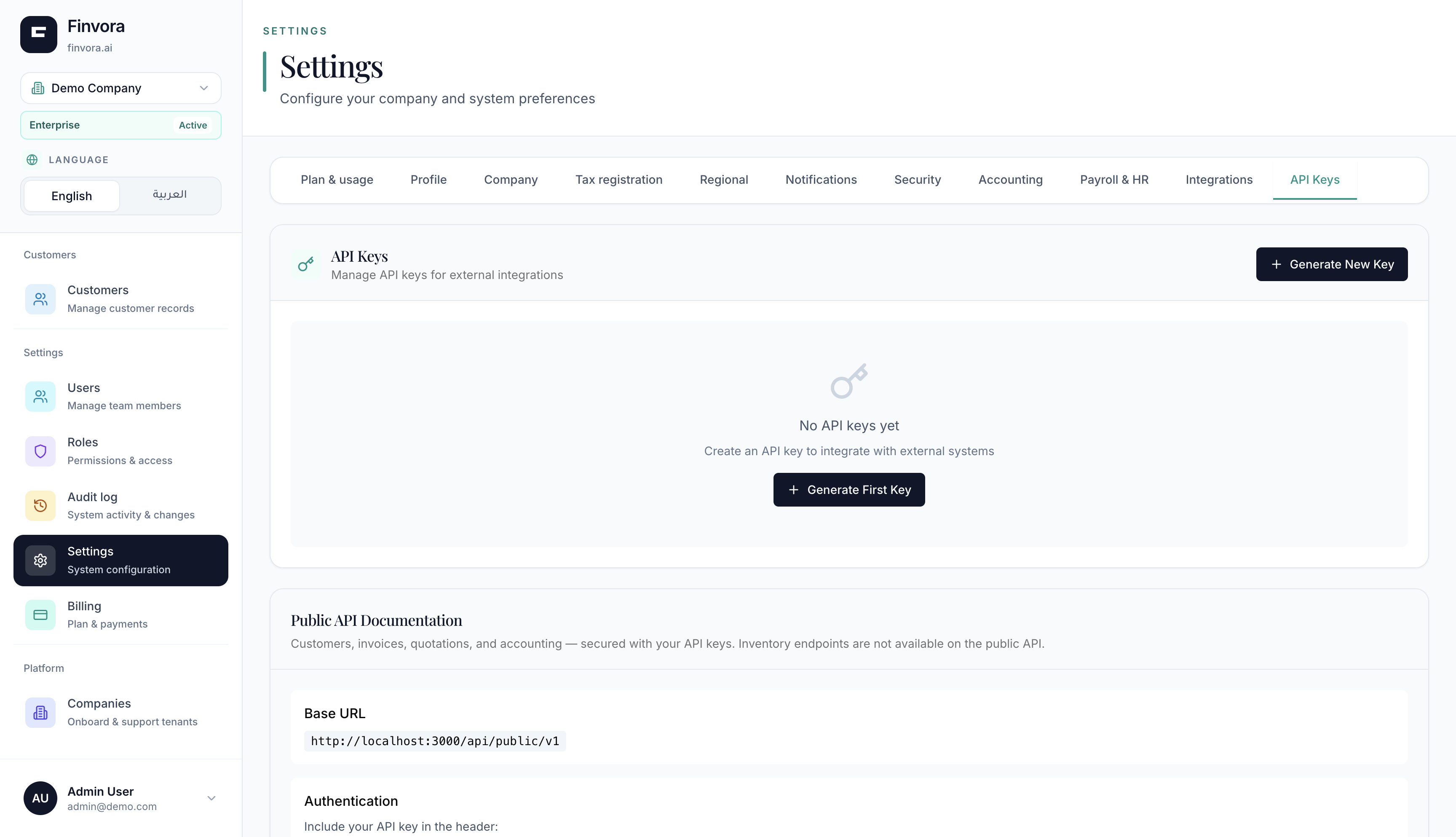 1234
Figure 1 — Finvora ERP: Navigate to Settings and the API Keys management tab
Screen Elements
Open Settings from the left-hand navigation panel to access organization preferences.
Select the API Keys tab in the top settings bar to manage external system integrations.
Click '+ Generate New Key' to open the API credential generation dialog.
Review your Finvora instance public endpoint URL at the bottom of the page.
Step 1.2: Name the API Key
In the modal, provide a descriptive key name (such as Bizaldo) so transactions created by this key are clearly identifiable on General Ledger audit trails, then click Generate Key.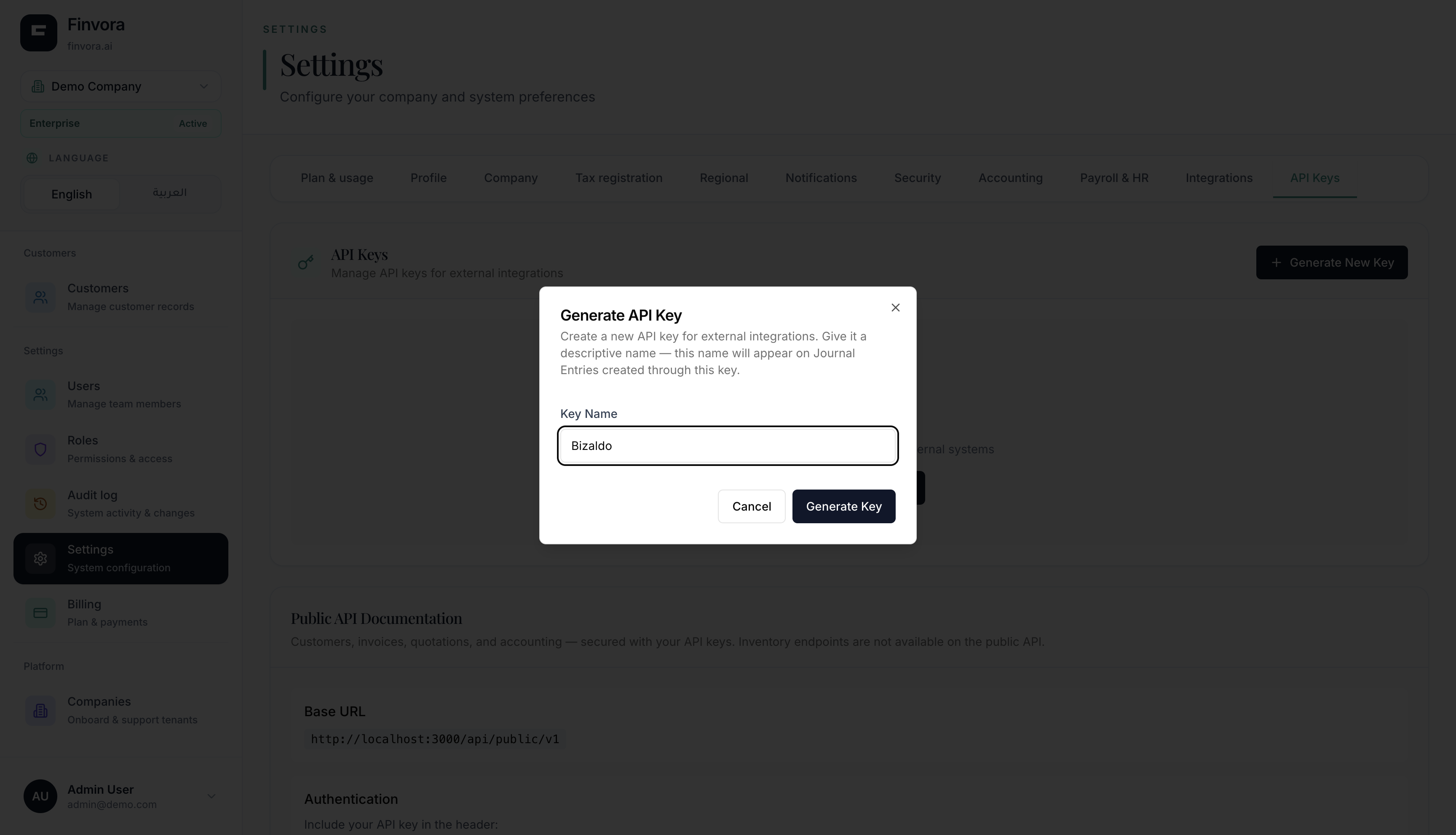 12
Figure 2 — Finvora ERP: Enter a descriptive key name for the Bizaldo integration
Screen Elements
Enter a descriptive identifier (e.g., 'Bizaldo') that will appear on audit logs and journal entries.
Click 'Generate Key' to provision the cryptographic API secret.
Step 1.3: Copy Secret Key & Endpoint
Immediately copy the displayed API key (`ak_...`). For security, Finvora will never display this secret token again. Also note your organization's Public API Base URL.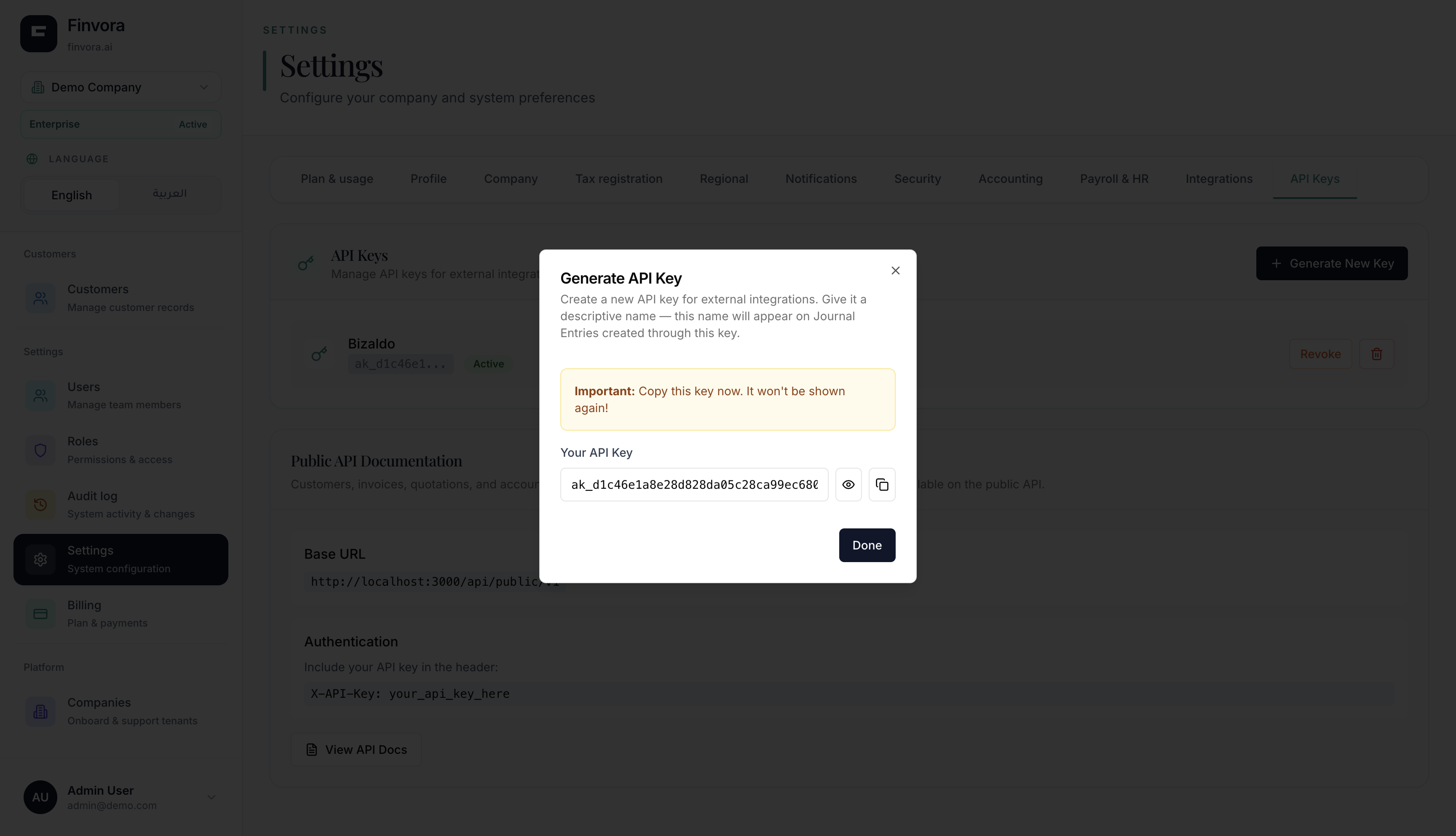 123
Figure 3 — Finvora ERP: Copy your generated secret API key and note public endpoint URL
Screen Elements
Copy the generated API key immediately using the copy button. It is only shown once.
Click 'Done' once you have securely copied the API key.
Note your organization's API Base URL for entry into Bizaldo Admin.
[!IMPORTANT]
Store your Finvora API key securely. In Bizaldo, credentials are encrypted at rest with AES-256.
2. Bizaldo Admin Portal Configuration
Connect Bizaldo POS to your Finvora ERP instance by configuring credentials in the Bizaldo Admin dashboard.Step 2.1: Open Company Integrations
In Bizaldo Admin, navigate to Companies, select your company (e.g., Daily Deli Co), and click the Integrations tab. Locate the Finvora Accounting card.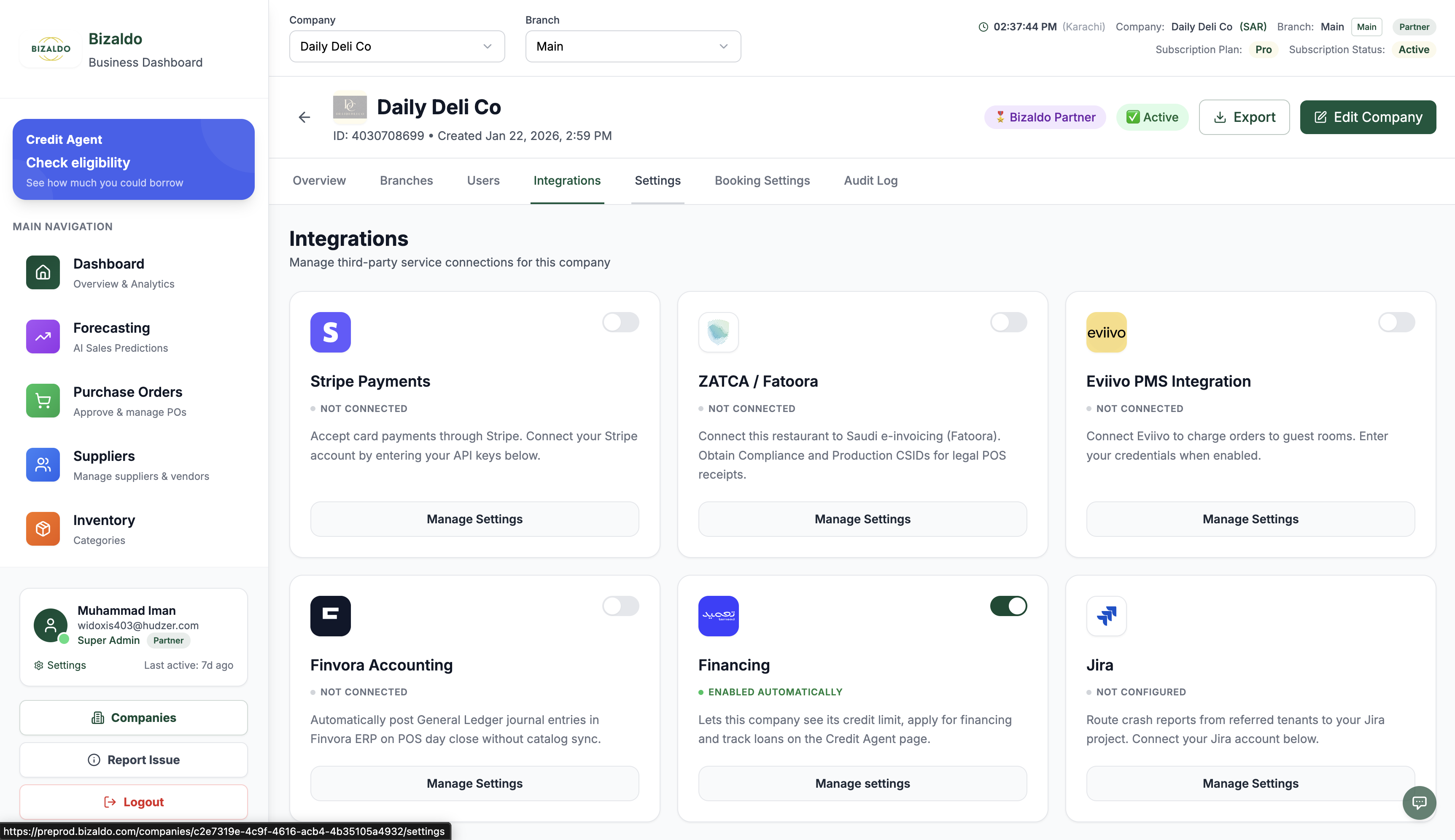 12
Figure 4 — Bizaldo Admin: Company Integrations tab with the Finvora Accounting card
Screen Elements
Navigate to Companies → [Company Name] → Integrations in the Bizaldo Admin dashboard.
Click 'Manage Settings' to open the credential configuration modal.
Step 2.2: Enter Credentials & Test Connection
Click Manage Settings on the Finvora card. In the configuration modal, toggle Enable Finvora Integration to ON, paste your Finvora Base URL and Finvora API Key, and optionally supply your Tenant ID. Click Test Connection to confirm connectivity, then click Save Settings.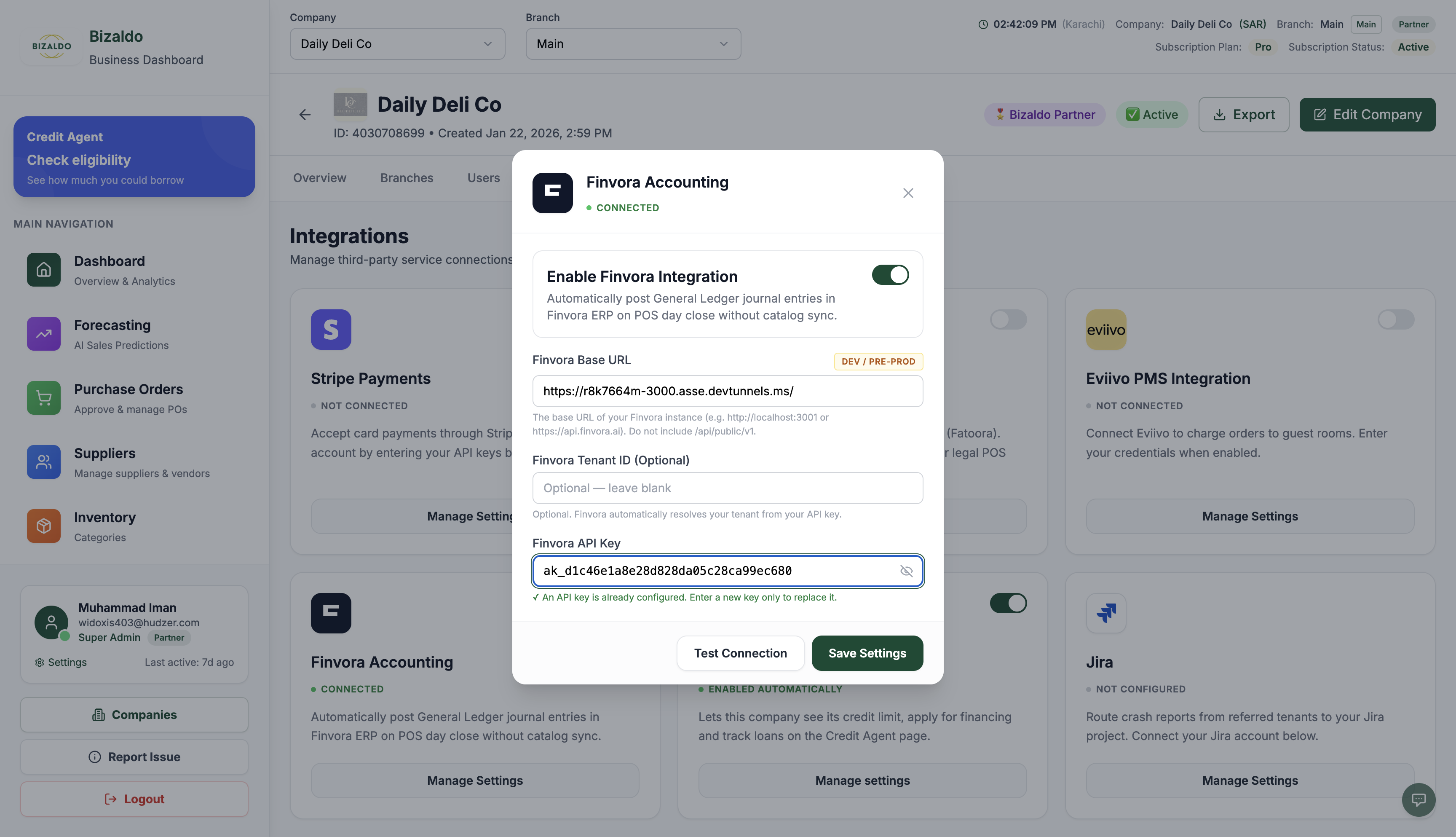 123456
Figure 5 — Bizaldo Admin: Configure Finvora Base URL, API key, and test connectivity
Screen Elements
Toggle the switch to ON to activate Finvora synchronization for this company.
Enter your Finvora instance URL (omitting any trailing /api/public/v1).
Optionally specify your multi-tenant ID, or leave blank to resolve automatically from the API key.
Paste the secret API key generated in Finvora ERP. Stored encrypted with AES-256.
Click to perform a live heartbeat check verifying connectivity and credentials.
Commit settings and activate background Z-Report and BNPL synchronization.
[!NOTE]
If the integration toggle is turned OFF, background synchronization workers gracefully skip execution without throwing system errors.
3. POS Tablet Daily Operations & Sales
Cashiers process transactions on the POS tablet normally. Every payment type—Cash, Card, and Buy Now Pay Later (BNPL)—is captured and prepared for automated General Ledger accounting.Step 3.1: Start Day & Opening Cash Float
Before ringing up sales, the cashier opens the register session for the day.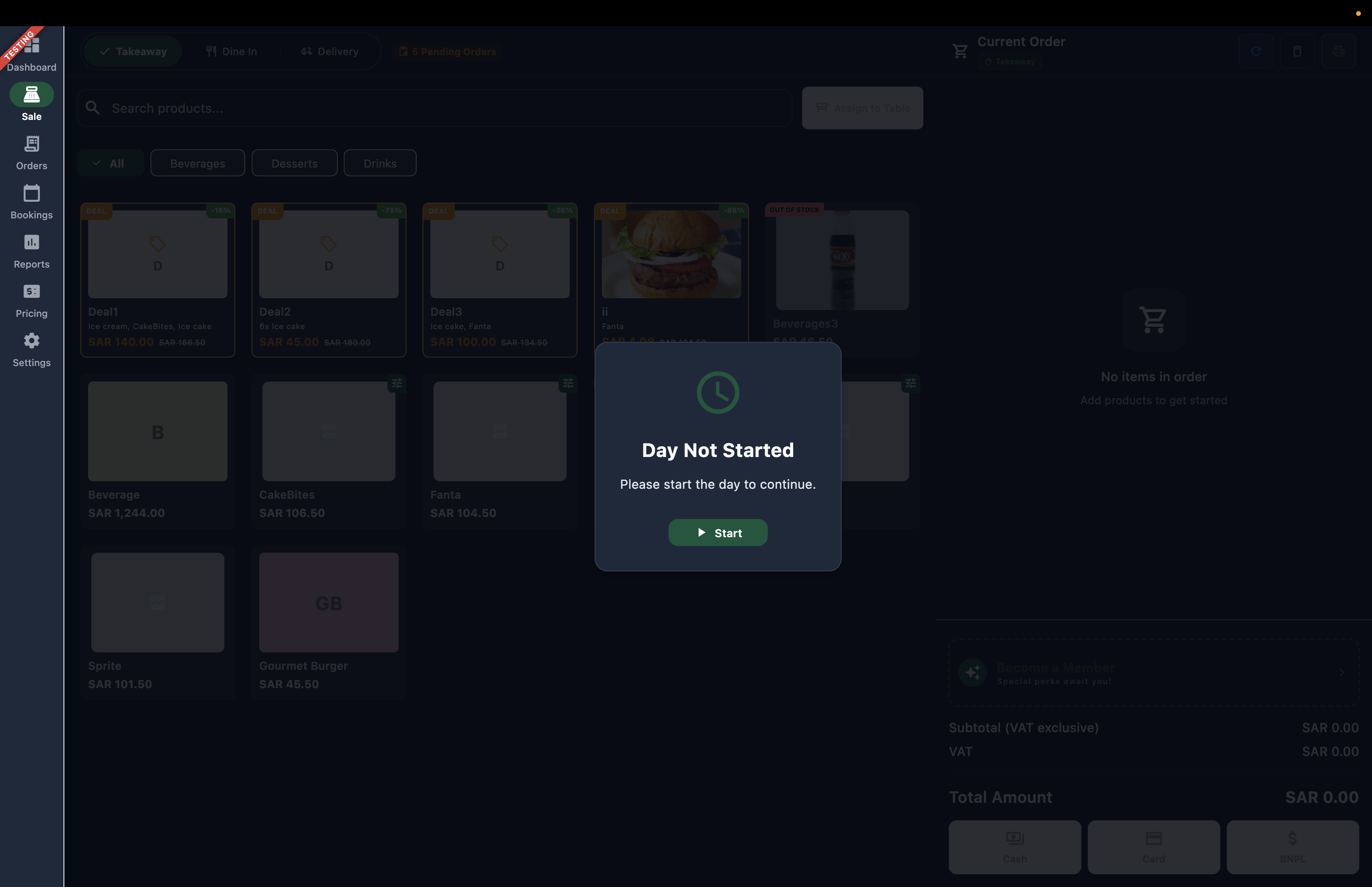 1
Figure 6 — POS Tablet: Start day prompt before beginning daily register operations
Screen Elements
Tap 'Start' to open the cash float entry dialog.
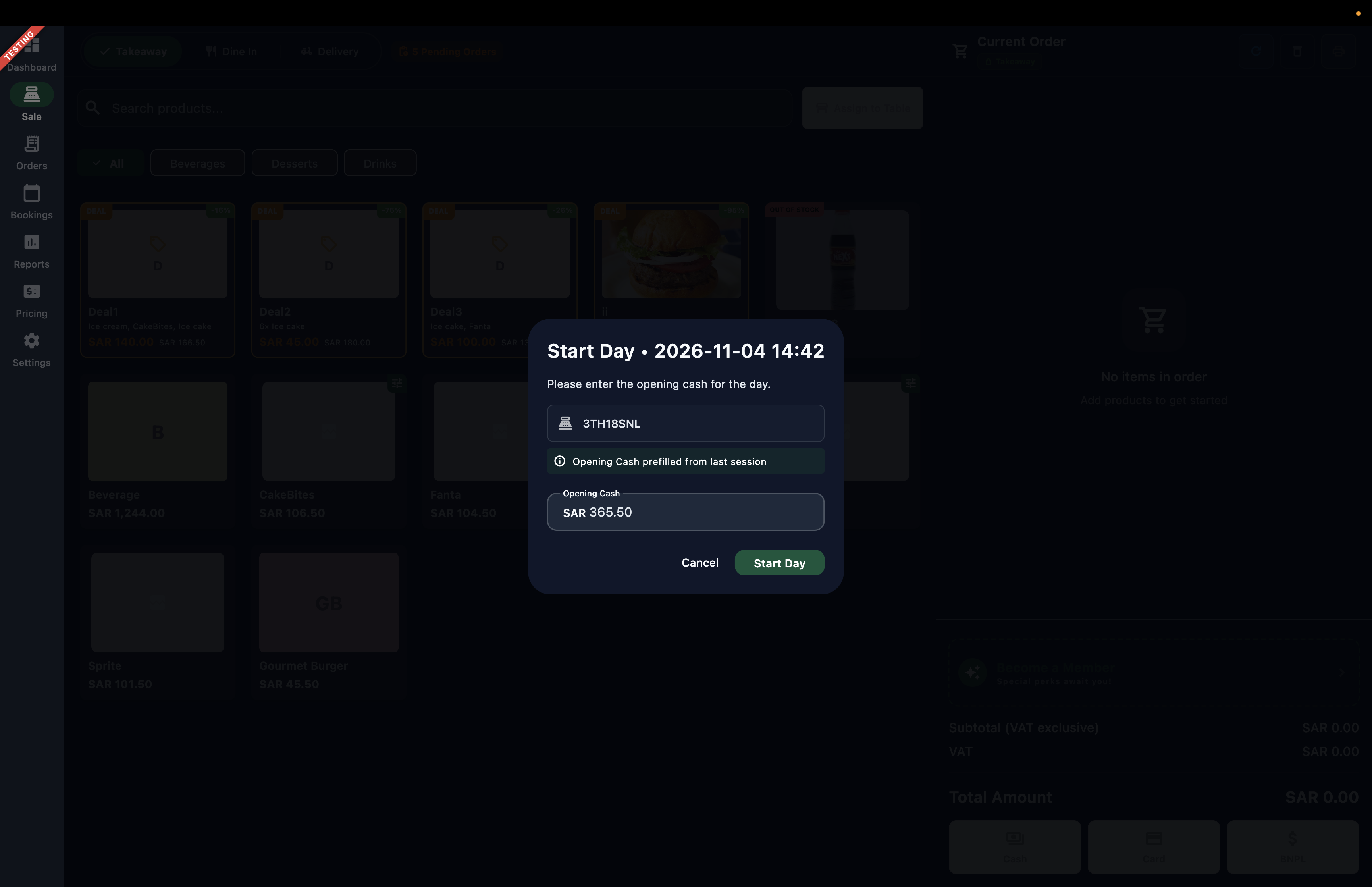 12
Figure 7 — POS Tablet: Specify opening cash drawer float for register baseline
Screen Elements
Enter physical cash in the drawer (e.g., SAR 365.50) to establish the cash baseline.
Tap 'Start Day' to unlock the catalog and begin shift trading.
Step 3.2: Sales Cart & Multi-Payment Processing
Add items to the cart and choose from Cash, Card, or Customer Credit (BNPL) payment methods.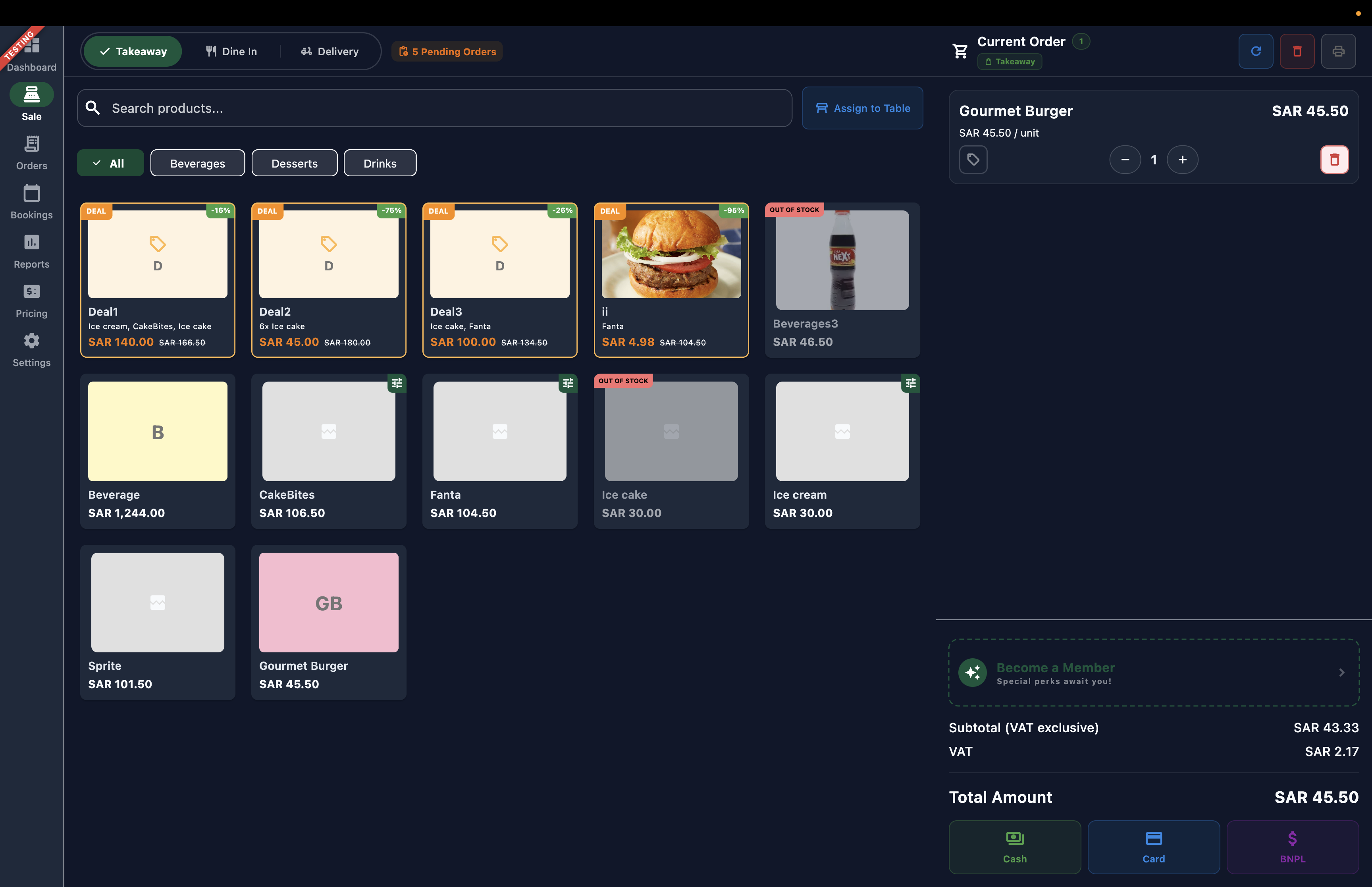 1
Figure 8 — POS Tablet: Itemized cart with Cash, Card (Order 1), and BNPL payment methods
Screen Elements
Active cart (Gourmet Burger, SAR 45.50 total including VAT) ready for checkout.
Card Order Processing
When paying by Card (such as Order 2, Sprite for SAR 101.50), selecting Card presents the Card payment confirmation modal.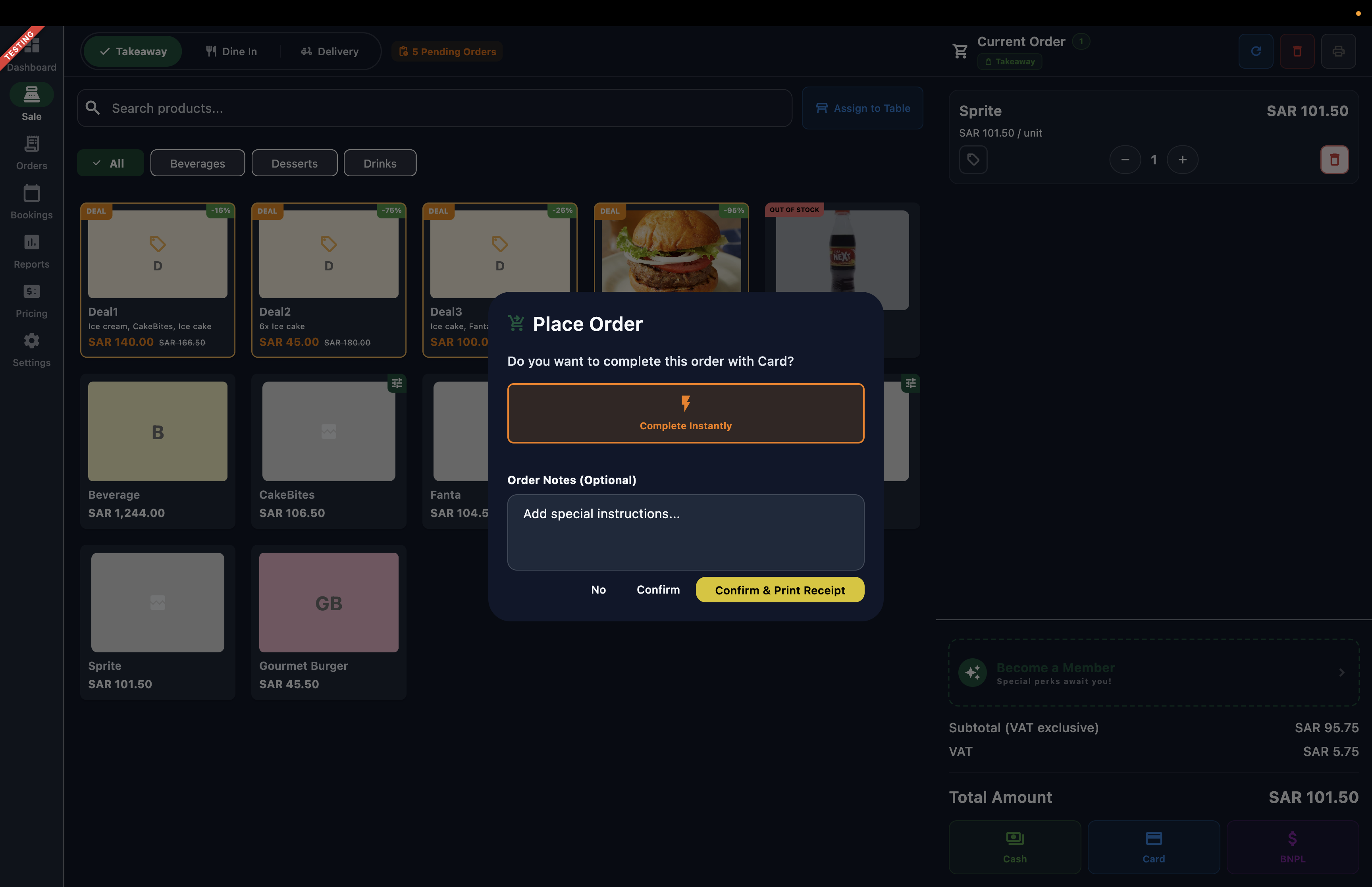 123
Figure 10 — POS Tablet: Card payment confirmation modal for electronic settlement
Screen Elements
Itemized order summary (e.g., Sprite SAR 101.50) processed through electronic card.
Confirmation dialog: 'Do you want to complete this order with Card?'.
Confirms the transaction.
Cash Order Processing
Selecting Cash opens the cash confirmation modal with options to complete instantly or confirm and print receipt.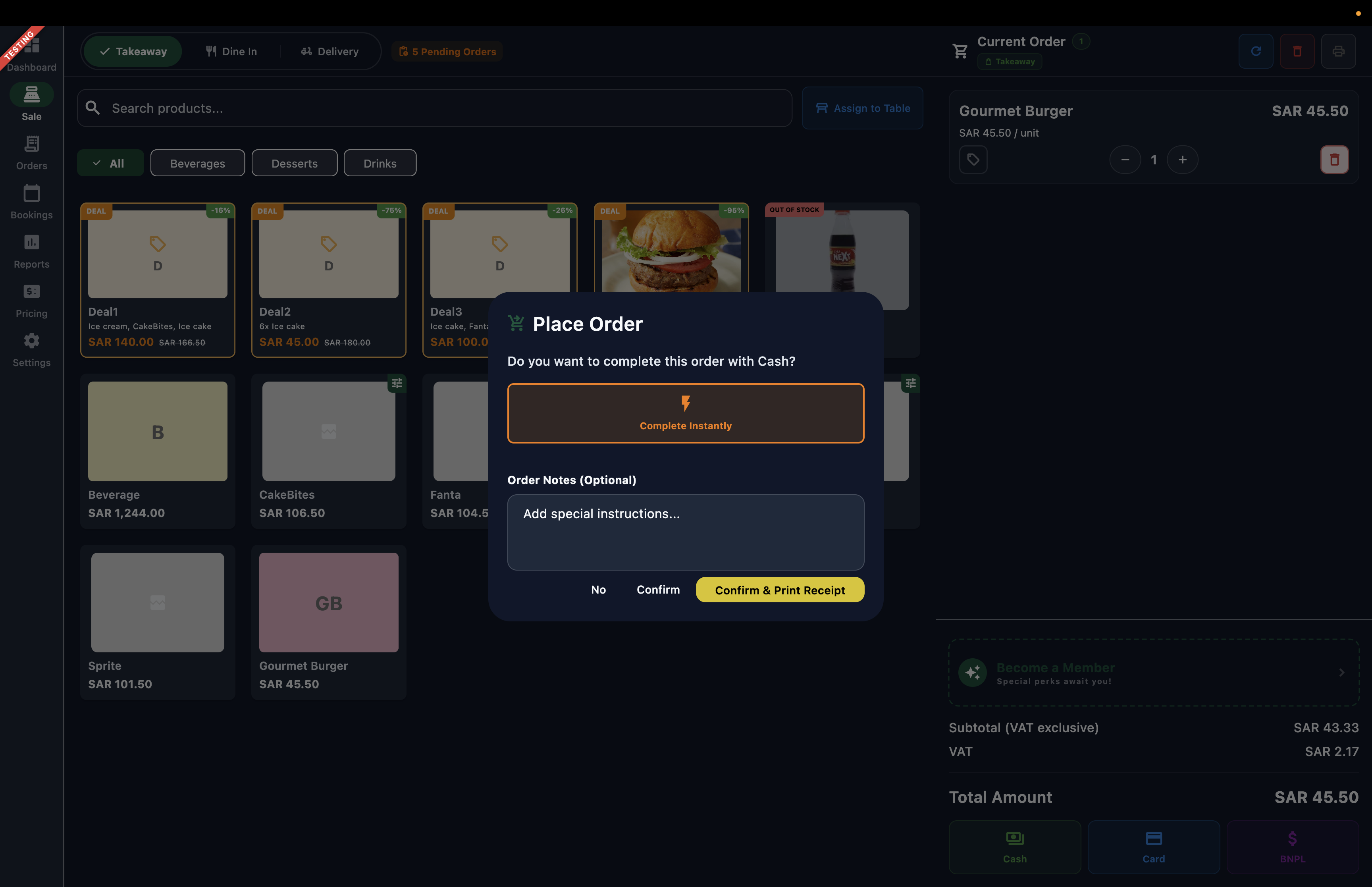 123
Figure 9 — POS Tablet: Cash payment completion dialog with receipt options
Screen Elements
Prompts cashier: 'Do you want to complete this order with Cash?'.
Instantly commits the cash order without printing.
Finalizes payment, records cash intake, and prints customer tax receipt.
Customer Credit (BNPL) Order Processing
For credit sales (Order 3), selecting BNPL prompts the cashier to link a customer account (e.g., `customer-test`), record any partial down payment (e.g., `SAR 10.00` via Card), and track the remaining `SAR 35.50` as an Accounts Receivable asset.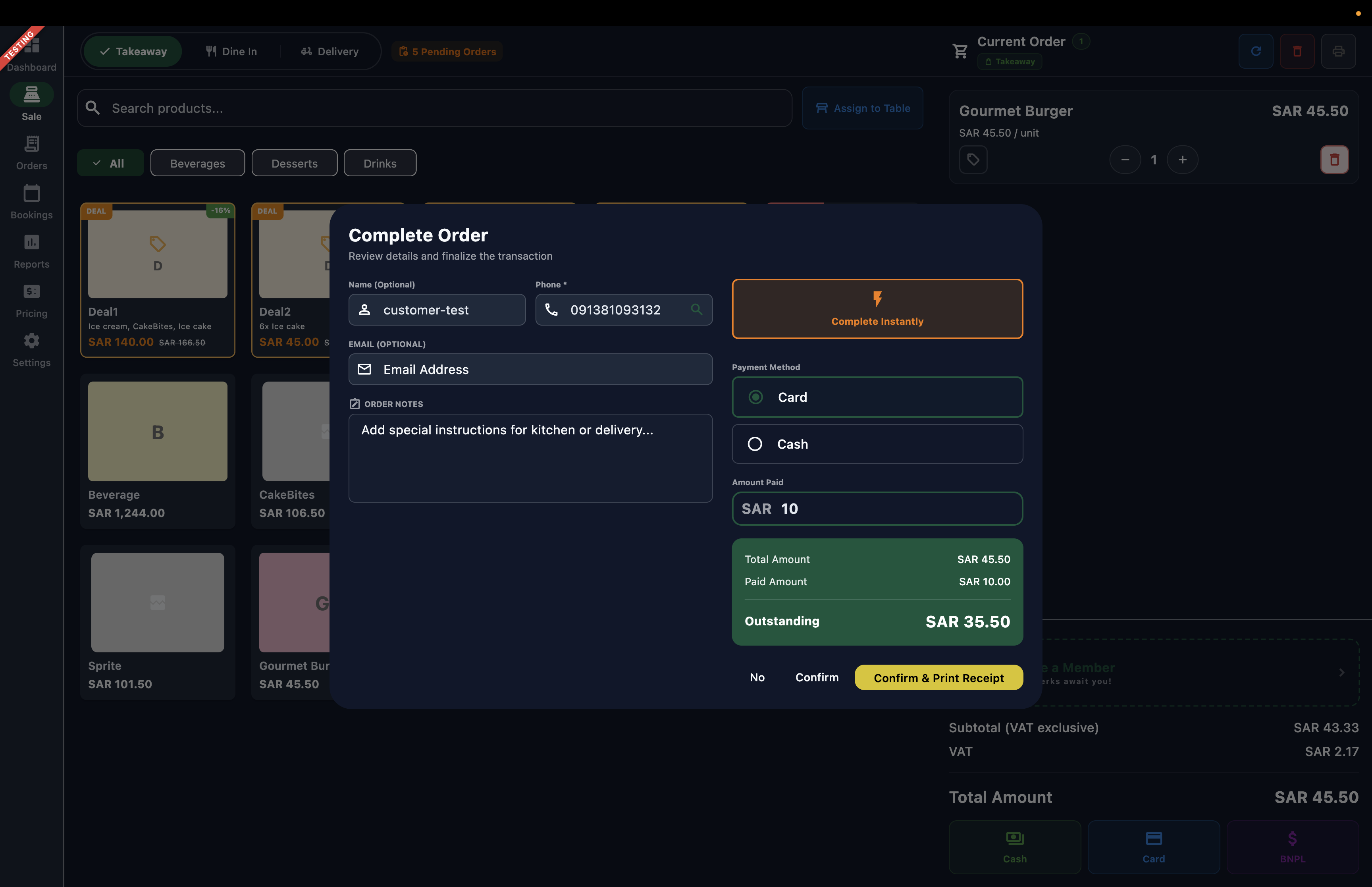 1234
Figure 11 — POS Tablet: Complete Order with Customer Credit (BNPL) and partial down payment
Screen Elements
Enter or select the registered customer account (e.g., customer-test, 091381093132) to link the order.
Click Complete Instantly to finalize the checkout without printing.
Select the payment method (Card or Cash) for the upfront down payment.
Click Confirm to finalize the order and commit any unpaid balance into Customer Receivables.
Step 3.3: Order History & Shift Audit
The POS Orders screen displays all completed shift transactions with status badges: `[Synced] [Completed]` for Cash and Card, and `[Synced] [BNPL] [Completed]` for credit orders. Tap any order to navigate to its detail screen.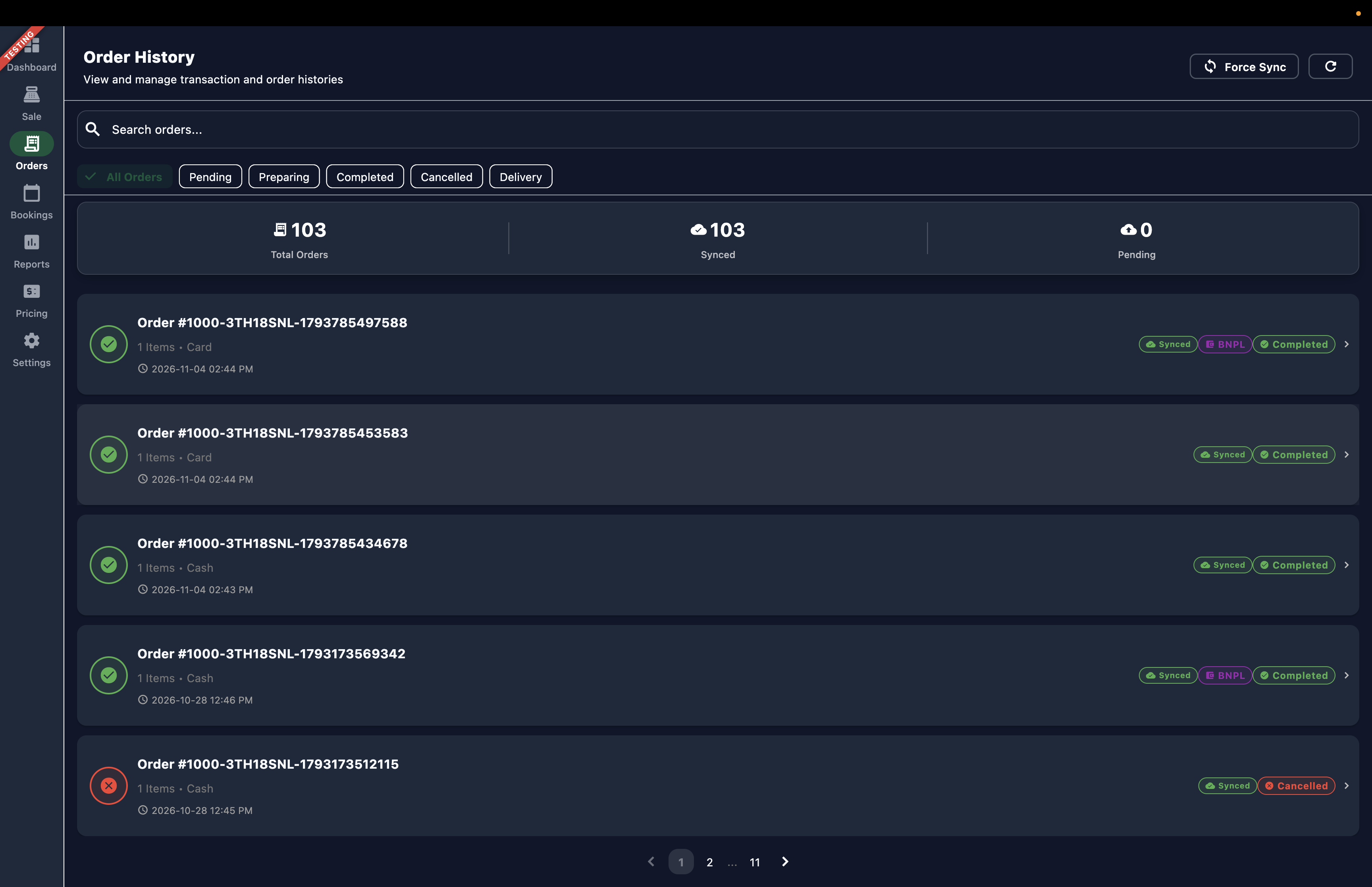 1
Figure 12 — POS Tablet: Order History displaying Cash, Card, and BNPL completed orders
Screen Elements
Select an order (such as Card Order #...5453583 badged [Synced] [Completed]) to open its detail screen and audit or manage the transaction.
Step 3.4: Single Order Audit View
Tapping any order opens its full itemized breakdown, tax audit, and payment confirmation details, where you can also cancel the order.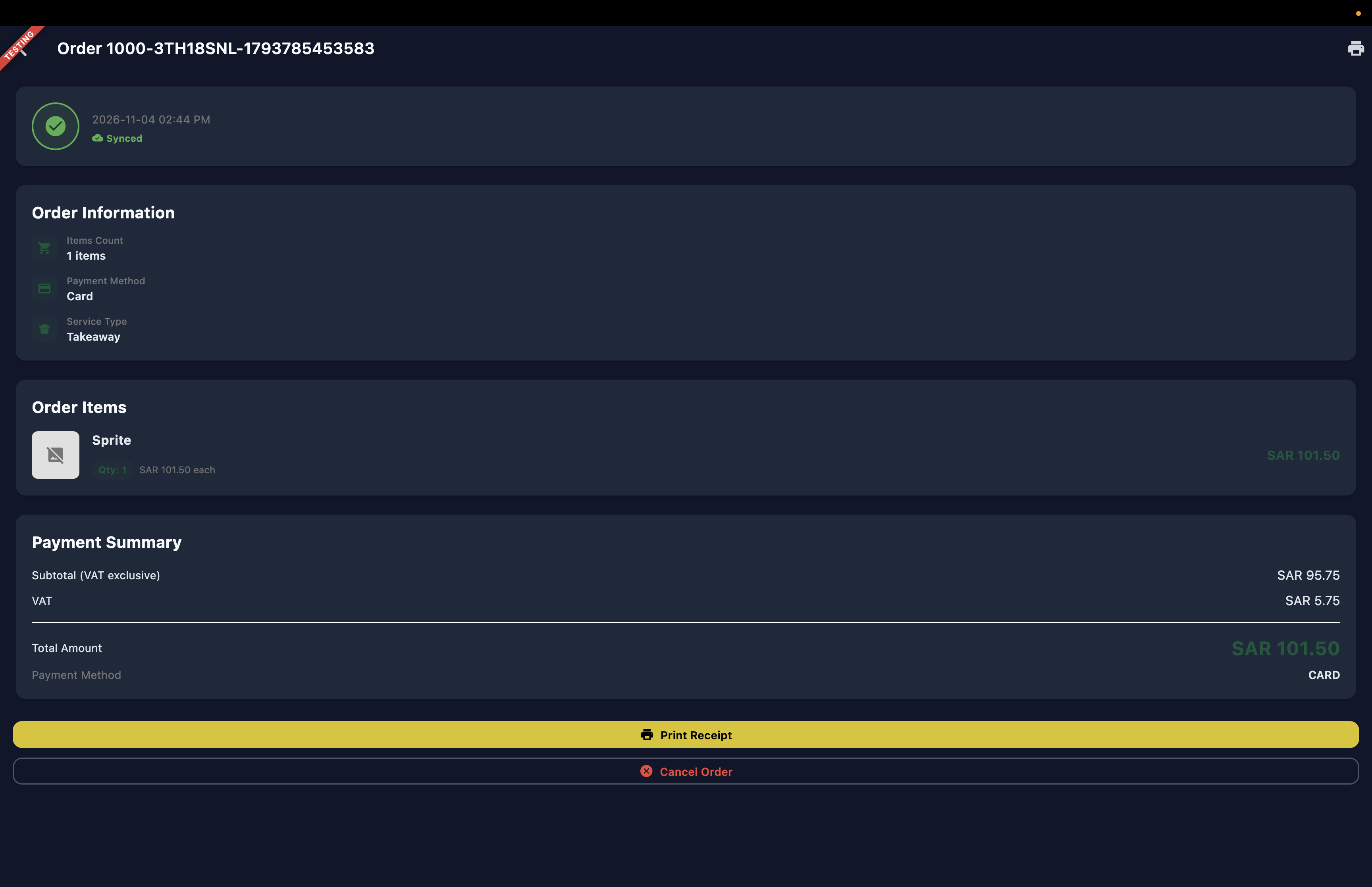 1
Figure 13 — POS Tablet: Single order detail breakdown with payment method and VAT summary
Screen Elements
Review the financial breakdown (Subtotal SAR 95.75, VAT SAR 5.75, Total SAR 101.50) and tap Cancel Order to cancel this order directly from the detail screen.
4. Shift Closure & Automated Z-Report Generation
At the end of trading, cashiers execute the Close Day procedure to seal the financial shift.Step 4.1: Prepare to Close & Provisional Report
In Settings → Close Day, tapping Generate Provisional Report immediately blocks incoming orders and calculates preliminary revenue, tax, and cash totals.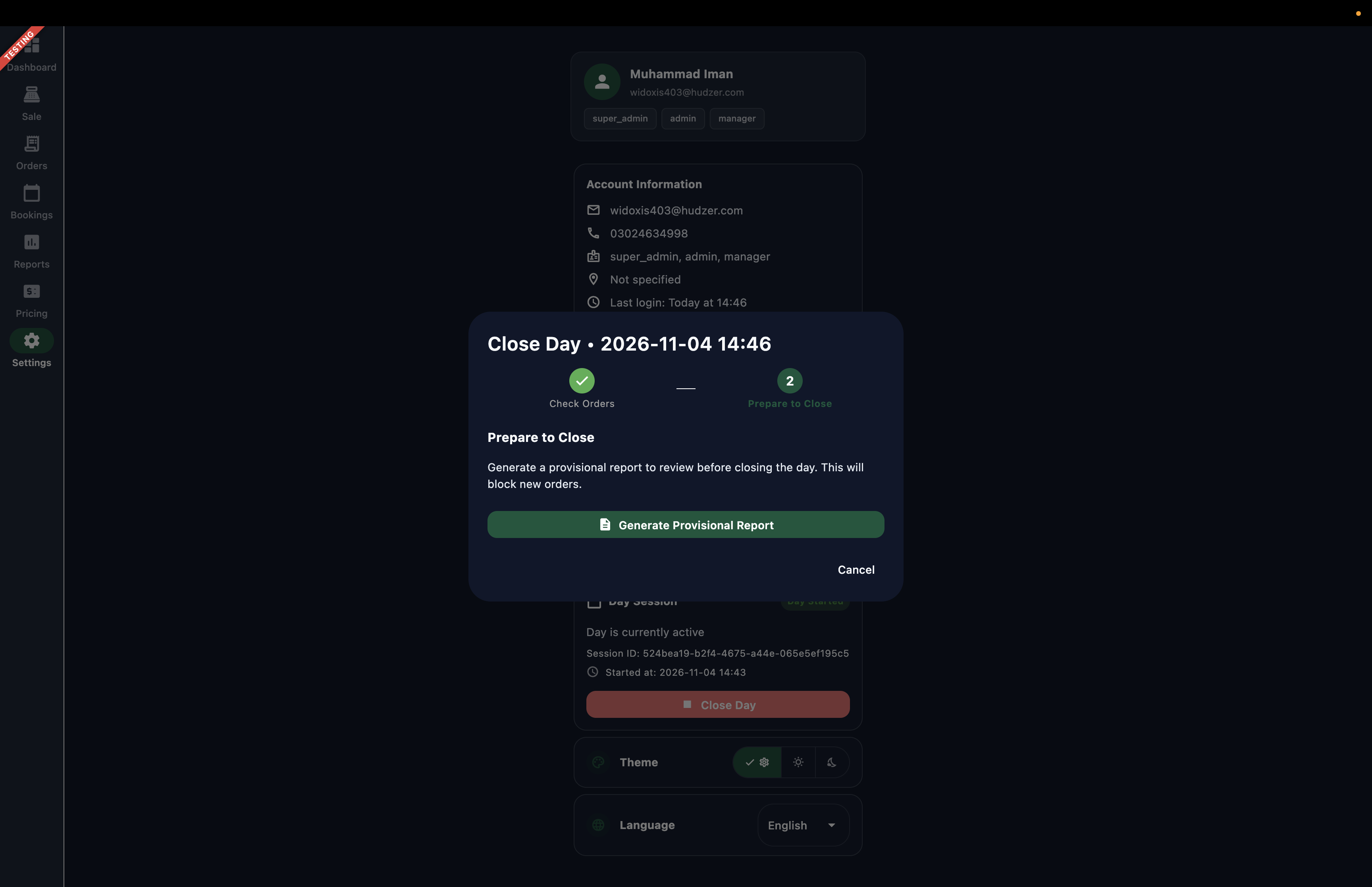 1
Figure 14 — POS Tablet: Prepare to close shift and generate provisional reconciliation report
Screen Elements
Tap to lock incoming sales orders and generate preliminary audit totals.
Step 4.2: Finalize Shift Closure
Cashiers review provisional totals, verify physical cash drawers, and tap Close Day. This seals the session, generates immutable Z-Report record `ZR-000044`, and triggers asynchronous Finvora General Ledger posting.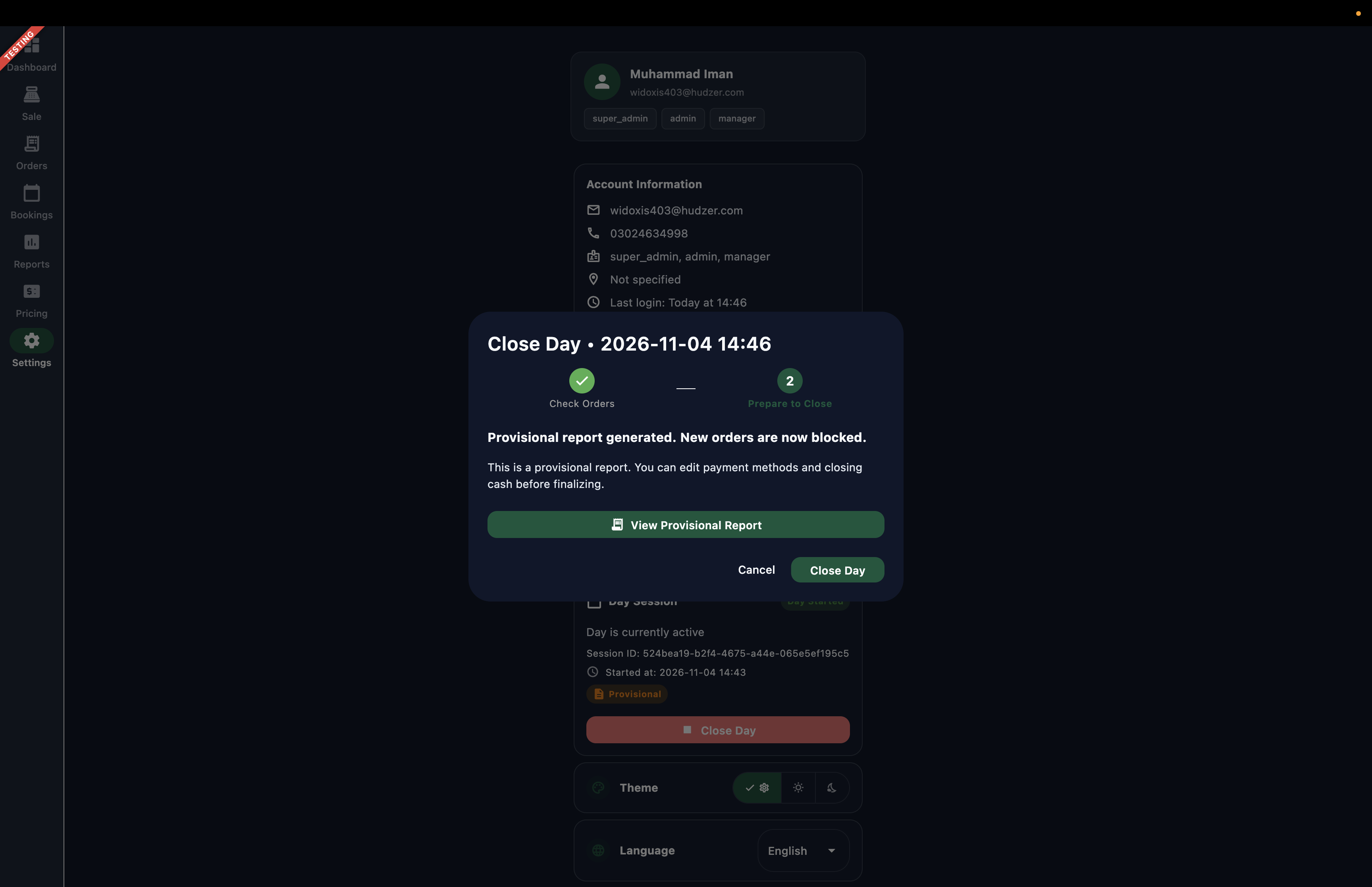 1
Figure 15 — POS Tablet: Review provisional report and seal financial shift with Close Day
Screen Elements
Click Close Day button to close the day and generate the journal entries associated for orders done throughout the day.
5. Bizaldo Admin POS Reports & Z-Report Audit
Auditors and finance managers track shift reconciliations in Bizaldo Admin under POS Reports → Z Reports (Sessions).Step 5.1: Z-Reports Session Accounting Table
The Z-Reports table provides immediate visual verification of ERP synchronization for every register session.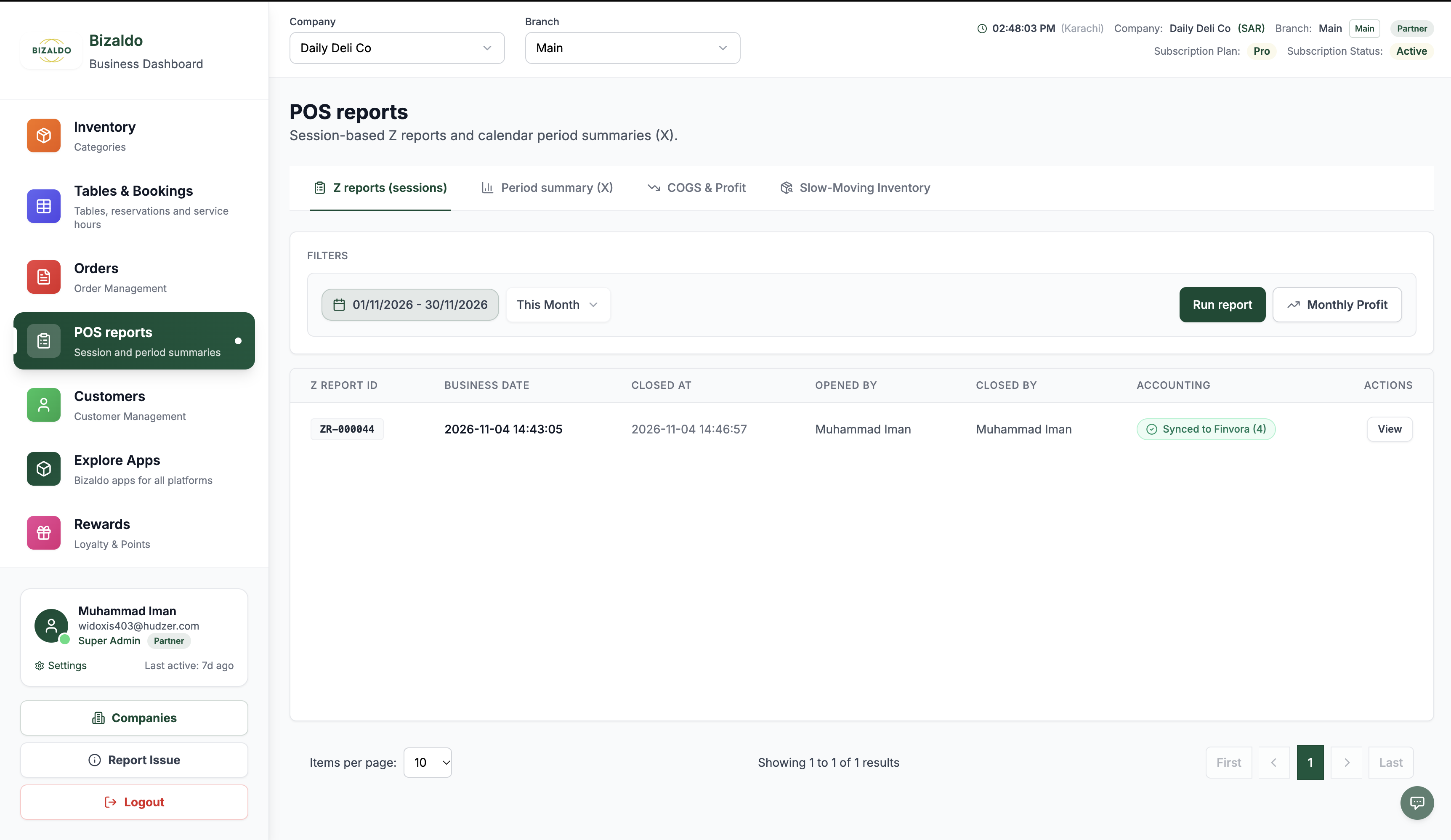 1
Figure 16 — Bizaldo Admin: Z-Reports table displaying Synced to Finvora (4) badge
Screen Elements
Green verification badge indicating all 4 accounting journal vouchers posted successfully.
Step 5.2: Z-Report Detail Audit Drawer
Clicking View opens the comprehensive Z-Report detail panel displaying financial totals and linked Finvora journal vouchers.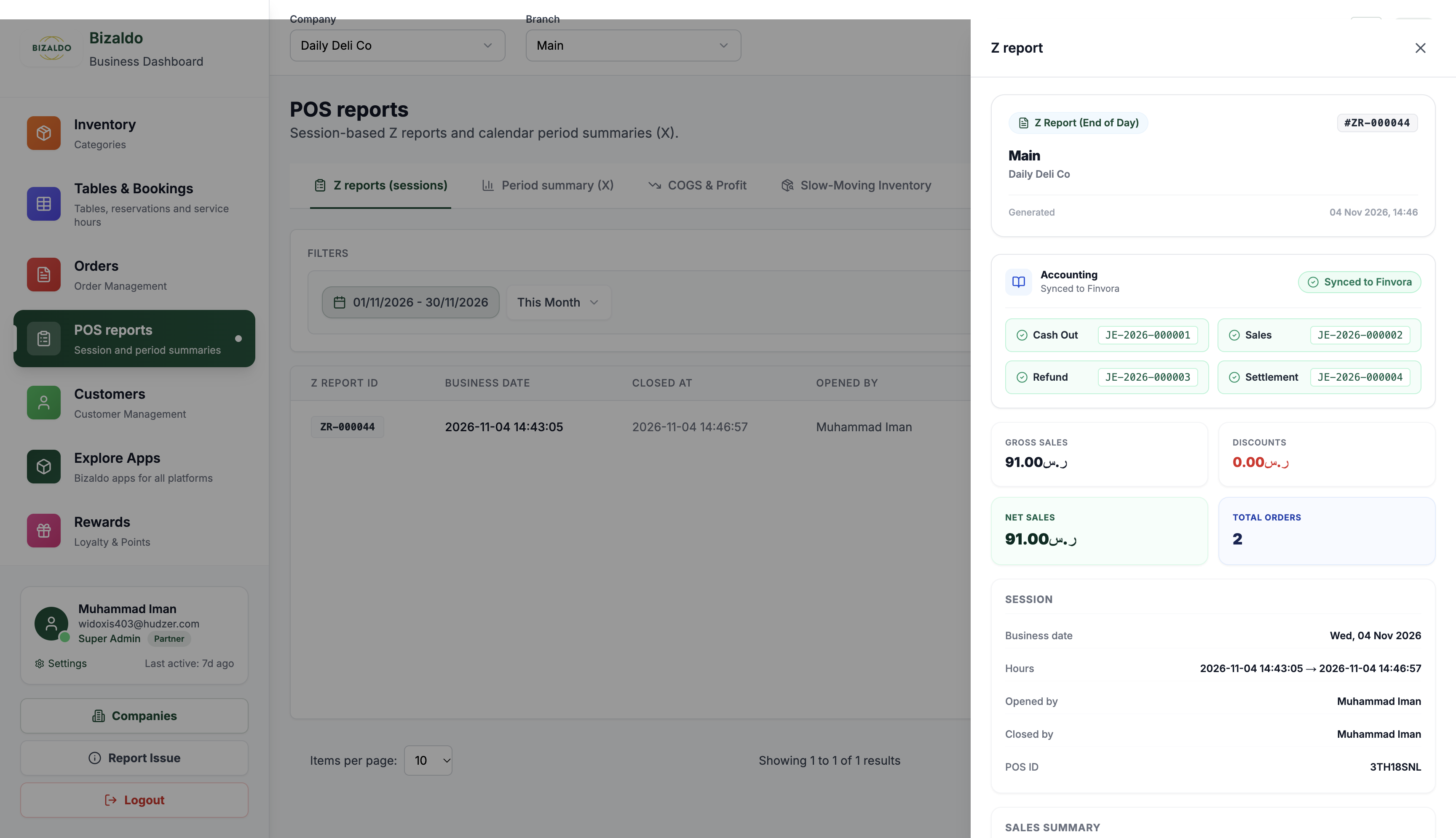 12
Figure 17 — Bizaldo Admin: Z-Report detail drawer with 4 linked Finvora journal vouchers
Screen Elements
Immutable register report identification code (#ZR-000044).
Four direct vouchers: Cash Out (JE-...01), Sales (JE-...02), Refund (JE-...03), Settlement (JE-...04).
Automated Journal Vouchers Created for Z-Report:
- Register Cash Reduction (Cash Out: JE-2026-000001): Records drawer drops and cash transfers to safe.
- Daily Sales & Revenue (Sales: JE-2026-000002): Debits Cash and Bank; credits Sales Revenue and VAT Output.
- Customer Returns & Refunds (Refund: JE-2026-000003): Accounts for item returns and reverse taxes.
- Card Batch Settlement (Settlement: JE-2026-000004): Reconciles card terminal batch clearing to merchant bank account.
6. Finvora ERP General Ledger Verification (Z-Reports)
In Finvora ERP under Accounting → Journal Entries, all four journal vouchers from session `ZR-000044` are immediately visible in Posted status with exact debit-credit balance.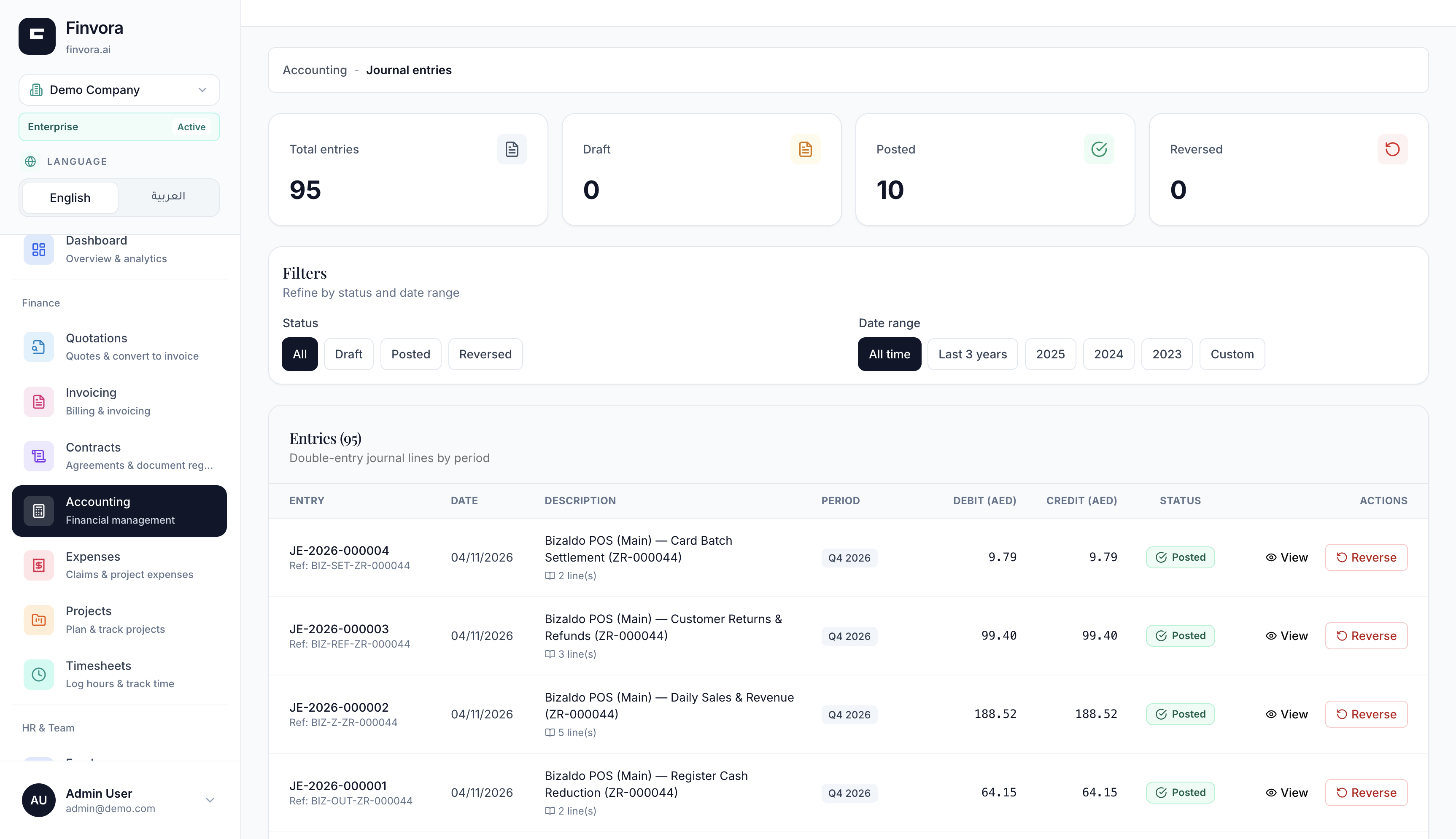 1234
Figure 18 — Finvora ERP: All four posted journal vouchers from Bizaldo Z-Report ZR-000044
Screen Elements
Four vouchers with BIZ external references for settlement, refunds, sales, and cash out.
Summary counters showing 10 total posted journal vouchers in the ledger.
Zero-tolerance balance check: Total Debit equals Total Credit for each voucher line.
Finalized status indicating entries are permanently recorded in the General Ledger.
7. Customer Credit (BNPL) Settlement Synchronization
When customers repay their Buy Now Pay Later balances in Bizaldo Admin, each payment is automatically posted as a balanced settlement journal in Finvora ERP.Step 7.1: Customers Directory
In Bizaldo Admin, navigate to Customers and find the customer card (e.g., `customer-test`). Click View to open their profile.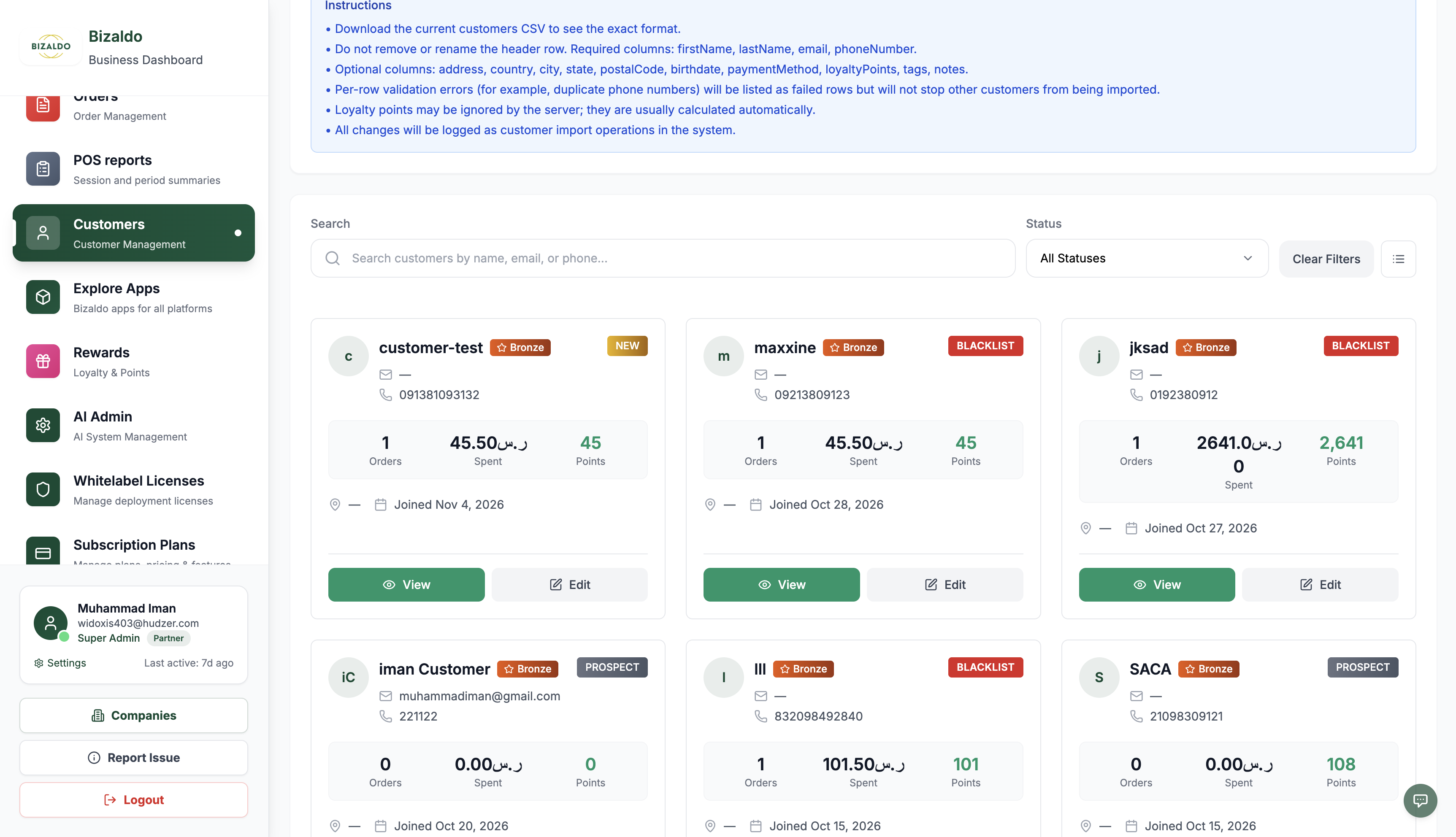 12
Figure 19 — Bizaldo Admin: Customers directory showing customer-test profile card
Screen Elements
Customer card for customer-test (Phone: 091381093132, Total Spent: SAR 45.50).
Click 'View' to open the customer profile and access the credit ledger.
Step 7.2: Outstanding Balance Ledger
Switch to the Outstanding Balance tab to view unpaid BNPL orders, total debt (`SAR 35.50`), and payment buttons.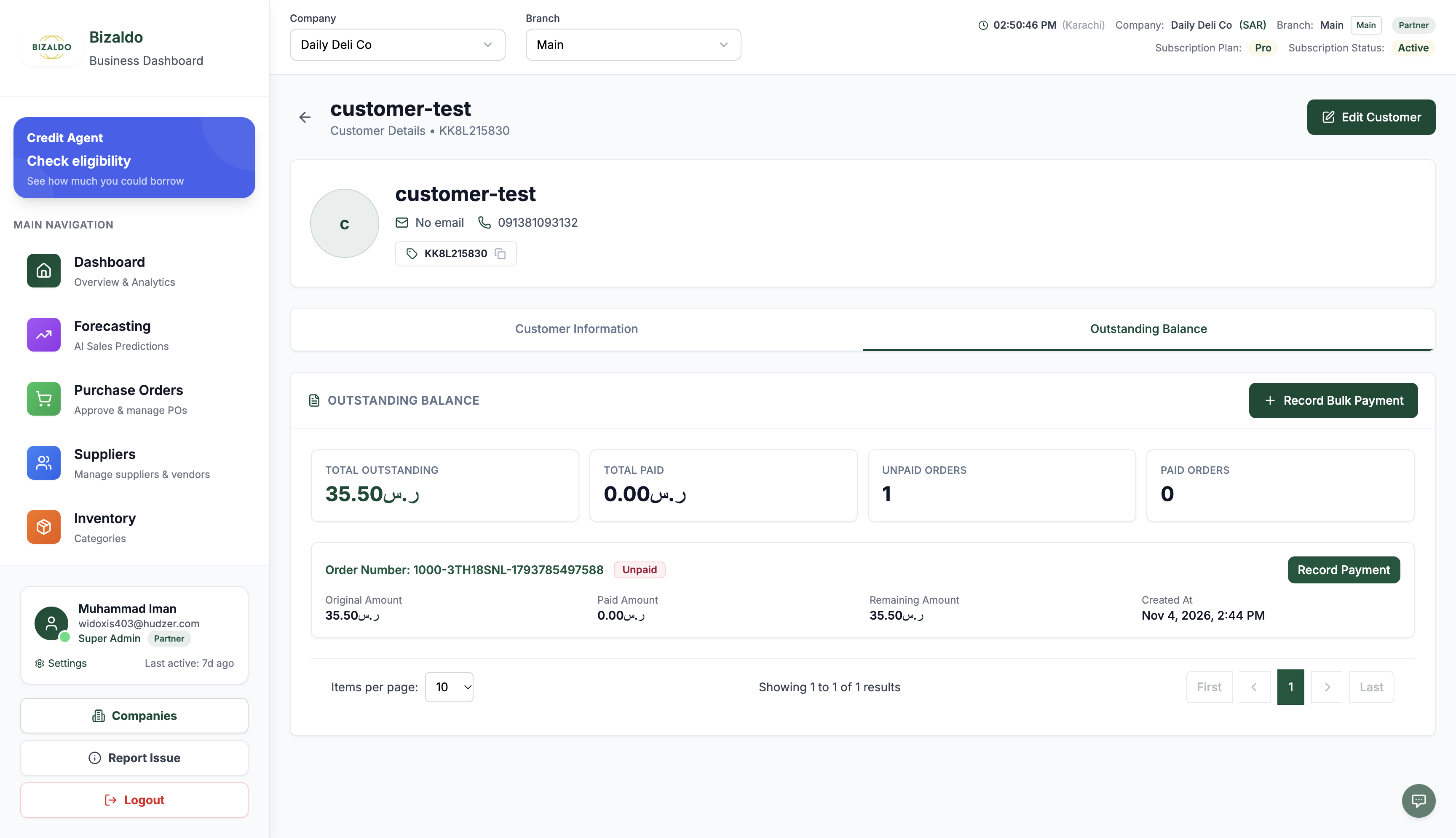 1234
Figure 20 — Bizaldo Admin: Customer Outstanding Balance ledger showing unpaid BNPL order
Screen Elements
Dedicated credit ledger tab for tracking Buy Now Pay Later order balances.
Total Outstanding SAR 35.50, Total Paid SAR 0.00, Unpaid Orders 1.
Order #...5497588 with Original SAR 35.50, Paid SAR 0.00, Remaining SAR 35.50.
Click 'Record Payment' to submit an installment payment.
Step 7.3: Recording Installment Payment
Click Record Payment, enter the repayment amount (e.g., `SAR 20.00`), select the payment method (Bank Transfer), and click Record Payment.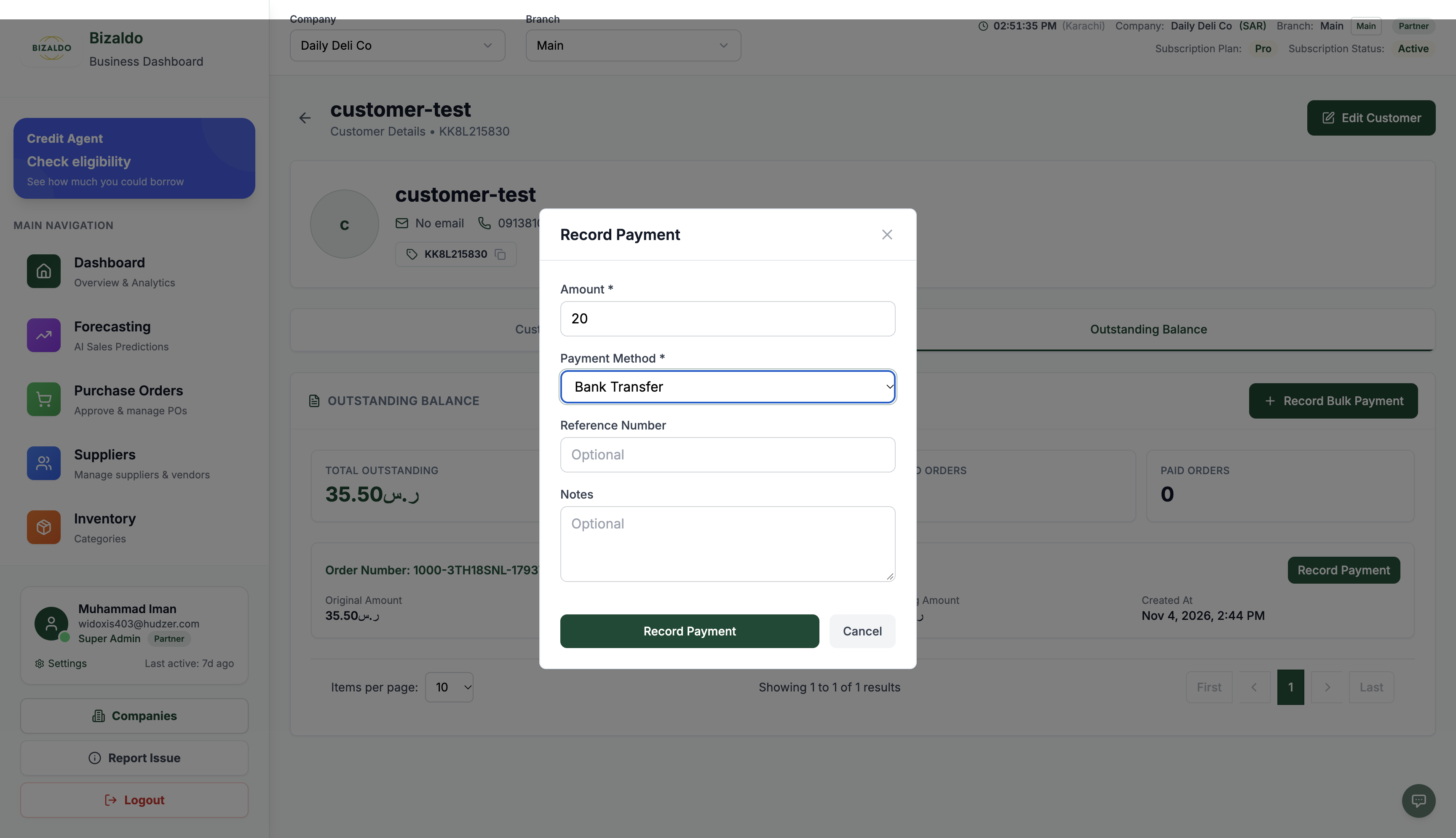 1234
Figure 21 — Bizaldo Admin: Record installment payment of SAR 20.00 via Bank Transfer
Screen Elements
Enter repayment installment amount (e.g., SAR 20.00).
Select Bank Transfer (or Cash) to determine the debit accounting destination.
Optional external bank transaction reference and settlement notes.
Click 'Record Payment' to commit repayment and trigger Finvora settlement journal.
Step 7.4: Updated Balance Ledger & Linked Voucher Tag
The customer's outstanding balance immediately drops to `SAR 15.50`. Under Payment History, the payment record displays the linked Finvora journal voucher: JE-2026-000005.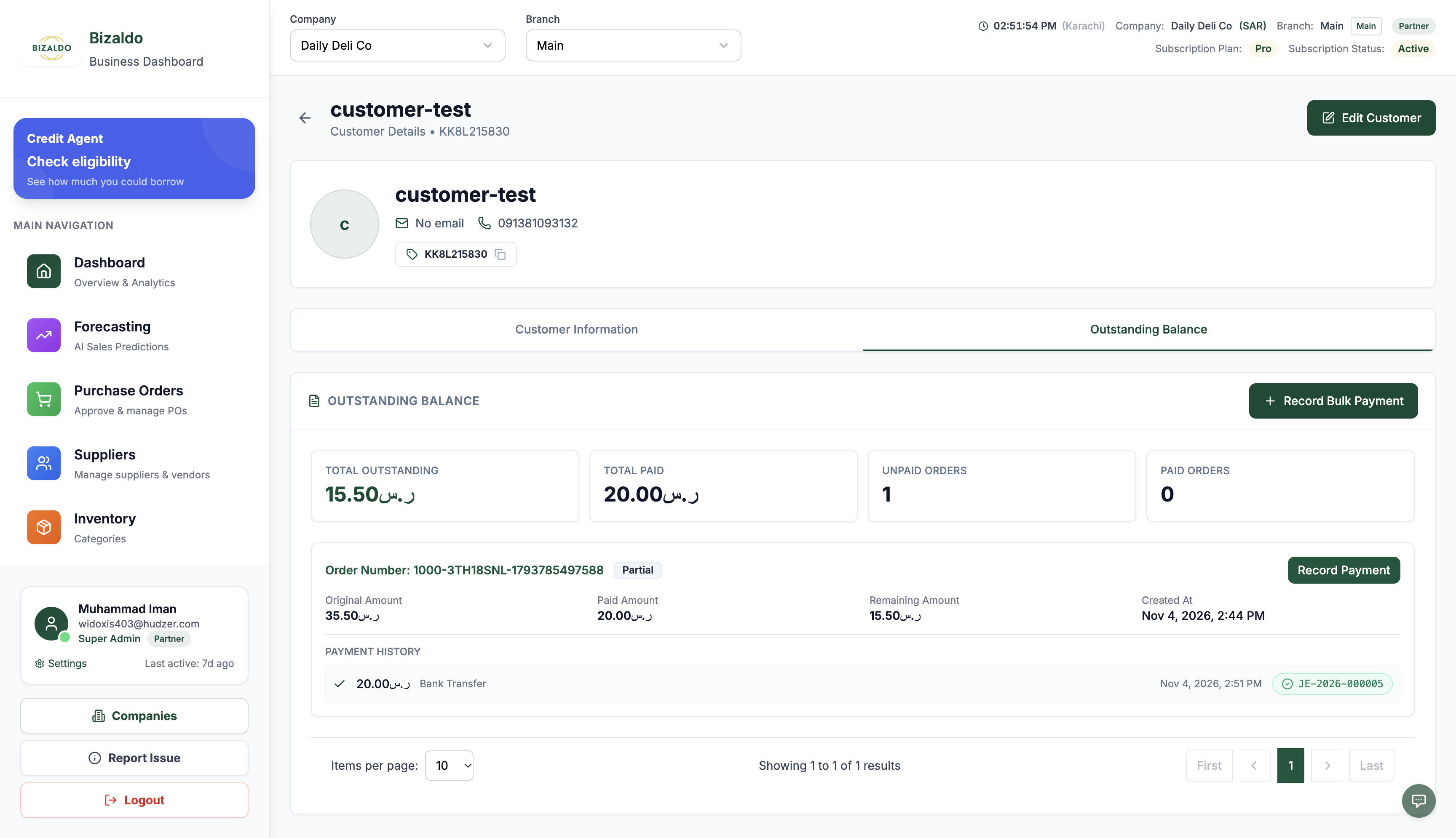 123
Figure 22 — Bizaldo Admin: Outstanding balance reduced with linked Finvora voucher JE-2026-000005
Screen Elements
Total Outstanding drops to SAR 15.50; Total Paid increases to SAR 20.00.
Order badge updates to Partial with Remaining Amount SAR 15.50.
Payment History logs Bank Transfer with green Finvora journal tag: JE-2026-000005.
8. Finvora ERP BNPL Settlement Journal Voucher
Inspect the settlement entry in Finvora ERP under Accounting → Journal Entries → JE-2026-000005.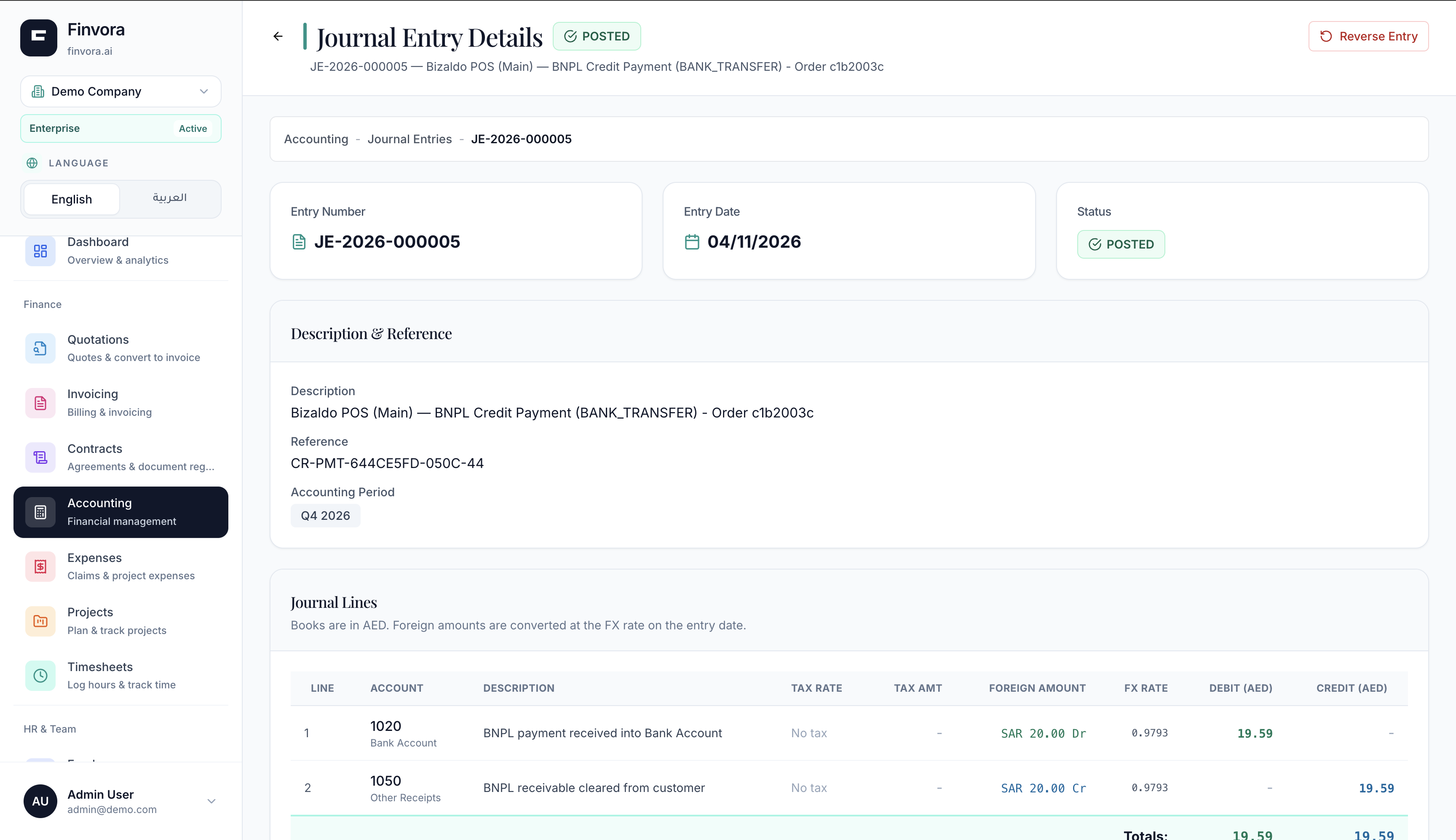 1234
Figure 23 — Finvora ERP: Posted settlement journal voucher JE-2026-000005 with double-entry lines
Screen Elements
Voucher JE-2026-000005 in Posted status for date 04/11/2026.
Narration: Bizaldo POS (Main) — BNPL Credit Payment, Ref: CR-PMT-644CE5FD-050C-44.
Debit: Account 1020 (Bank Account, 19.59 AED) | Credit: Account 1050 (Customer Receivables, 19.59 AED).
Strict verification: Total Debits (19.59 AED) = Total Credits (19.59 AED).
Settlement Accounting Formula:
- Debit: Account 1020 (Bank Account) — 19.59 AED (20.00 SAR converted at daily FX rate)
- Credit: Account 1050 (Customer Receivables) — 19.59 AED (clearing customer credit asset)
9. Standard General Ledger Account Mapping
Bizaldo POS maps transaction totals to standard Finvora Chart of Accounts lines:| Account Code | Account Name | Type | Posting Direction | Description |
|---|---|---|---|---|
| 1010 | Cash on Hand | Asset | Debit (+) | Total physical cash collected during the register shift. |
| 1020 | Bank Card Clearing | Asset | Debit (+) | Credit/debit card payment receipts. |
| 1050 | Customer Receivables (BNPL) | Asset | Debit on Sale / Credit on Repayment | Unpaid BNPL credit orders; cleared upon installment settlement. |
| 2100 | VAT Payable (Output VAT) | Liability | Credit (+) | Output VAT collected on taxable sales. |
| 4000 | Sales Revenue | Revenue | Credit (+) | Net sales revenue excluding tax and promotional discounts. |
10. Fault Tolerance & Security
The integration is engineered with enterprise-grade resilience to ensure business continuity:- Strict Idempotency Guarantees: Every Z-Report sync request carries an immutable external reference formatted as EXT-Z-{zReportId} (or BIZ-Z-{zReportId}). If network interruptions cause repeated requests, Finvora detects the existing entry and returns the registered voucher without creating duplicate journal records.
- Zero-Tolerance Double-Entry Validation: Before committing any journal voucher, Finvora enforces mathematical equality: Total Debits == Total Credits with sub-cent precision (0.01 tolerance). Any unbalanced payload is rejected safely.
- Offline-First POS Operations: POS register operations never depend synchronously on Finvora availability. If internet connectivity is lost or Finvora is undergoing scheduled maintenance, cashiers can continue taking orders and closing days normally. Unsynced reports queue in Bizaldo for one-click retry once connection is restored.
- Multi-Tenant Scoping & Encrypted Keys: API keys are encrypted in Bizaldo using industry-standard AES-256. Finvora scopes every API interaction strictly by tenantId, guaranteeing that no company can ever access or alter another tenant's financial ledger.